

Withholding obligation - online service
The decisions regarding the obligation to withhold on invoices for both social and fiscal debts can easily be consulted via the checkobligationderetenue.be website.
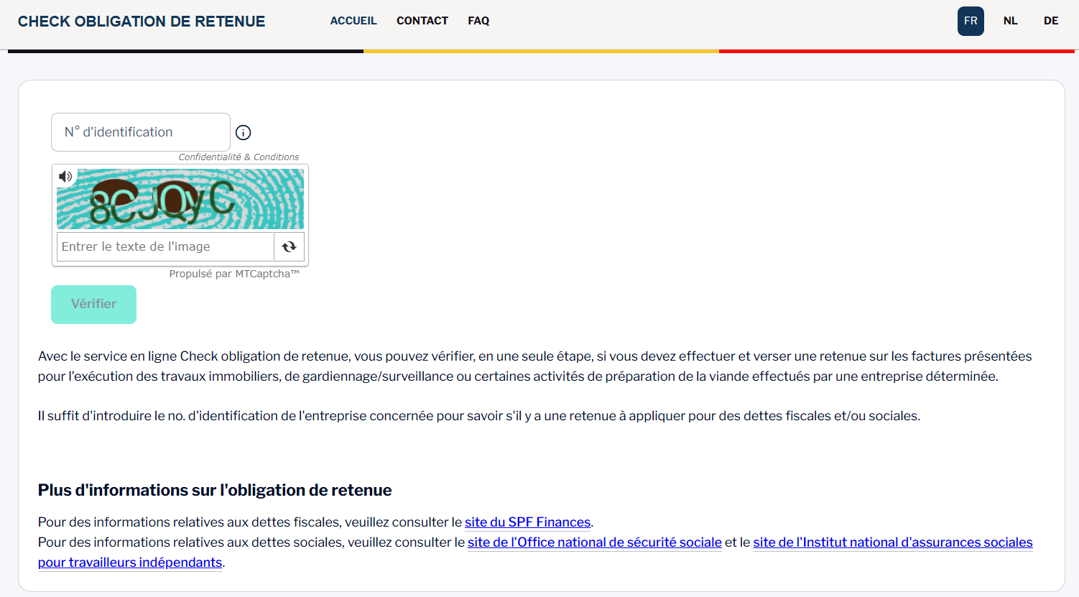
The screenshot above shows the page you will see when visiting the website checkobligationderetenue.be. Enter the enterprise number (‘N° d’identification’) of the contractor or subcontractor for which you wish to consult the aforementioned decisions and press ‘enter’ on your keyboard or click on the button ‘Vérifier’ (meaning ‘check’) to proceed.
It is possible that you also have to complete a CAPTCHA before you can proceed with the consultation. The purpose of this is to prevent inappropriate use of the service. If this is the case for you, enter the text seen in the picture in the text box below (‘Entrer le texte de l’image’).
The result of the consultation displays two separate sections. As you can see in the example below, first the decision concerning the fiscal debts (‘SPF Finances’, meaning ‘FPS Finance’) is shown, followed by the decision concerning the social debts (‘Sécurité Sociale’, meaning ‘Social Security’).
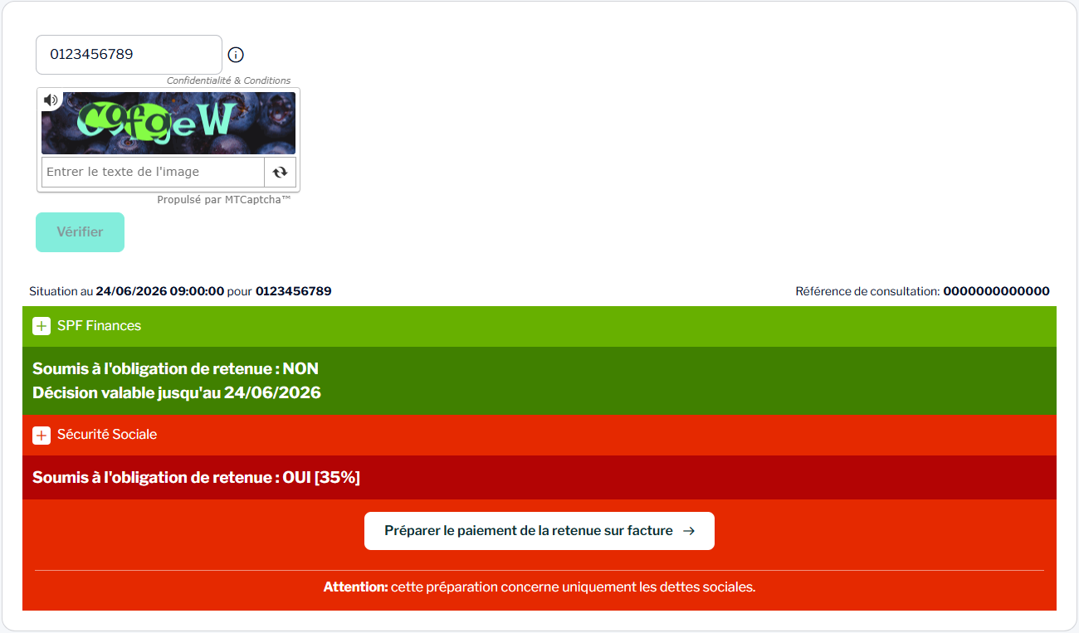
There are three possible outcomes:
- A grey banner along with the text ‘NON’ (no) indicates that the enterprise is not covered by the scope of the relevant legislation, therefore there is no obligation to withhold on invoices. This result is always accompanied by a validity date (‘Décision valable jusqu’au …’) of this decision, which expires with the next monthly update.
- A green banner along with the word ‘NON’ (no) indicates that there is no obligation to withhold on invoices. This result is always accompanied by a validity date (‘Décision valable jusqu’au …’) of this decision, which expires with the next monthly update.
- A red banner along with the word ‘OUI (yes) indicates that there is an obligation to withhold on invoices. The percentage that must be withheld, is also shown. This result is always valid at the time of the consultation. Enterprises with social or fiscal debts can, indeed, settle these at any time or obtain a payment plan that is strictly adhered to.
Depending on the debt situation of the enterprise, the outcome may differ per section.
On the top right a consultation reference number (‘Référence de consultation’) is generated for every specific consultation. This reference number allows us to view this specific consultation at any time in the future, making it easier for us to assist you with any questions or concerns.
If you need more information on the result for FPS Finance, please consult the Companies Witholding Obligation page on the SPF Finances website.
For the results relating to social security, additional information is provided below.
What do I have to do?
In case of a green or grey banner, no further action is needed. You can pay the relevant invoice in full to your (sub)contractor.
In case of a red banner for the social security section, you have to take action. You must withhold the stated percentage of the invoiced amount (excluding VAT) and pay the withheld amount directly to the bank account ‘Retenue Sociale Inhoudingen’ with account number BE76 6790 0001 9295; BIC: GEBABEBB. You can find the explanation on how to do this in the next section.
Firstly, you prepare the withholding on invoices by clicking on the button ‘Préparer le paiement de la retenue sur facture’ (meaning ‘prepare the payment of the withholding on invoice’), which always automatically appears for the social security section in case of a red banner. Follow the indicated instructions to add the specific information of your enterprise and the invoice(s).
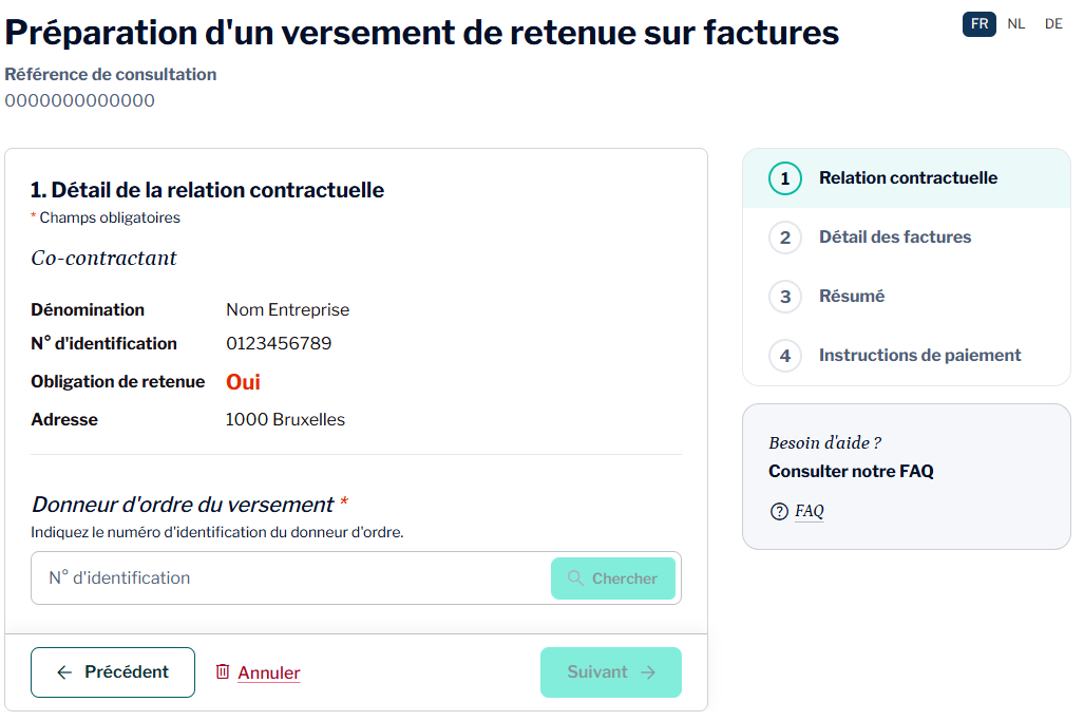
As can be seen on the screenshot above, the relevant information of the consulted enterprise has automatically been filled in. Because it is not automatically known who exactly performed the consultation and who will carry out the payment, you have to fill in the enterprise number of your enterprise in the field ‘N° d’identification’ under the title ‘Donneur d’ordre du versement’ (meaning the entity making the payment). Once the enterprise number has been filled in, the relevant information will be automatically filled in. However, if you have used a foreign enterprise number that is not yet known in our databases, the relevant information has to be entered manually. When all information is complete, you can click on ‘Suivant’ (meaning ‘next’).
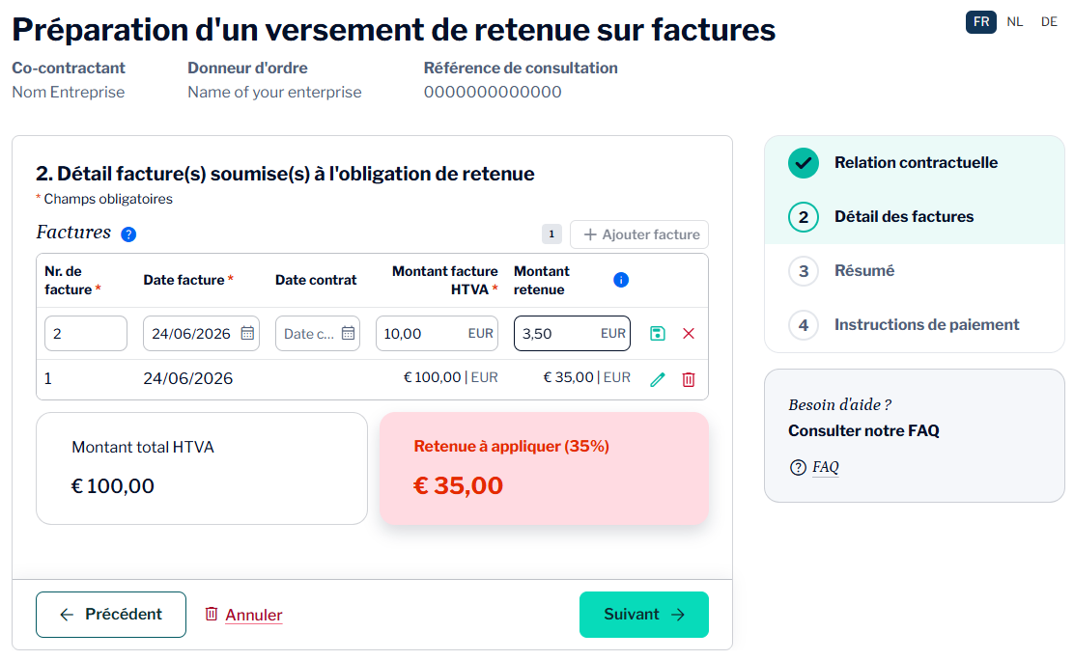
In the next step, seen in the screenshot above, you can add all the relevant invoices of the enterprise that invoiced you. You have to enter an invoice number (‘Nr. de facture’), the date of the invoice (‘Date facture’) and the invoiced amount excluding VAT (‘Montant facture HTVA’) for each invoice. The date of the contract (‘Date contract’) is an optional field. The exact amount of the withholding (‘Montant retenue’) is automatically calculated when the invoiced amount is entered. To finalise the addition of an invoice, you have to click on the green floppy disk icon. After a line was finalised, you can still adjust or delete the line if necessary, by either clicking the pencil icon to adjust or the trashcan icon to delete. To add another invoice, you have to click on the button ‘+ Ajouter facture’ (‘add invoice’). All finalised invoices are automatically summed up. The total amount to be withheld is shown at the bottom in the red box (‘Retenue à appliquer’).
The next page ‘Résumé’ (‘overview’) shows you a summary of all the information that was entered. This gives you the opportunity to verify if all the information is correct before you proceed to the final step.
The final page ‘Instructions de paiement’ (‘payment instructions’) is the result of your preparation. Here the exact amount of the withholding on the invoices that you entered, is displayed and a structured communication is generated.
Secondly, you pay the stated percentage of the invoiced amount (excluding VAT) directly to the bank account ‘Retenue Sociale Inhoudingen’ with account number BE76 6790 0001 9295; BIC: GEBABEBB. Please use the structured communication generated as a result of the preparation of the payment.
Finally, you pay the amount that remains after the obligated amounts have been withheld to the (sub)contractor that invoiced you.

Funded by the European Union – NextGenerationEU. Views and opinions expressed are however those of the author(s) only and do not necessarily reflect those of the European Union or European Commission. Neither the European Union nor the European Commission can be held responsible for them.
National Social Security Office (NSSO)
- Address: Place Victor Horta, 11 - 1060 Brussels
- Telephone: +32 (0)2 509 59 59
- Website: www.onss.be (in French)
You can also get in touch via our Contact page.


