

WIDE - online service
Before you start
What is WIDE?
Any company wishing to employ staff in Belgium must register as an employer with the NSSO (National Social Security Office). This is done using the WIDE online service. After registration, the employer is issued with an identification number: the NSSO number.
Use the secured version of WIDE by preference
There are 2 versions of WIDE, a secured and a non-secured version. As an employer and if your company's file is active and complete at the Crossroads Bank for Enterprises you should use the secured version of WIDE in first instance, as described in this manual. Check your company’s file and when to use the secured and the non-secured version of WIDE on the Social security enterprise portal (in French). Both versions use the same screenshots, only the method of connection is different.
- On the WIDE page of the Social security enterprise portal (in French), click the button giving access to the secured (‘Sécurisé’ in French) version of the WIDE online service for the identification of employers;
- You might arrive on the intermediate page of the portal giving you an option to choose whether you are a citizen (‘Citoyen’ in French), an enterprise (‘Entreprise’ in French) or a professional (Professionnel’ in French). Click on Enterprise (‘Entreprise’ in French).
- You arrive on the Access page to the secure services on the Social security enterprise portal. Use your preferred login method to access the secured version of WIDE.
- You get access to the main screen of the secured WIDE online service. It is called ‘Werkgevers Identificatie/ion Des Employeurs – Demande d’identification en tant qu’employeur ONSS’, or in English Employer Identification – Request to be identified as an employer with the NSSO:
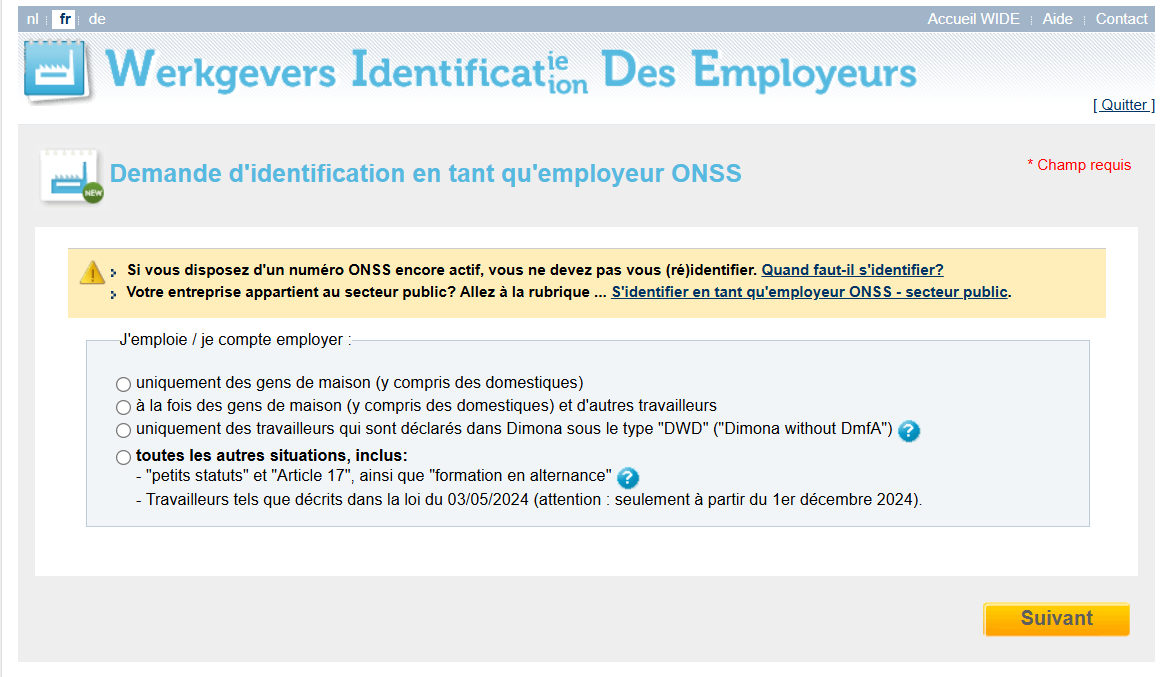
The 4 types of employees
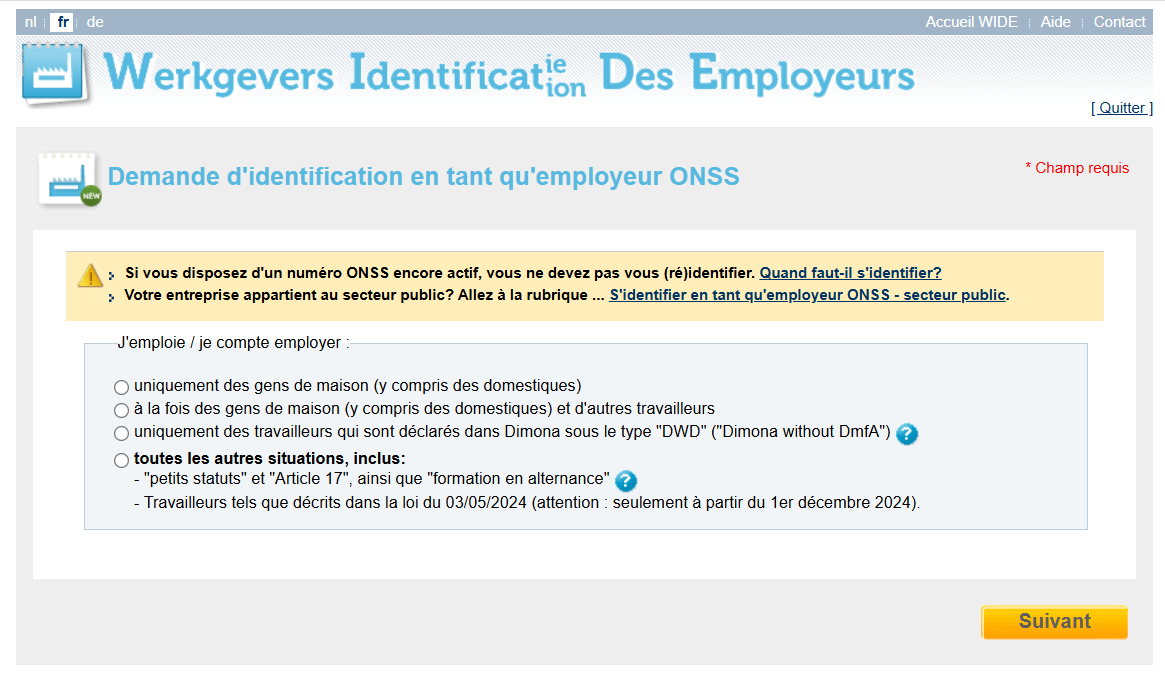
There are 4 types of employee options to choose from:
- Only domestic staff (including servants) (‘uniquement des gens de maison (y compris des domestiques)’ in the screenshot);
- Both domestic staff (including servants) and other employees (‘à la fois des gens de maison (y compris des domestiques) et d'autres travailleurs’ in the screenshot);
- Only employees being declared within Dimona as DWD (Dimona without DmfA) (‘uniquement des travailleurs qui sont déclarés dans Dimona sous le type ‘DWD’ (‘Dimona without DmfA’) in the screenshot);
- All other cases including :
- ‘small status’ (‘petits statuts’), ‘Article 17’ (‘Article 17’) and ‘Trainees – alternated learning’ ( ‘formation en alternance’)
- Workers as described in the law of 03/05/2024 (note: only as of 1 December 2024)
Consult more detailed information via the General (Obligations) page in the Administrative Instructions section of the Social security enterprise portal (in French).
Employee type: All other cases
In this manual we explain the scenario in which you selected the last button in the screenshot.
- All other cases including :
- ‘small status’, ‘Article 17’ and ‘Trainees – alternated learning’
- Workers as described in the law of 03/05/2024 (note: only as of 1 December 2024)
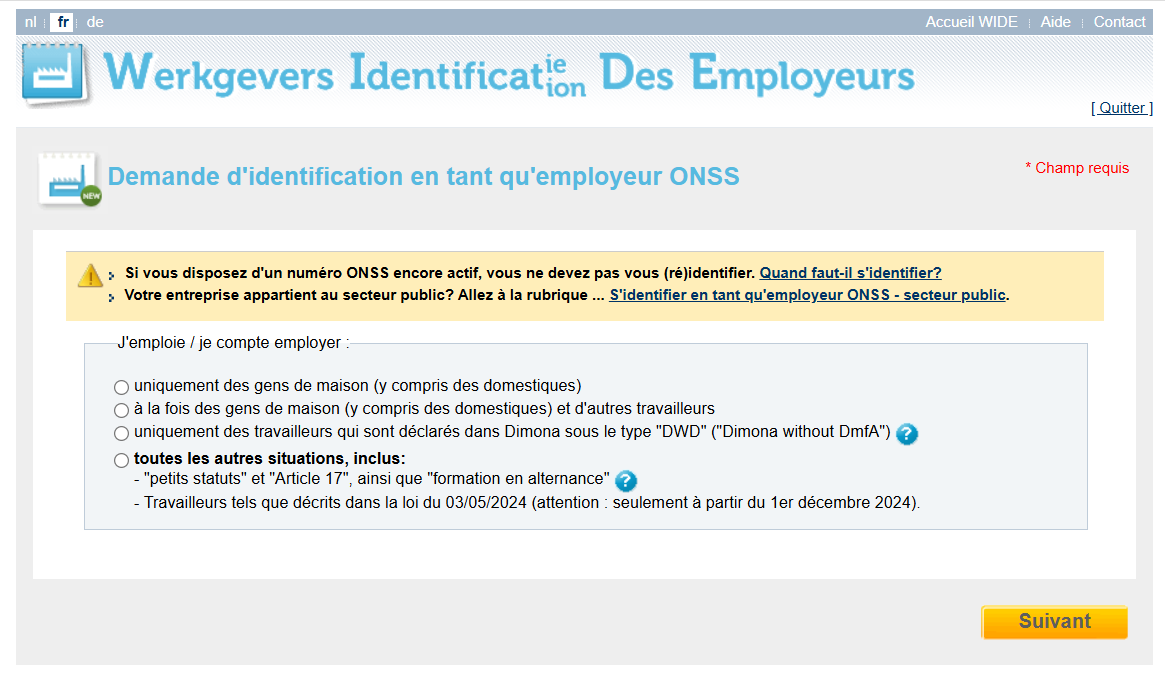
Click on Next (‘Suivant’ in the screenshot) to confirm.
Note: In case you have opted for one of the other three options, and you have questions on how to proceed, please check our Contact page and get in touch for further assistance.
Enterprise number / NSSO identification number?
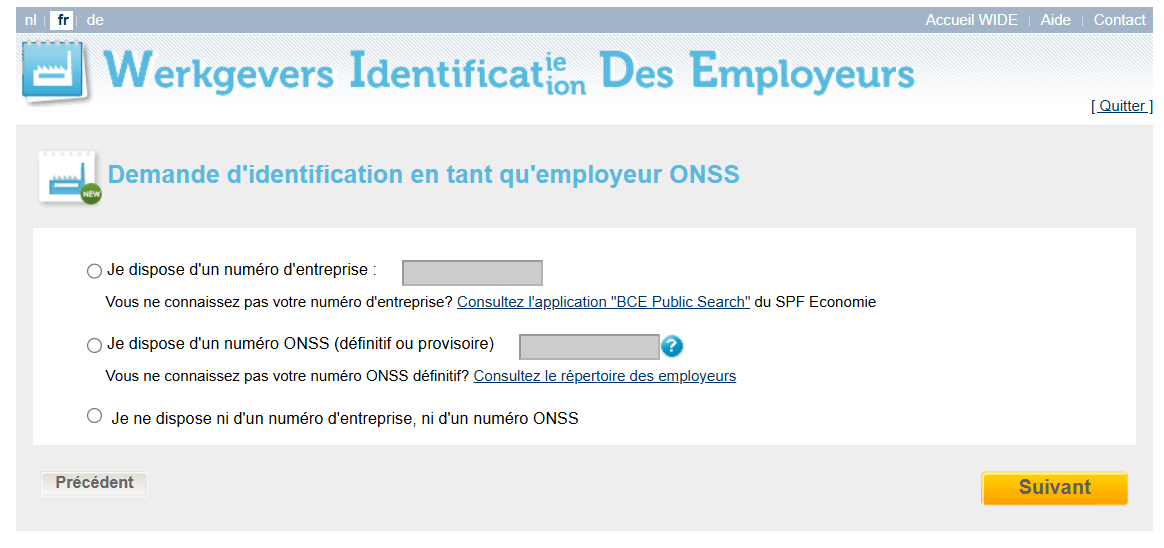
This screen gives 3 options:
- I have an enterprise number (‘Je dispose d'un numéro d'entreprise’ in the screenshot);
Don’t know what your enterprise number is? Search the Crossroads Bank for Enterprises (CBE);
- I have an NSSO identification number (definite or provisional) (‘Je dispose d'un numéro ONSS (définitif ou provisoire)’ in the screenshot);
Don’t know what your NSSO identification number is? Search the Directory of employers (in French);
- I have neither an enterprise number nor a NSSO identification number (‘Je ne dispose ni d’un numéro d’entreprise, ni d’un numéro ONSS’ in the screenshot).
In this manual we explain the scenario in which you selected I have neither an enterprise number nor a NSSO identification number)’ (‘Je ne dispose ni d’un numéro d’entreprise, ni d’un numéro ONSS’ in the screenshot).
Click on Next (‘Suivant’ in the screenshot) to confirm or Previous (‘Précédent’ in the screenshot) to return to the previous screen.
Note: In case you have opted for one of the other two options, and you have questions on how to proceed please check our Contact page and get in touch for further assistance.
Enterprise type: legal or natural person?
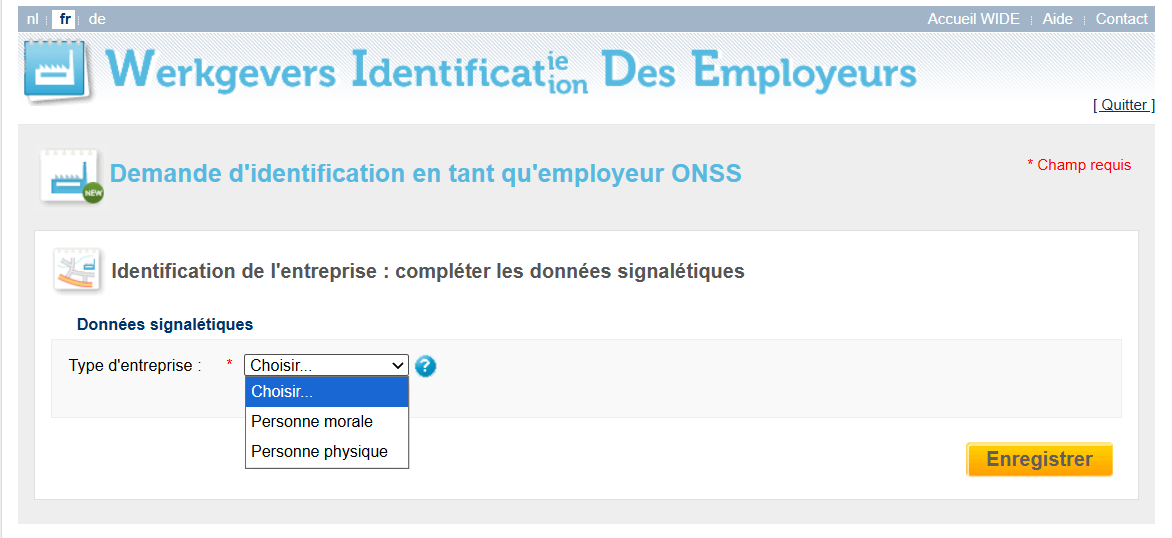
Choose the type of enterprise you want to identify in the dropdown:
- Legal person (‘Personne morale’ in the screenshot);
- Natural person (‘Personne physique’ in the screenshot).
Click on Register (‘Enregistrer’ in the screenshot) to confirm.
Please note that all fields marked with a red asterisk (*) are mandatory.
Identify as a Legal person
In case you have opted for Legal person (‘Personne morale’ in French), fill out the fields in the screenshots below.
Identification data
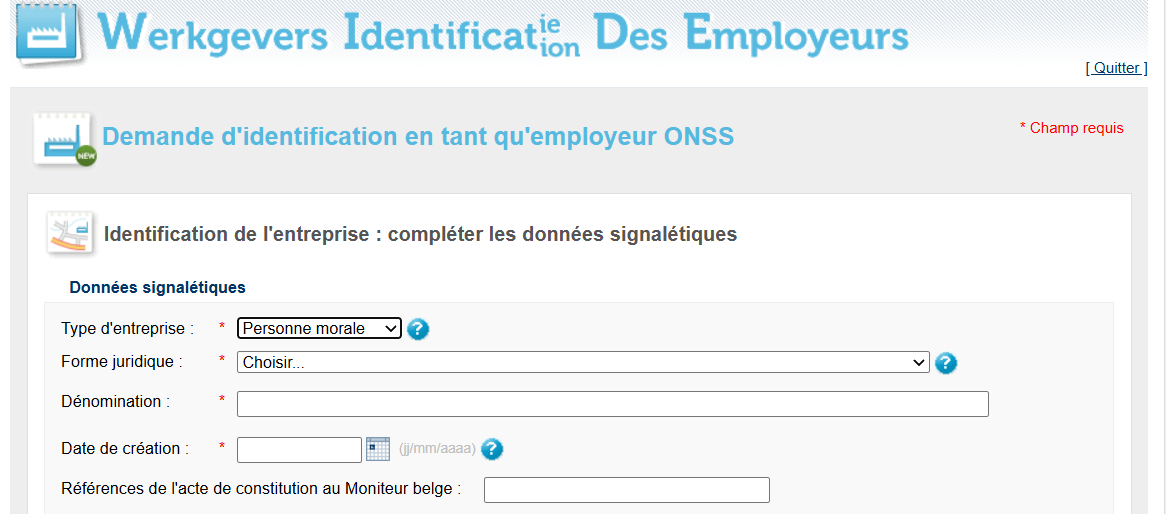
Fill out the following identification data:
- Type of enterprise (‘Type d’entreprise’ in the screenshot): already prefilled to Legal person (‘Personne morale’ in the screenshot) since you have chosen this option in the previous step;
- Legal form (‘Forme juridique’ in the screenshot): on the screen below click on the little arrow next to Choose (‘Choisir’ in the screenshot), which is located next to Legal form. You see a long list of possible legal forms. The most important are listed in the table below the screenshot;
- Name (‘Denomination’ in the screenshot): enter the name of the company;
- Date of establishment (‘Date de creation’ in the screenshot): enter the date of establishment using the calendar or fill out the date in the format ‘dd/mm/yyyy’;
- Reference to the deed of establishment in the Belgian Official Gazette (‘Références de l'acte de constitution au Moniteur belge’ in the screenshot).
Table with summary list of legal enterprise forms:
| Description in French | Description in English |
|---|---|
| Société à responsabilité limitée | Private limited company |
| Société privée à responsabilité limitée | Private limited liability company |
| Entité étrangère | Foreign entity |
| Société anonyme | Public limited company |
| Association sans but lucratif | Non-profit organisation |
| Société en nom collectif | General partnership |
| Société en commandite | Limited partnership |
| Société en commandite simple | Ordinary limited partnership |
| Société ou association sans personnalité juridique | Company or association without legal personality |
| Société coopérative à responsabilité limitée | Cooperative society with limited liability |
Registered office

Fill out the fields related to the address of the registered office:
- Street (‘Rue’ in the screenshot);
- Number (‘N°’ in the screenshot);
- Box (‘Bte’ in the screenshot);
- Postal code (‘Code postal’ in the screenshot);
- City (‘Commune’ in the screenshot);
- Country (‘Pays’ in the screenshot): choose if needed another country than Belgium (‘Belgique’ in the screenshot) by using the little arrow on the right of the field to open a dropdown with a list of all possible countries.

Please note! In case you select another country than Belgium in the field Country (‘Pays’ in the screenshot), then the fields above appear on the screen. Please fill out:
- Enterprise number in the country of origin (‘Numéro d’entreprise dans le pays d’origine’ in the screenshot);
- VAT number in the country of origin (Numéro de TVA dans le pays d’origine’ in the screenshot).
Additional data
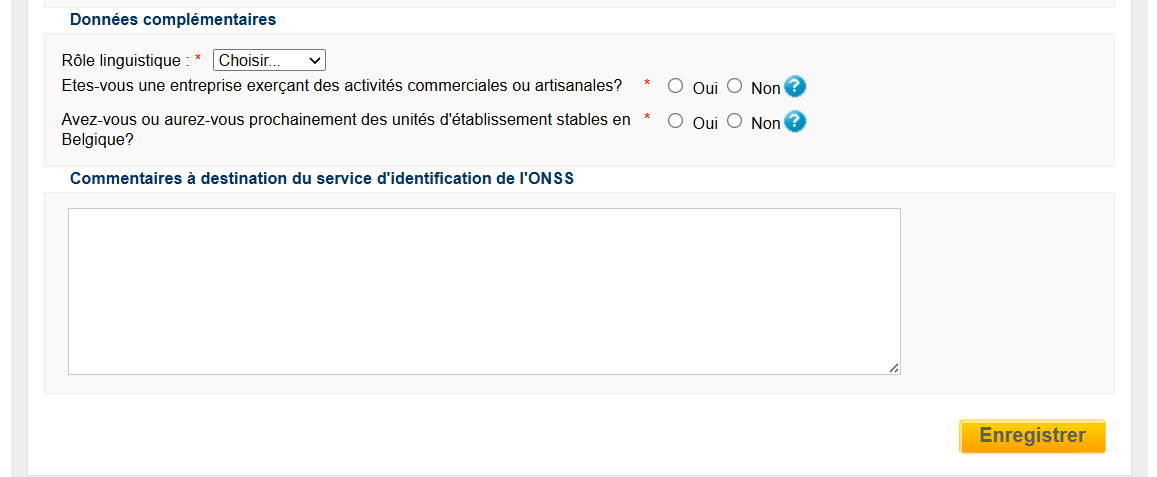
Fill out the following additional data:
- Language (‘Rôle linguistique’ in the screenshot): select the language of your choice. Click on the arrow next to Choose (‘Choisir’ in the screenshot) and choose between French, Dutch or German (‘Français, Néerlandais, Allemand’ in the screenshot);
- Does your company carry out commercial or artisan activities? (‘Etes-vous une entreprise exerçant des activités commerciales ou artisanales?’ in the screenshot): click the button for Yes or No (‘Oui/Non’ in the screenshot);
- Do you or will you have stable establishment units in Belgium soon? (‘Avez-vous ou aurez-vous prochainement des unités d'établissement stables en Belgique?’ in the screenshot): click the button for Yes or No (‘Oui/Non’ in the screenshot);
- Do you have any remarks for the NSSO identification service (‘Commentaires à destination du service d’identification de l’ONSS’ in the screenshot): fill them out in the field below.
Click on Register (‘Enregistrer’ in the screenshot) to confirm.
Identify as a Natural person
In case you have opted for Natural person (‘Personne physique’ in French), fill out the fields in the screenshots below.
Identification data
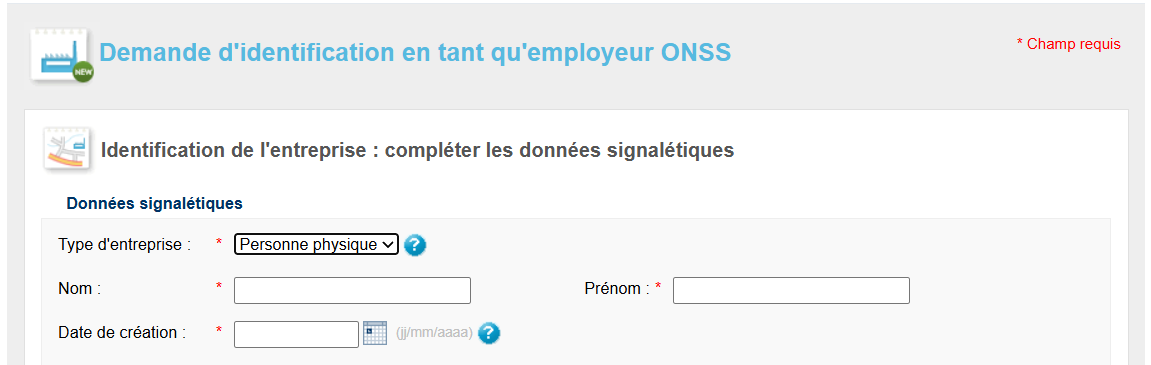
Fill out the following identification data:
- Type of enterprise (‘Type d’entreprise’ in the screenshot): already prefilled to Natural person (‘Personne physique’ in the screenshot) since you have chosen this option in the previous step;
- Name (‘Nom’ in the screenshot);
- First name (‘Prénom’ in the screenshot);
- Date of establishment (‘Date de creation’ in the screenshot): enter the date of establishment using the calendar or fill out the date in the format ‘dd/mm/yyyy’;
Registered office

Fill out the fields related to the address of the registered office:
- Street (‘Rue’ in the screenshot);
- Number (‘N°’ in the screenshot);
- Box (‘Bte’ in the screenshot);
- Postal code (‘Code postal’ in the screenshot);
- City (‘Commune’ in the screenshot);
- Country (‘Pays’ in the screenshot): choose if needed another country than Belgium (‘Belgique’ in the screenshot) by using the little arrow on the right of the field to open a dropdown with a list of all possible countries.
Additional data
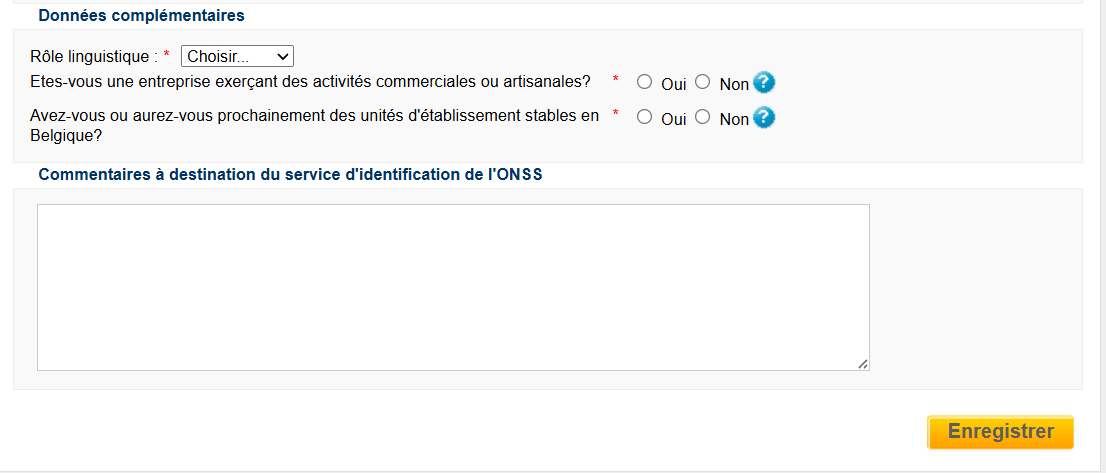
Fill out the following additional data:
- Language (‘Rôle linguistique’ in the screenshot): select the language of your choice. Click on the arrow next to Choose (‘Choisir’ in the screenshot)and choose between French, Dutch or German (‘Français, Néerlandais, Allemand’ in the screenshot);
- Does your company carry out commercial or artisan activities? (‘Etes-vous une entreprise exerçant des activités commerciales ou artisanales?’ in the screenshot): click the button for Yes or No (‘Oui/Non’ in the screenshot);
- Do you or will you have stable establishment units in Belgium soon? (‘Avez-vous ou aurez-vous prochainement des unités d'établissement stables en Belgique?’ in the screenshot): click the button for Yes or No (‘Oui/Non’ in the screenshot);
- Do you have any remarks for the NSSO identification service (‘Commentaires à destination du service d’identification de l’ONSS’ in the screenshot): fill them out in the field below.
Click on Register (‘Enregistrer’ in the screenshot) to confirm.
Overview of completed ‘Enterprise identification’ section
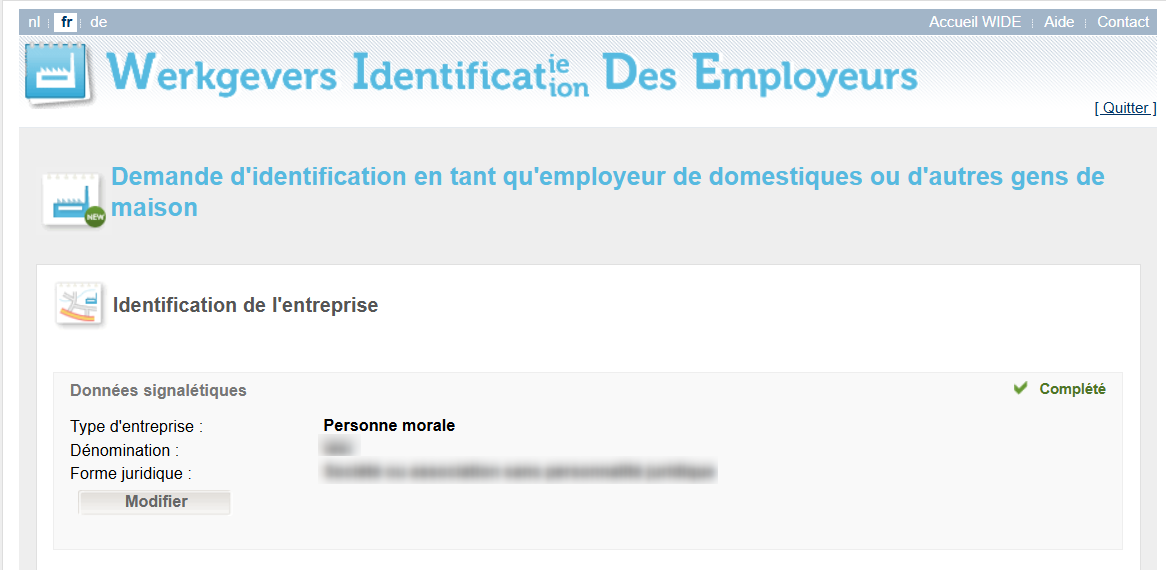
You now have submitted the first part of WIDE. On the top part of the screen, titled Identification of the enterprise (‘Identification de l’entreprise’ in the screenshot) some of the data you already submitted are shown. The little green arrow Completed (‘Complété’ in the sceenshot) indicates that you have finalised this part. In the above example we present the scenario of a company of the type Legal person (‘Personne morale’ in French).
Click on the button Modify (‘Modifier’ in the screenshot) to modify your data.
General data
In this section you need to enter the number of workers you plan to employ in the 1st quarter of your activity as an employer, and indicate if you are transferring workers or activities from another employer. If your registered office is located abroad and you don’t have any establishment units in Belgium, please also indicate if you will employ your workers (subject to Belgian social security) in Belgium and, if so, provide the number of workers.
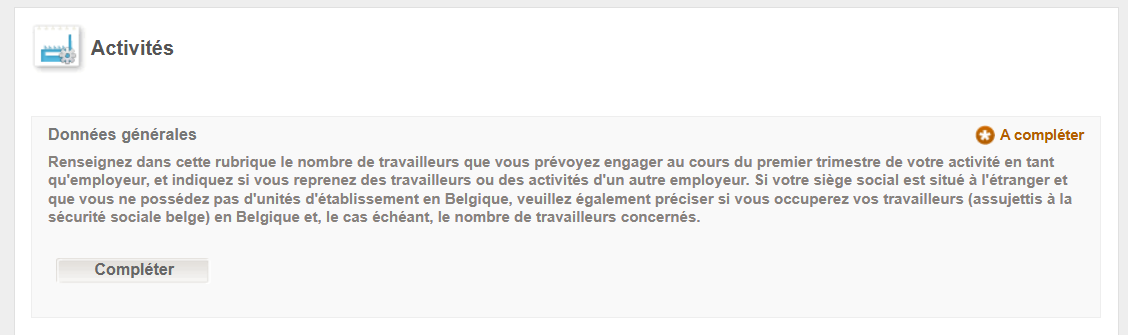
Click on Complete (‘Compléter’ in the screenshot) to open the next screen:
Enter the Number of employees you expect to employ at the end of the first quarter of employment (‘Introduisez le nombre de travailleurs que vous estimez avoir en service à la fin du premier trimestre d'occupation’ in the screenshot).
Please note!
- In case the legal form of your enterprise is foreign, and
- you answered No to the question in the previous section: Do you or will you have stable establishment units in Belgium soon? (‘Avez-vous ou aurez-vous prochainement des unités d'établissement stables en Belgique?’ in French), then
- the question below with Yes/No button appears: Will you effectively employ your employees (subject to Belgian social security) in Belgium? (‘Occuperez-vous effectivement vos travailleurs (assujettis à la sécurité sociale belge) en Belgique?’ in the screenshot);

Click the Yes or No button (‘Oui/Non’ in the screenshot).
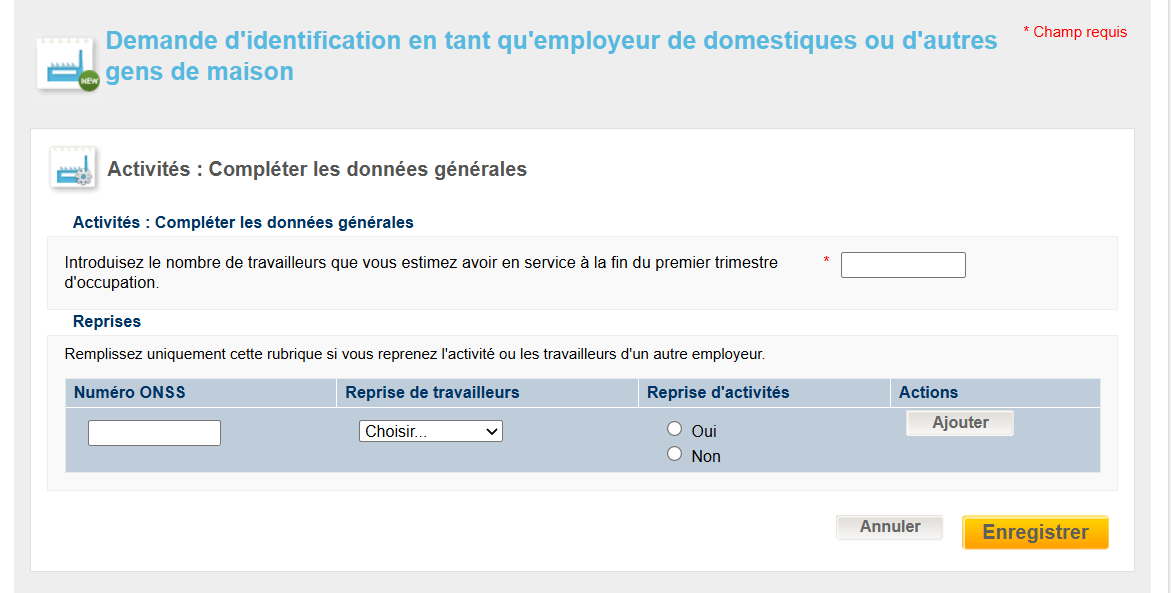
In case you are taking over (‘Reprises’ in the screenshot) activities or employees of other companies, fill out:
- NSSO Number (Numéro ONSS): the NSSO number of the company you are taking over.
- Takeover of employees (‘Reprise de travailleurs’ in the screenshot); click on the arrow to open a dropdown menu:
- No takeover (‘Pas de reprise’ in French);
- Partial takeover (‘Reprise partielle’ in French);
- Complete takeover (‘Reprise totale’ in French);
- Takeover of activities (‘Reprise d’activités’ in the screenshot); click the Yes or No button (‘Oui/Non’ in the screenshot);
- Actions: click on Add (‘Ajouter’ in the screenshot) to confirm the date entered.
Click on Register (‘Enregistrer’ in the screenshot) to confirm or Cancel (‘Annuler’ in the screenshot) to cancel.
List of activities
In this section you need enter the activity or activities for which you intend to employ staff. This information will help determine exactly which contributions and, if applicable, which contribution reductions apply.

Click on Add (‘Ajouter’ in the screenshot).
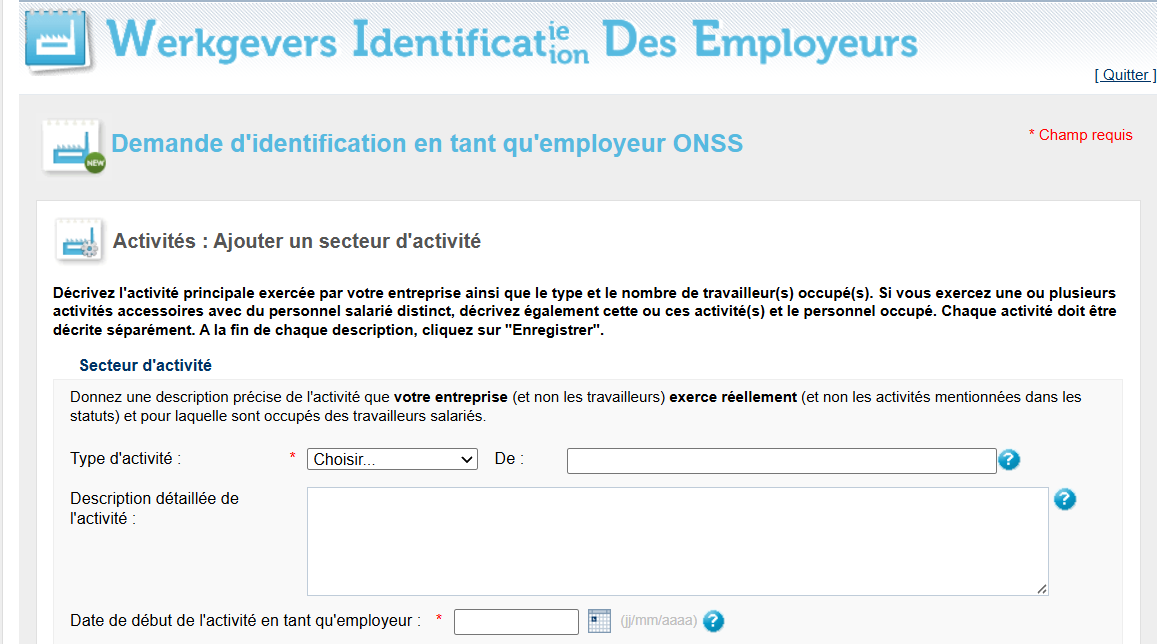
Describe the main activities and the type and number of workers. If you carry out one or more additional activities with separately paid staff, also describe these activities and staff. Each activity should be described separately.
Fill out the following fields:
- Branch of activity (‘Secteur d’activité’ in the screenshot): give a precise description of the activity that your enterprise (not the staff) actually carries out (not the activities mentioned in the statutes) and for which salaried employees are engaged;
- Type of activity (‘Type d’activité’ in the screenshot): click on the arrow next to Choose (‘Choisir’ in the screenshot) to open a dropdown showing following options:
- Manufacturing (‘Fabrication’ in French);
- Installation (‘Placement in French);
- Repair (‘Réparation’ in French);
- Retail (‘Commerce de détail’ in French);
- Wholesale (‘Commerce de gros’ in French);
- Construction;
- Other (‘Autres’ in French).
- More specifically (‘De’ in the screenshot): give a more detailed description of the selected type of activity;
- Detailed description of activities (‘Description détaillée de l’activité’ in the screenshot): provide any additional information to better describe your activity (link to website, additional details on the (main or secondary) activities, location of the worker(s) ...;
- Starting date of activities in the capacity of employer (‘Date de début de l’activité en tant qu’employeur’ in the screenshot): fill out the date on the format dd/mm/yyyy or click on the calendar icon to pop-up a calendar you can select a date from.
- Type of activity (‘Type d’activité’ in the screenshot): click on the arrow next to Choose (‘Choisir’ in the screenshot) to open a dropdown showing following options:

Then fill out the following fields:
- Employees involved (‘Travailleurs concernés’ in the screenshot): indicate the type and number of employees who will be primarily engaged. Fill out the fields below:
- Type of worker (‘Type de travailleur’ in the screenshot): each type of worker must be listed separately. Click on the arrow next to Choose (‘Choisir’ in the screenshot) to see a dropdown containing the following options:
- Blue-collar workers (‘Ouvriers’ in the screenshot);
- White-collar employees (‘Employés’ in the screenshot);
- Trainees – alternated learning (‘Apprentis – formation en alternance’ in the screenshot);
- Students (‘Etudiants’ in the screenshot);
- Small statuts (‘Petits statuts’ in the screenshot);
- Article 17 workers (‘Travailleurs Article 17’ in the screenshot);
Consult more information on the different types of workers on the Main data to be provided page in the Administrative Instructions section of the Social security enterprise portal (in French).
- Fill out the Joint Committee (‘Commission paritaire’ in the screenshot) for the type of worker you selected.
- Consider the table below for the most used Joint Committees or consult the complete list. To do so, select the option 26 - joint Committees (’26 – Commissions Paritaires’ in French) in the left menu of the Annexes to administrative instructions part of the Social security website.
- Type of worker (‘Type de travailleur’ in the screenshot): each type of worker must be listed separately. Click on the arrow next to Choose (‘Choisir’ in the screenshot) to see a dropdown containing the following options:
Table giving overview of Joint Committees, their code and description in English and French:
| Joint Committee code | Description | Description in French |
|---|---|---|
| 302 | Joint Committee for the hotel industry | Commission paritaire de l'industrie hôtelière |
| 200 | Auxiliary Joint Committee for employees (not constituted, as the chairman, vice-chairman and members have not been appointed) | Commission paritaire auxiliaire pour employés (non constituées, étant donné que le président, le vice-président et les membres n'ont pas été nommés) |
| 124 | Joint Committee for the construction industry | Commission paritaire de la construction |
| 201 | Joint Committee for the Independent Retail Trade | Commission paritaire du commerce de détail indépendant |
| 314 | Joint Committee for hairdressing and beauty care | Commission paritaire de la coiffure et des soins de beauté |
| 337 | Joint Committee for the non-market sector | Commission paritaire auxiliaire pour le secteur non-marchand |
| 145 | Joint Committee for horticultural enterprises | Commission paritaire pour les entreprises horticoles |
| 330 | Joint Committee for health care institutions and services (not constituted, as the chairman, vice-chairman and members have not been appointed) | Commission paritaire des établissements et des services de santé (non constituées, étant donné que le président, le vice-président et les membres n'ont pas été nommés) |
| 336 | Joint Committee for the liberal professions | Commission paritaire pour les professions libérales |
| 323 | Joint Committee for building management and domestic workers | Commission paritaire pour la gestion d'immeubles et les travailleurs domestiques |
- Fill out the Number of staff members (‘Nombre’ in the screenshot) you want to list within this type and joint committee.
- Under Actions click on Add (‘Ajouter’ in the screenshot) to submit this line of Type of worker, Joint Committee and Number of workers.
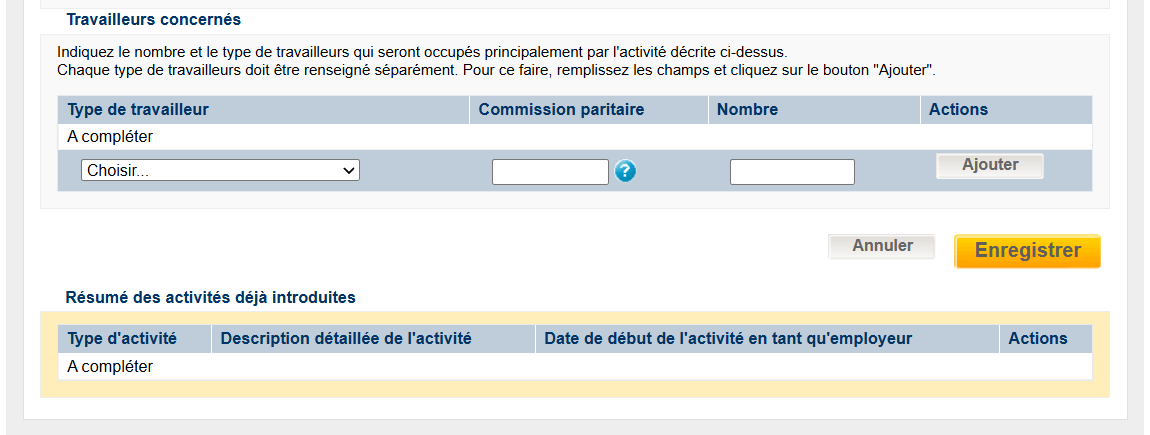
The line of data you registered appears on the screen under Summary of activities already submitted (‘Résumé des activités déjà introduites’ in the screenshot). Add as many lines as needed.
- When finished, click on Register (‘Enregistrer’ in the screenshot) to confirm or Cancel (‘Annuler’ in the screenshot) to cancel your entries.

- Click on Modify (‘Modifier’ in the screenshot) to modify your entry or on Finalise (‘Terminer’ in the screenshot) to complete your entry.
Overview of completed ‘Activities’ section
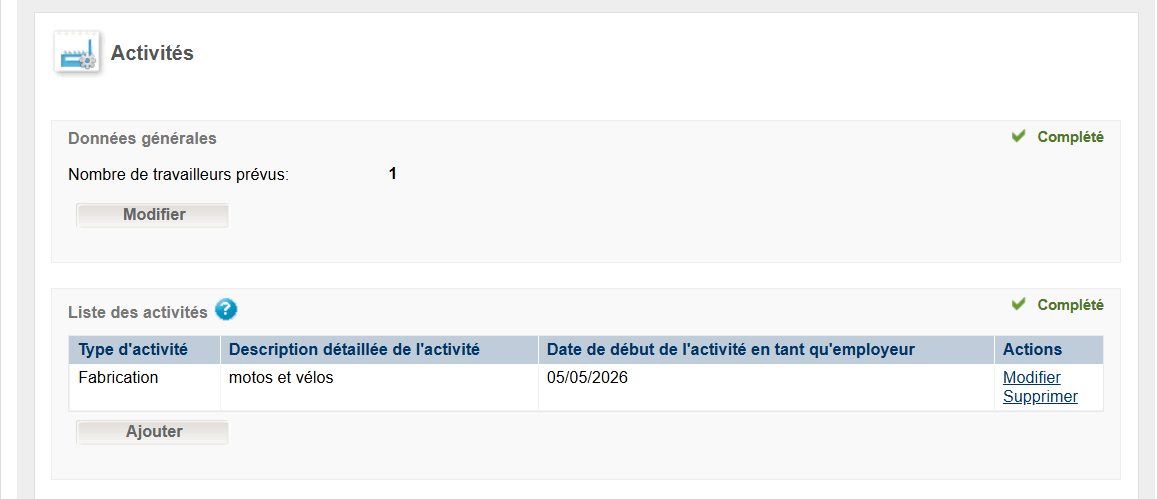
You return to the overview screen which now shows your entry. Click on Modify (‘Modifier’ in the screenshot) to modify or Delete (‘Supprimer’ in the screenshot) to delete your entry. Click on Add (‘Ajouter’ in the screenshot) to add information to the list of activities.
Responsible persons
In this section you need to add the person(s) who is (are) responsible for your enterprise.
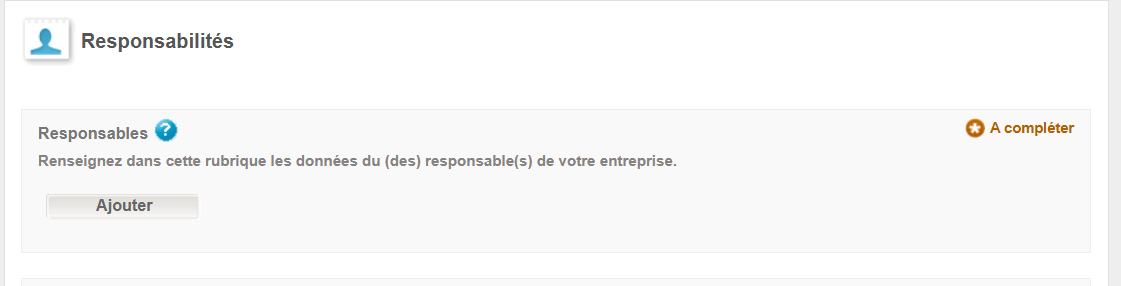
Click on Add (‘Ajouter’ in the screenshot) under Responsible persons (‘Responsables’ in the screenshot).
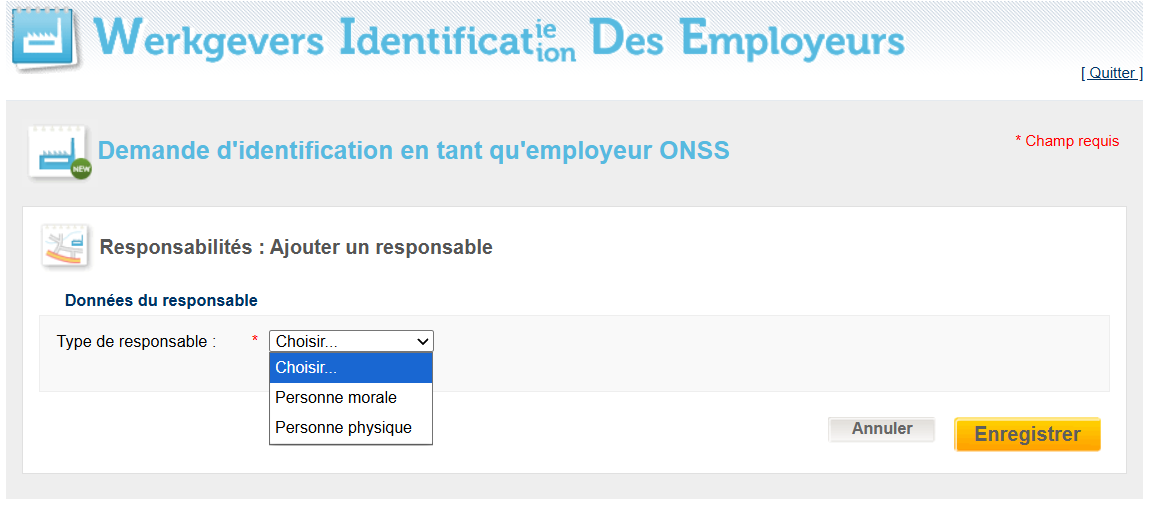
Click on the arrow next to Type of responsible person (‘Type de responsable’ in the screenshot) to open the dropdown menu and choose one of the following options:
- Legal person (‘Personne morale’ in the screenshot);
- Natural person (‘Personne physique’ in the screenshot).
Click on Register (‘Enregistrer’ in the screenshot) to confirm or Cancel (‘Annuler’ in the screenshot) to cancel.
Legal person
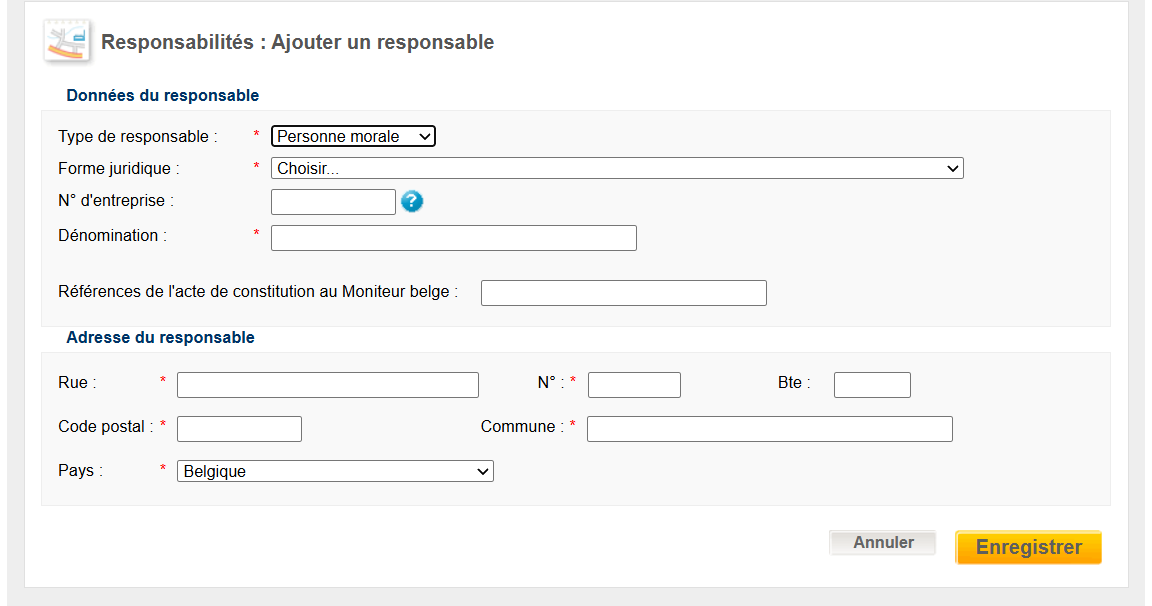
In case you chose Legal person, please add the following data in the fields that appear:
- Details on the responsible person (‘Données du responsable’ in the screenshot):
- Type of responsible person (‘Type de responsable’ in the screenshot) is already filled out with Legal person (‘Personne morale’ in the screenshot)
- Legal form (‘Forme juriqique’ in the screenshot): on the screen below click on the little arrow next to Choose (‘Choisir’ in the screenshot), which is located next to Legal form. You see a long list of possible legal forms. The most important are listed in the table below the screenshot;
- Enterprise number (‘N° d’entreprise’ in the screenshot); the company number as known by the Crossroads Bank of Enterprises;
- Name (‘Denomination’ in the screenshot): enter the name of the enterprise;
- Reference to the deed of establishment in the Belgian Official Gazette (‘Références de l'acte de constitution au Moniteur belge’ in the screenshot)
- Address of responsible person (‘Adresse du responsible’ in the screenshot):
- Street (‘Rue’ in the screenshot);
- Number (‘N°’ in the screenshot);
- Box (‘Bte’ in the screenshot);
- Postal code (‘Code postal’ in the screenshot);
- City (‘Commune’ in the screenshot);
- Country (‘Pays’ in the screenshot): choose if needed another country than Belgium (‘Belgique’ in the screenshot) with the arrow on the right to dropdown a list of all possible countries.
Click on Register (‘Enregistrer’ in the screenshot) to confirm or Cancel (‘Annuler’ in the screenshot) to cancel.
Table with summary list of legal enterprise forms:
| Description in French | Description in English |
| Société à responsabilité limitée | Private limited company |
| Société privée à responsabilité limitée | Private limited liability company |
| Entité étrangère | Foreign entity |
| Association sans but lucratif | Non-profit organisation |
| Société en nom collectif | General partnership |
| Société en commandite | Limited partnership |
| Société en commandite simple | Ordinary limited partnership |
| Société ou association sans personnalité juridique | Company or association without legal personality |
| Société coopérative à responsabilité limitée | Cooperative society with limited liability |
Natural person

In case you ticked Natural person (‘Personne physique’ in the screenshot), please answer the question Do you know the SSIN (Belgian Social Security Identification Number) of the responsible person? (‘Connaissez-vous le NISS (Numéro d'Identification à la Sécurité Sociale) du responsable ?’ in the screenshot) by clicking button Yes or No (‘Oui/Non’ in the screenshot).
I know the SSIN of the responsible person
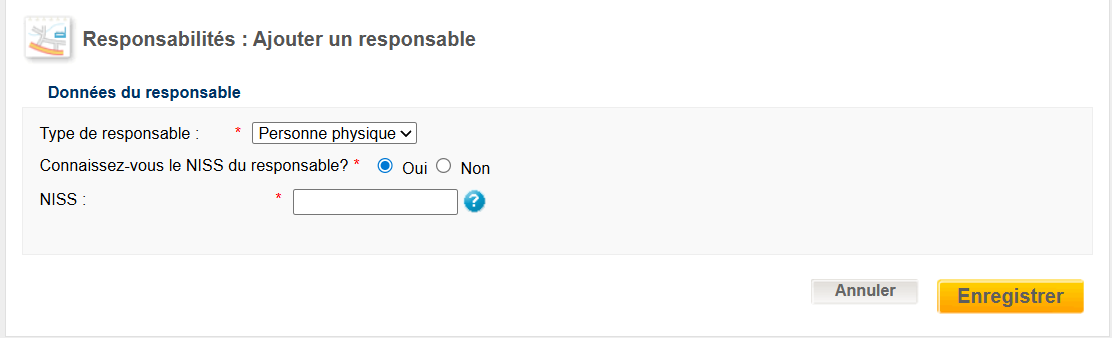
In case you ticked the Yes button, fill out the SSIN in the field that appears (‘NISS’ in the screenshot).
Click on Register (‘Enregistrer’ in the screenshot) to confirm or Cancel (‘Annuler’ in the screenshot) to cancel.
I don’t know the SSIN of the responsible person
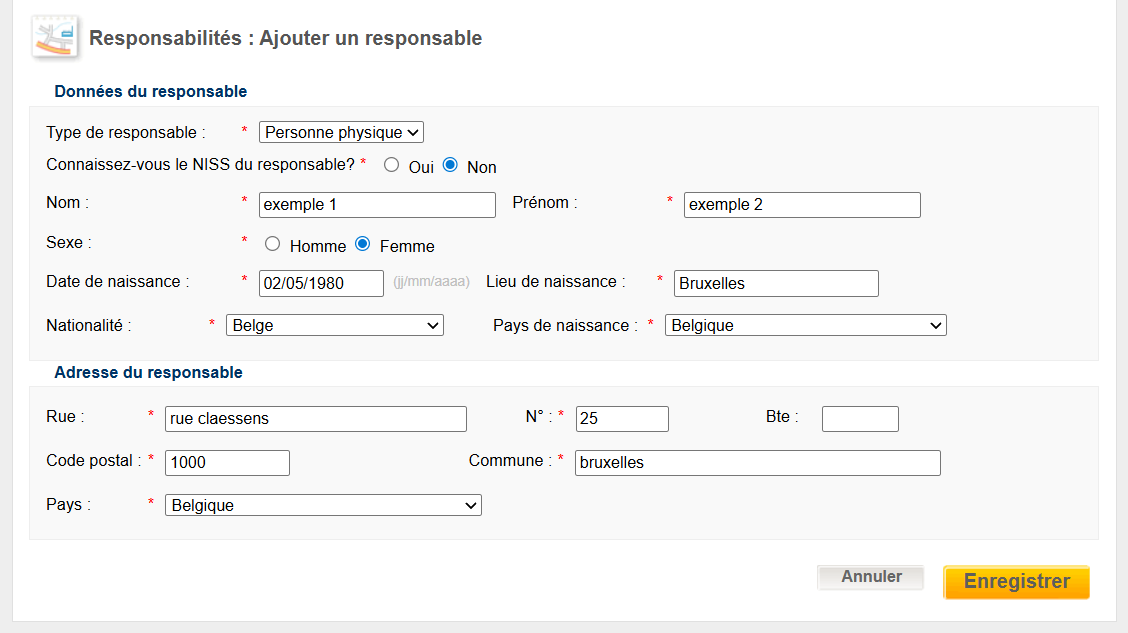
In case you checked the No button, fill out the fields that appear on your screen (in the example above the fields are already filled out):
- Details on the responsible person (‘Données du responsable’ in the screenshot):
- Name (‘Nom’ in the screenshot);
- First Name (‘Prénom’ in the screenshot);
- Sex (‘Sexe’ in the screenshot);
- Birth date (‘Date de naissance’ in the screenshot);
- Birth place (‘Lieu de naissance’ in the screenshot);
- Nationality (‘Nationalité’ in the screenshot);
- Country of Birth (‘Pays de naissance’ in the screenshot).
- Address of responsible person (‘Adresse du responsable’ in the screenshot):
- Street (‘Rue’ in the screenshot);
- Number (‘N°’ in the screenshot);
- Box (‘Bte’ in the screenshot);
- Postal code (‘Code postal’ in the screenshot);
- City (‘Commune’ in the screenshot);
- Country (‘Pays’ in the screenshot).
Click on Register (‘Enregistrer’ in the screenshot) to confirm or Cancel (‘Annuler’ in the screenshot) to cancel.
Legal representative
In this section you need to add the legal representative for your enterprise.
Enter the legal representative or, for foreign enterprises, the c/o in Belgium in this section.
Declare a legal representative if:
- You don’t have the legal competence to sign the identification application (representative = guardian, liquidator, curator...);
- Your enterprise was established in a country other than Belgium and you wish to appoint a representative in Belgium as your domicile; in this case you must attach a declaration to the application in which the representative accepts the appointed mandate;
- If your enterprise has a branch in Belgium, the election of domicile will be this branch;
- If you have several branches in Belgium, you can choose between them by changing the address proposed to you.

Click on Complete (‘Compléter’ in the screenshot) under Legal representative (‘Mandataire juridique’ in the screenshot).
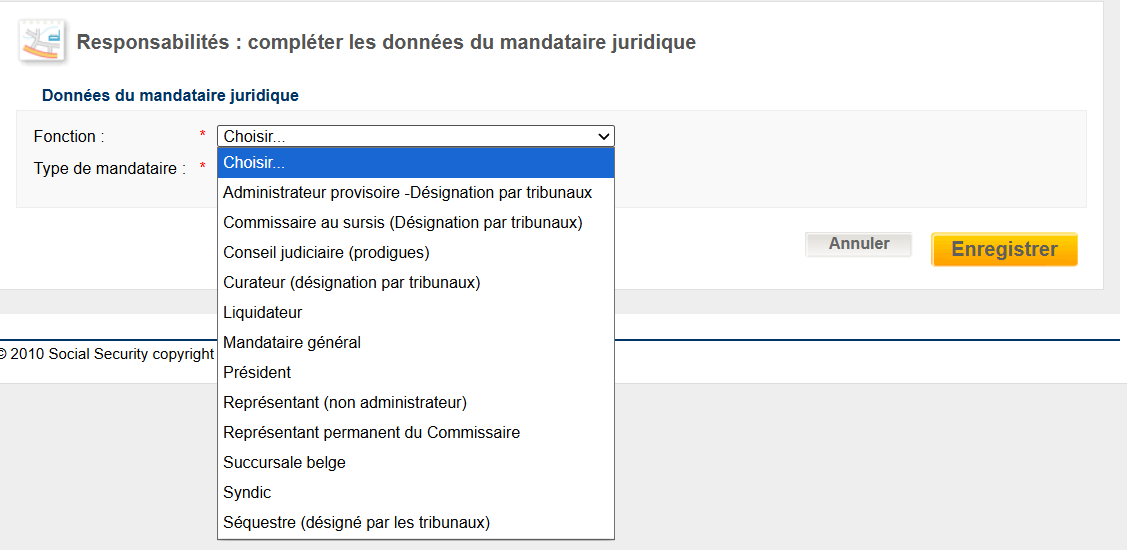
Fill out the following fields under Details on the legal representative (‘Données du mandataire juridique’ in the screenshot):
- Function (‘Fonction’ in the screenshot): click on the arrow next to Choose (‘Choisir’ in the screenshot) to open a dropdown. Choose one of the following options:
- Provisional administrator-Appointment by courts (‘Administrateur provisoire-Désignation par tribunaux’ in the screenshot);
- Commissioner suspension (‘Commissaire au sursis (désignation par tribunaux)’ in the screenshot);
- Judicial Counsel (Prodigal) (‘Conseil judiciaire (prodigue)’ in the screenshot);
- Curator (court appointment) (‘Curateur (désignation par tribunaux)’ in the screenshot);
- Liquidator (‘Liquidateur’ in the screenshot);
- General representative (‘Mandataire général’ in the screenshot);
- President (‘Président’ in the screenshot);
- Representative (non administrator) (‘Représentant (non administrateur)’ in the screenshot);
- Permanent Representative of the Commissioner (‘Représentant permanent du Commissaire’ in the screenshot);
- Belgian branch (‘Succursale belge’ in the screenshot);
- Building manager (‘Syndic’ in the screenshot);
- Sequestrator (appointed by the courts) (‘Séquestre ( désigné par les tribunaux)’ in the screenshot).
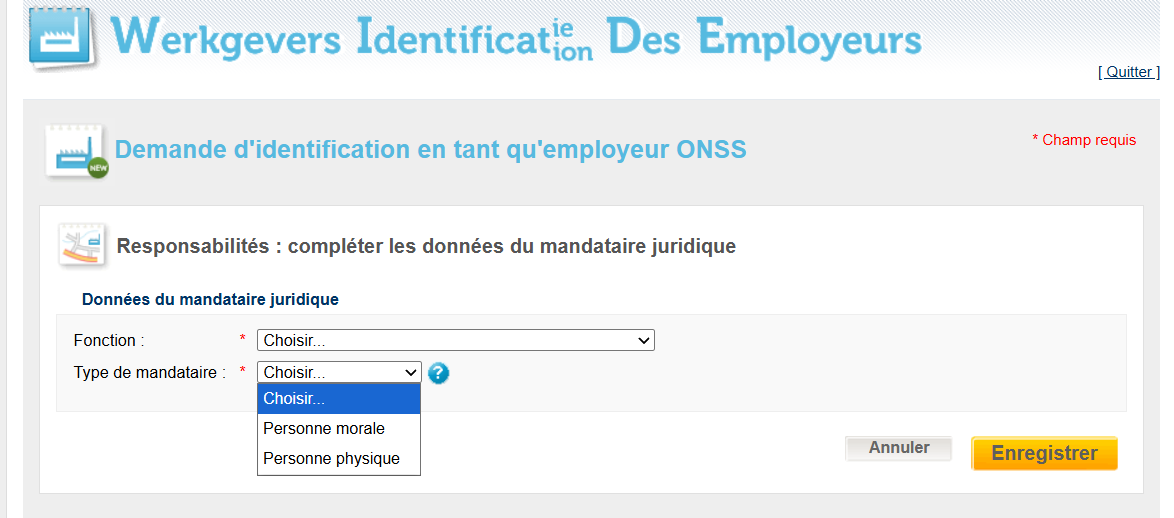
- Click on the arrow next to Type of representative (‘Type de mandataire in the screenshot) to open the dropdown menu and choose one of the options:
- Legal person (‘Personne morale’ in the screenshot);
- Natural person (‘Personne physique’ in the screenshot).
Click on Register (‘Enregistrer’ in the screenshot) to confirm or Cancel (‘Annuler’ in the screenshot) to cancel.
Legal representative is a legal person
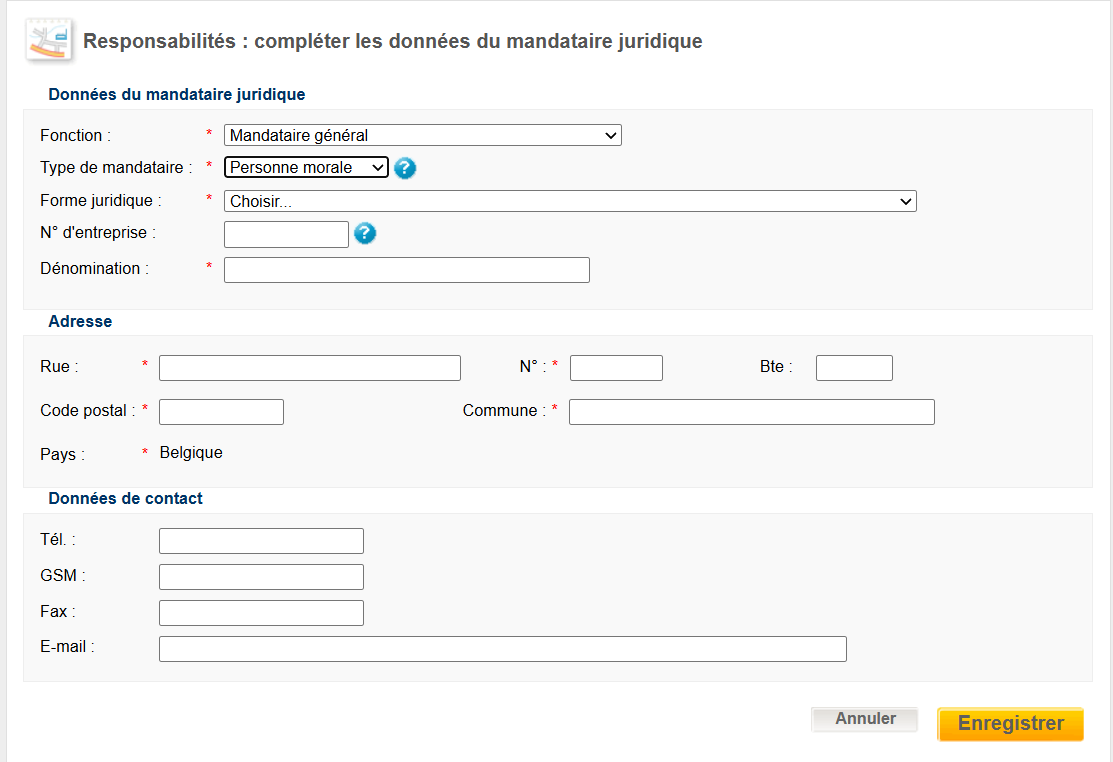
In case the legal representative is a Legal person, please add the following data in the fields that appear:
- Details on the legal representative (‘Données du mandataire juridique’ in the screenshot):
- Legal form (‘Forme juridique’ in the screenshot): click on the little arrow next to Choose (‘Choisir’ in the screenshot), which is located next to Legal form. You see a long list of possible legal forms. The most important are listed in the table below the screenshot;
- Enterprise number (‘N° d’entreprise’ in the screenshot): the company number as known by the Crossroads Bank of Enterprises;
- Name (‘Denomination’ in the screenshot): enter the name of the enterprise.
- Address (‘Adresse’ in the screenshot):
- Street (‘Rue’ in the screenshot);
- Number (‘N°’ in the screenshot);
- Box (‘Bte’ in the screenshot);
- Postal code (‘Code postal’ in the screenshot);
- City (‘Commune’ in the screenshot);
- Country (‘Pays’ in the screenshot): this field has the value Belgium (‘Belgique’ in the screenshot) already filled out, as it is mandatory a legal representative is located in Belgium.
- Contact details (‘Données de contact’ in the screenshot):
- Telephone number (‘Tél.’ In the screenhot);
- Mobile phone (‘GSM’ in the screenshot);
- Fax;
- E-mail.
Click on Register (‘Enregistrer’ in the screenshot) to confirm or Cancel (‘Annuler’ in the screenshot) to cancel.
Table with summary list of legal enterprise forms:
| Description in French | Description in English |
|---|---|
| Société à responsabilité limitée | Private limited company |
| Société privée à responsabilité limitée | Private limited liability company |
| Entité étrangère | Foreign entity |
| Société anonyme | Public limited company |
| Association sans but lucratif | Non-profit organisation |
| Société en nom collectif | General partnership |
| Société en commandite | Limited partnership |
| Société en commandite simple | Ordinary limited partnership |
| Société ou association sans personnalité juridique | Company or association without legal personality |
| Société coopérative à responsabilité limitée | Cooperative society with limited liability |
Legal representative is a natural person
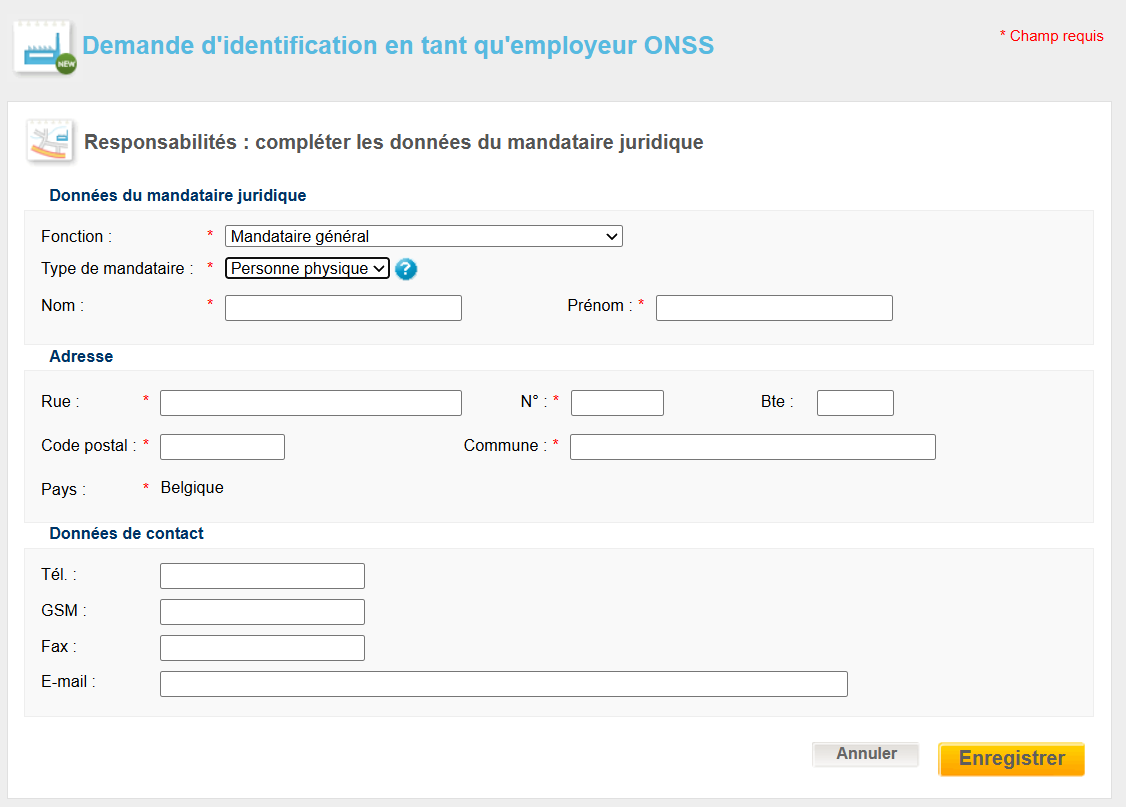
In case the legal representative is a Natural person, please add the following data in the fields that appear:
- Details on the legal representative (‘Données du mandataire juridique’ in the screenshot):
- Name (‘Nom’ in the screenshot);
- Given name (‘Prénom’ in the screenshot).
- Address (‘Adresse’ in the screenshot):
- Street (‘Rue’ in the screenshot);
- Number (‘N°’ in the screenshot);
- Box (‘Bte’ in the screenshot);
- Postal code (‘Code postal’ in the screenshot);
- City (‘Commune’ in the screenshot);
- Country (‘Pays’ in the screenshot): this field has the value Belgium (‘Belgique’ in the screenshot) already filled out, as it is mandatory a legal representative is located in Belgium.
- Contact details (‘Données de contact’ in the screenshot):
- Telephone number (‘Tél.’ In the screenhot);
- Mobile phone (‘GSM’ in the screenshot);
- Fax;
- E-mail.
Click on Register (‘Enregistrer’ in the screenshot) to confirm or Cancel (‘Annuler’ in the screenshot) to cancel.
Contact Data
In this section, you need to fill in the contact details which the NSSO can use in case they have questions or need additional information about your identification request as an employer.
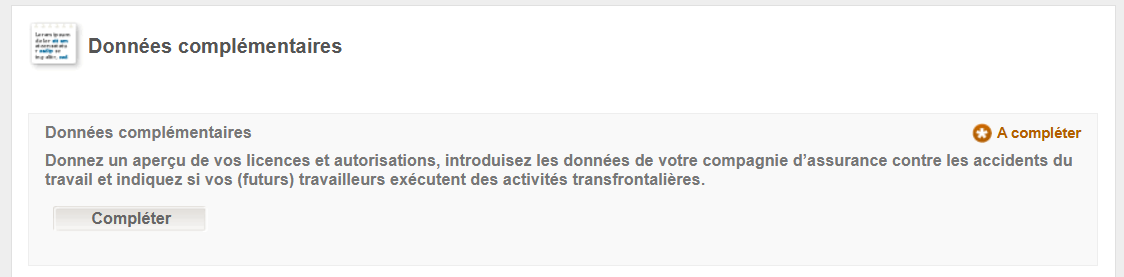
Click on Complete (‘Compléter’ in the screenshot) under Contact details (‘Données de contact’ in the screenshot).
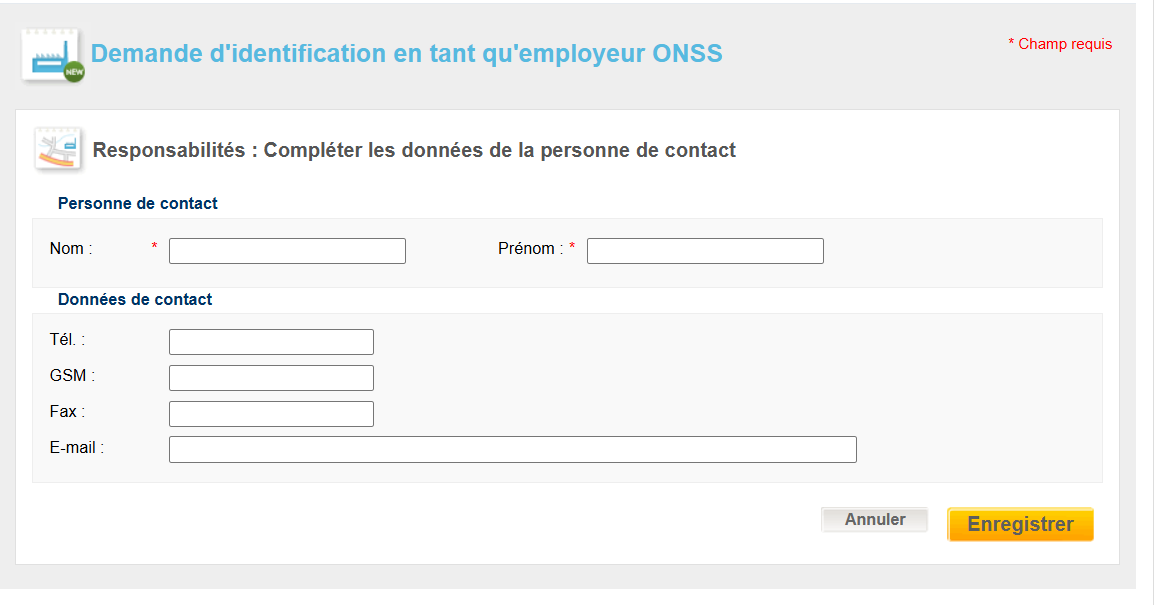
Fill out the following data in the screen that appears:
- Contact person (‘Personne de contact’ in the screenshot):
- Name (‘Nom’ in the screenshot);
- Given name (‘Prénom’ in the screenshot).
- Contact details (‘Données de contact’ in the screenshot):
- Telephone number (‘Tél.’ In the screenhot);
- Mobile phone (‘GSM’ in the screenshot);
- Fax;
- E-mail.
Click on Register (‘Enregistrer’ in the screenshot) to confirm or Cancel (‘Annuler’ in the screenshot) to cancel.
Overview of completed Responsibilities section
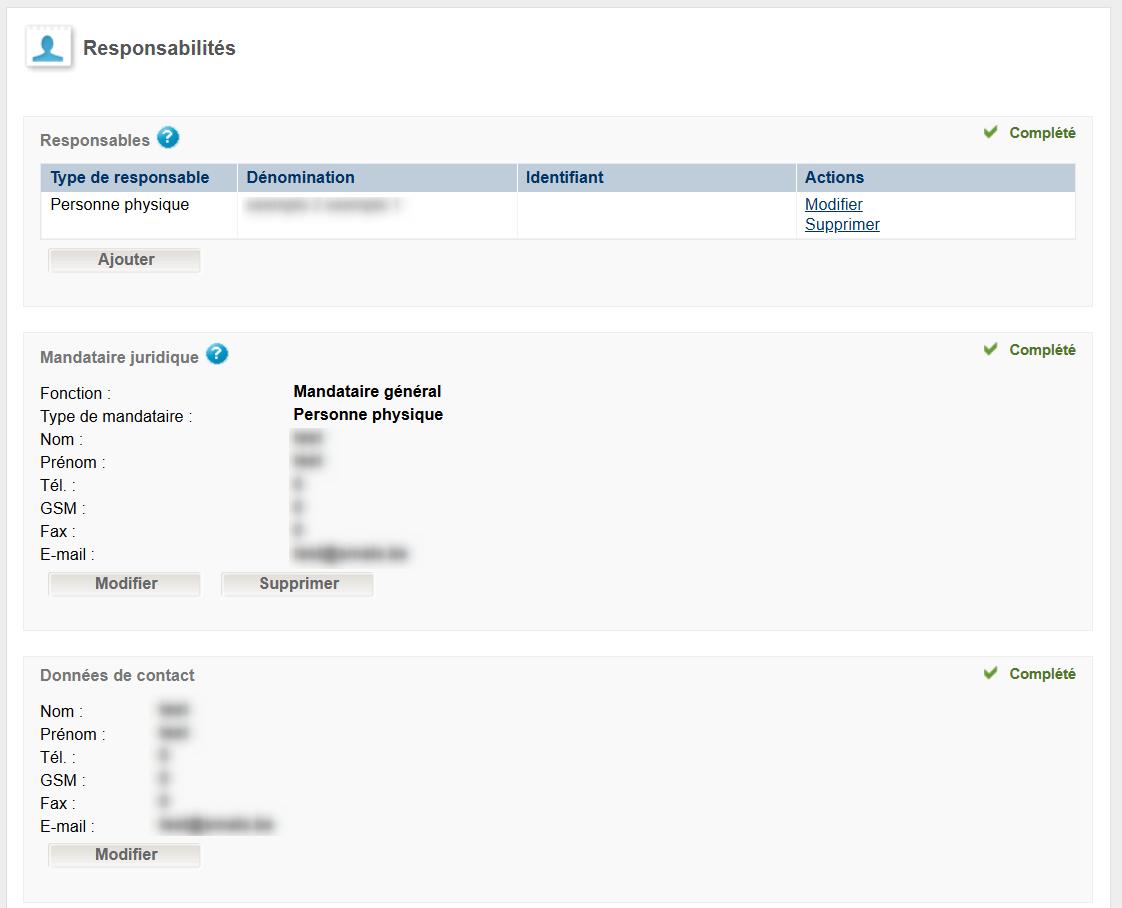
The overview screen shows all sections under Responsibilities (‘Responsabilités’ in the screenshot). Use the following commands if needed:
- Add (‘Ajouter’ in the screenshot) to add information;
- Modify (‘Modifier’ in the screenshot) to modify information;
- Delete (‘Supprimer’ in the screenshot) to delete information.
Please note: only in case you answered the question Do you or will you have stable establishment units in Belgium soon? (‘Avez-vous ou aurez-vous prochainement des unités d'établissement stables en Belgique?’ in French) with Yes (‘Oui’ in French) in a previous section (see chapter on Additional data), then you will also be asked to fill out this section.
It requires you to complete a list of establishment units for your enterprise.
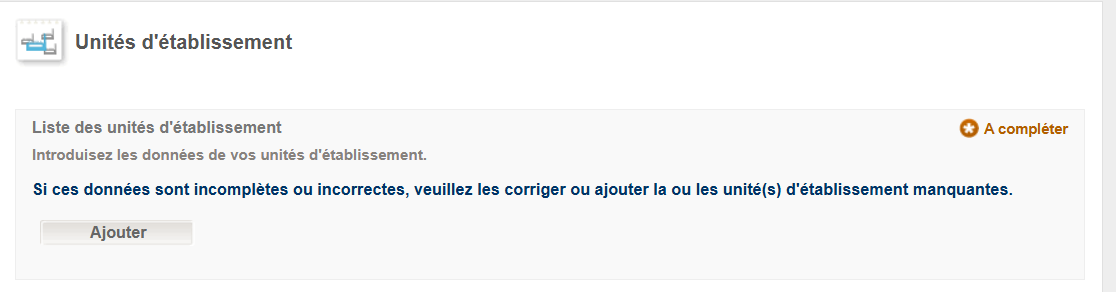
Click on Add (‘Ajouter’ in the screenshot).
List of establishment units
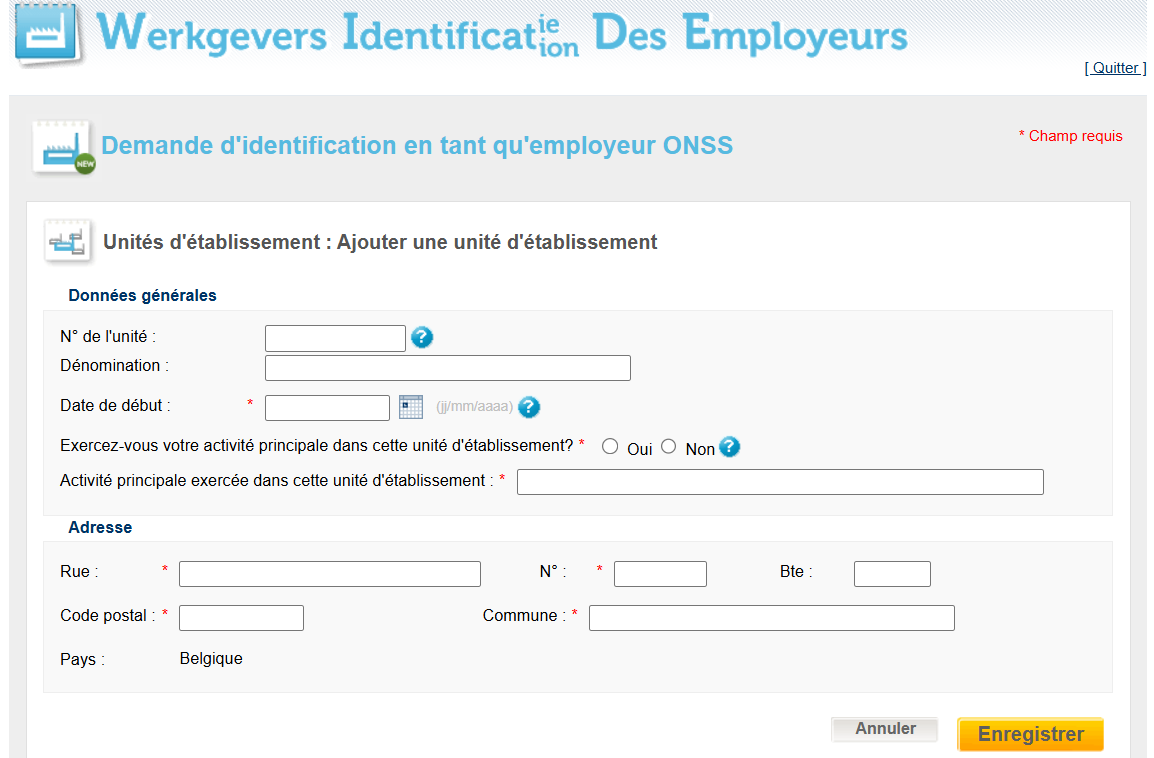
Fill out the following fields:
- General data (‘Données générales’ in the screenshot):
- Establishment unit number (‘N° de l’unité’ in the screenshot): this is a unique identification number for each location where your enterprise carries out an activity. It is transferable from one company to another (e.g. in the case of a merger or takeover);
- Name (‘Dénomination’ in the screenshot);
- Starting date (‘Date de début’ in the screenshot): date of establishment of this unit;
- Do you carry out your main activity in this establishment unit? (‘Exercez-vous votre activité principale dans cette unité d’établissement?’ in the screenshot):
- Check the button Yes or No (‘Oui/Non’ in the screenshot);
- Main activity carried out in this unit (‘Activité principale exercée dans cette unité d’établissement’ in the screenshot);
- List of activities (‘Liste des activités introduites’ in the screenshot): click on the arrow next to Choose (‘Choisir’ in the screenshot) to see a dropdown containing all options you filled out earlier in the registration.
- Address (‘Adresse’ in the screenshot) :
- Street (‘Rue’ in the screenshot);
- Number (‘N°’ in the screenshot);
- Box (‘Bte’ in the screenshot);
- Postal code (‘Code postal’ in the screenshot);
- City (‘Commune’ in the screenshot);
- Country (‘Pays’ in the screenshot): this field has the value Belgium (‘Belgique’ in the screenshot) already filled out, as it is mandatory that a legal representative is located in Belgium.
Click on Register (‘Enregistrer’ in the screenshot) to confirm or Cancel (‘Annuler’ in the screenshot) to cancel.

You can add as many establishment units as needed. After clicking on Register a summary screen is added to the bottom of the screen, showing the result of your entry/entries.
Click on Modifier (‘Modify’ in the screenshot) next to the entry you want to change. If you have completed all entries for all establishment units, click Finalise (‘Terminer’ in the screenshot) to confirm all entries made.
Overview of completed ‘Establishment units’ section
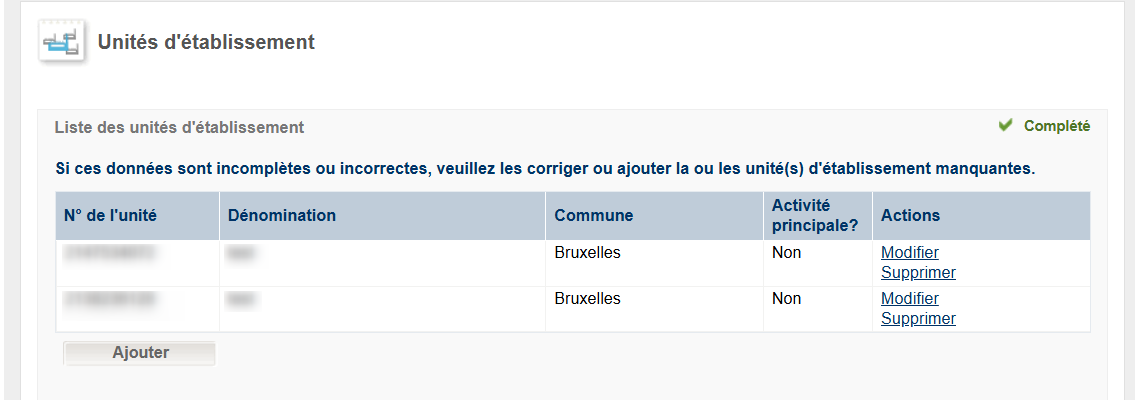
Check the overview screen after filling out all Establishment units (‘Unités d’établissement’ in the screenshot).
- Click on Add (‘Ajouter’ in the screenshot) to add information;
- Click on Modify (‘Modifier’ in the screenshot) to modify information;
- Click on Delete (‘Supprimer’ in the screenshot) to delete information.
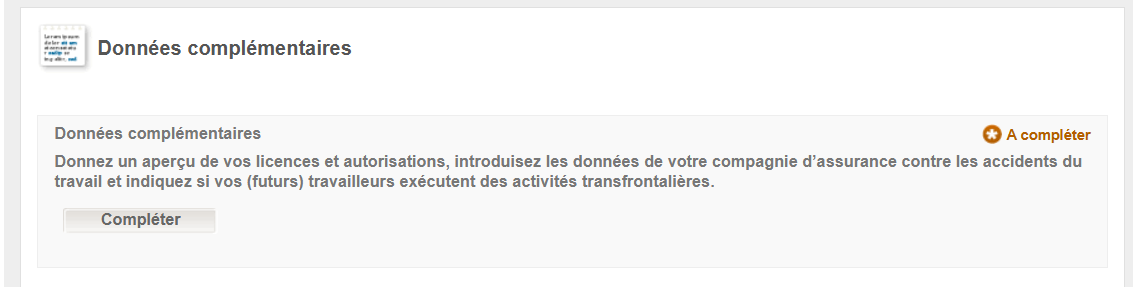
In this section you should list your licences and permits. Fill in details about your workplace accident insurance company and indicate whether your (future) employees carry out cross-border activities.
Click on Complete (‘Compléter’ in the screenshot) to open the next screenshot.
Data on social inspection, licences, insurance and cross-border activities
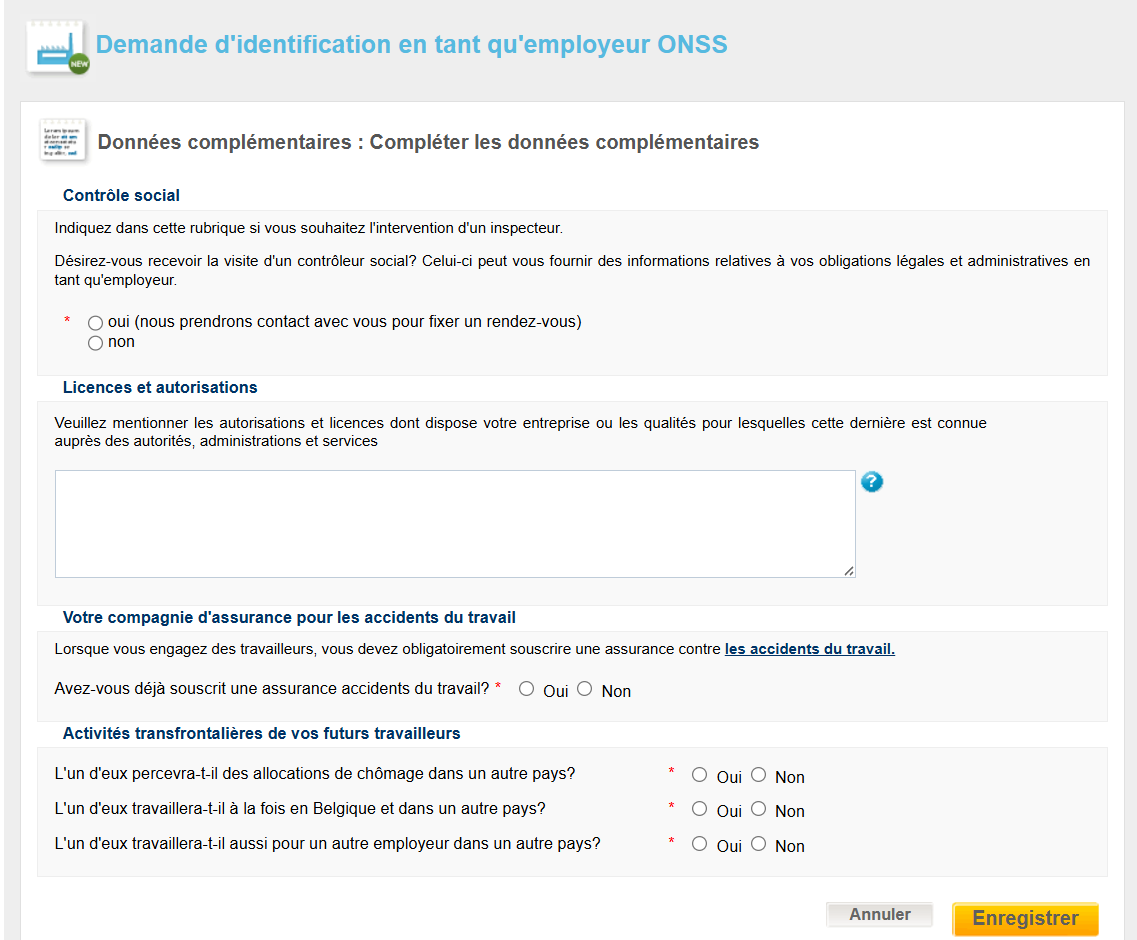
Fill out the following fields:
- Social inspection (‘Contrôle social’ in the screenshot):
Indicate in this section whether you want the intervention of an inspector. A social inspector can inform you on your legal and administrative obligations as an employer (‘Désirez-vous recevoir la visite d'un contrôleur social? Celui-ci peut vous fournir des informations relatives à vos obligations légales et administratives en tant qu'employeur’ in the screenshot):- Click on Yes (‘Oui’ in the screenshot): in that case you will be contacted to fix an appointment;
- Click on No (‘Non’ in the screenshot) if you don’t require the visit of a social inspector.
- Licences and permits (‘Licences et autorisations’ in the screenshot):
List the permits and licences your enterprise holds or the qualities for which it is known to the authorities, administrations and services. Permits and licences include:- Accreditations, licences, authorisations, affiliations, registrations… that may be issued by an administration to carry out these activities within the enterprise or within a specific branch unit;
- The capacities under which the enterprise is known to the federal government, e.g. ‘subject to VAT’ or ‘employer’.
- Your workplace accident insurance company (‘Votre compagnie d'assurance pour les accidents du travail’ in the screenshot):
If you engage employees, work accident insurance is mandatory. Read more on the Fedris website about who must be insured against workplace accidents (in French) and what happens if an employer does not take out insurance in time (in French).- Have you already taken out work accident insurance? (‘Avez-vous déjà souscrit une assurance accidents du travail?’ in the screenshot): check the button Yes or No (‘Oui/Non’ in the screenshot);
- Name of the insurance company (‘Dénomination de la compagnie d’assurance’ in the screenshot)
- Cross-border activities of your future employees (‘Activités transfrontalières de vos futurs travailleurs’ in the screenshot): answer the 3 questions below with Yes or No (‘Oui/Non’ in the screenshot) :
- Do any of your employees receive unemployment benefits in another country (‘L'un d'eux percevra-t-il des allocations de chômage dans un autre pays?’ in the screenshot);
- Does one of your employees work alternately in Belgium and abroad (‘L'un d'eux travaillera-t-il à la fois en Belgique et dans un autre pays?’ in the screenshot);
- Do any of your employees work for another employer in another country (‘L'un d'eux travaillera-t-il aussi pour un autre employeur dans un autre pays?’ in the screenshot):
Click on Register (‘Enregistrer’ in the screenshot) to confirm or Cancel (‘Annuler’ in the screenshot) to cancel.
Overview of completed ‘Additional information’ section
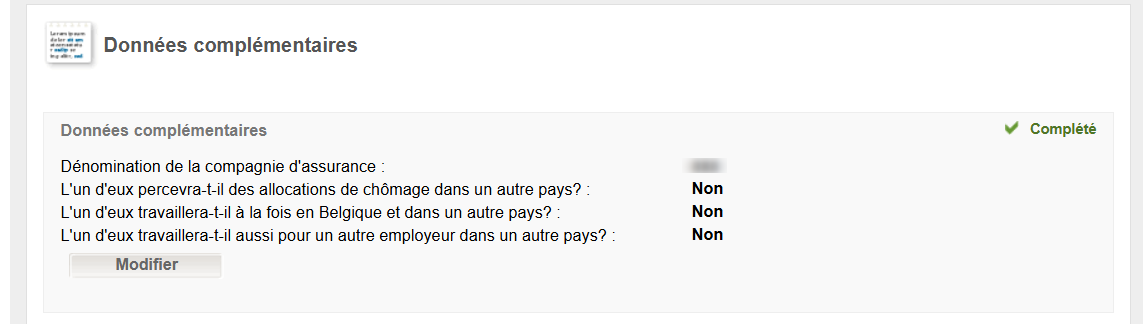
Check the overview screen after filling out all Additional information (‘Données complémentaires’ in the screenshot).
Click on Modify (‘Modifier’ in the screenshot) to modify information.
You have now completed all sections, and get redirected to the central screen for a summary overview.
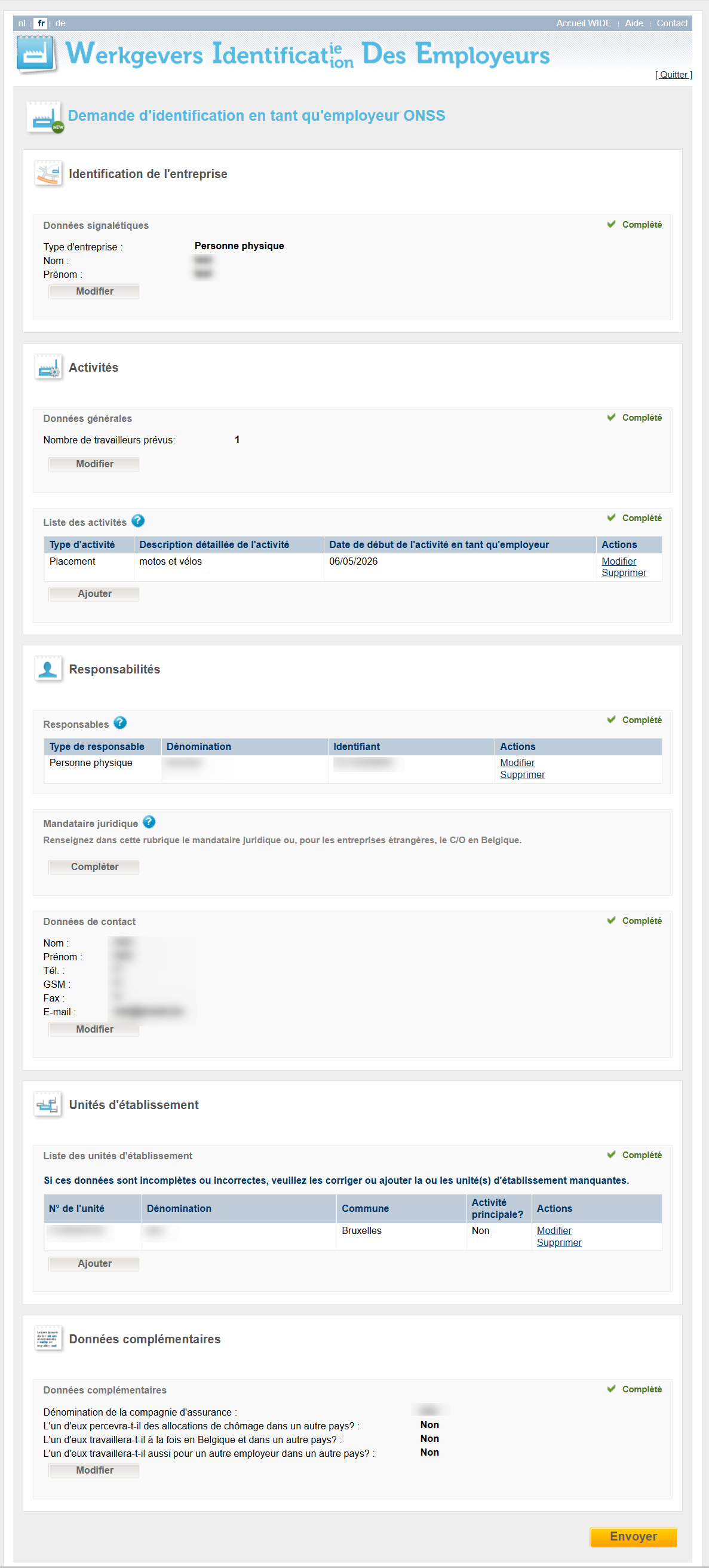
Add, Modify, Delete or Complete where possible (‘Ajouter, Modifier, Supprimer, Compléter’ in French) or proceed your request for further processing by clicking on Send (‘Envoyer’ in the screenshot), at the bottom of the screen.
After completion you receive a confirmation of your sent request for identification as an employer, as in the screen below.
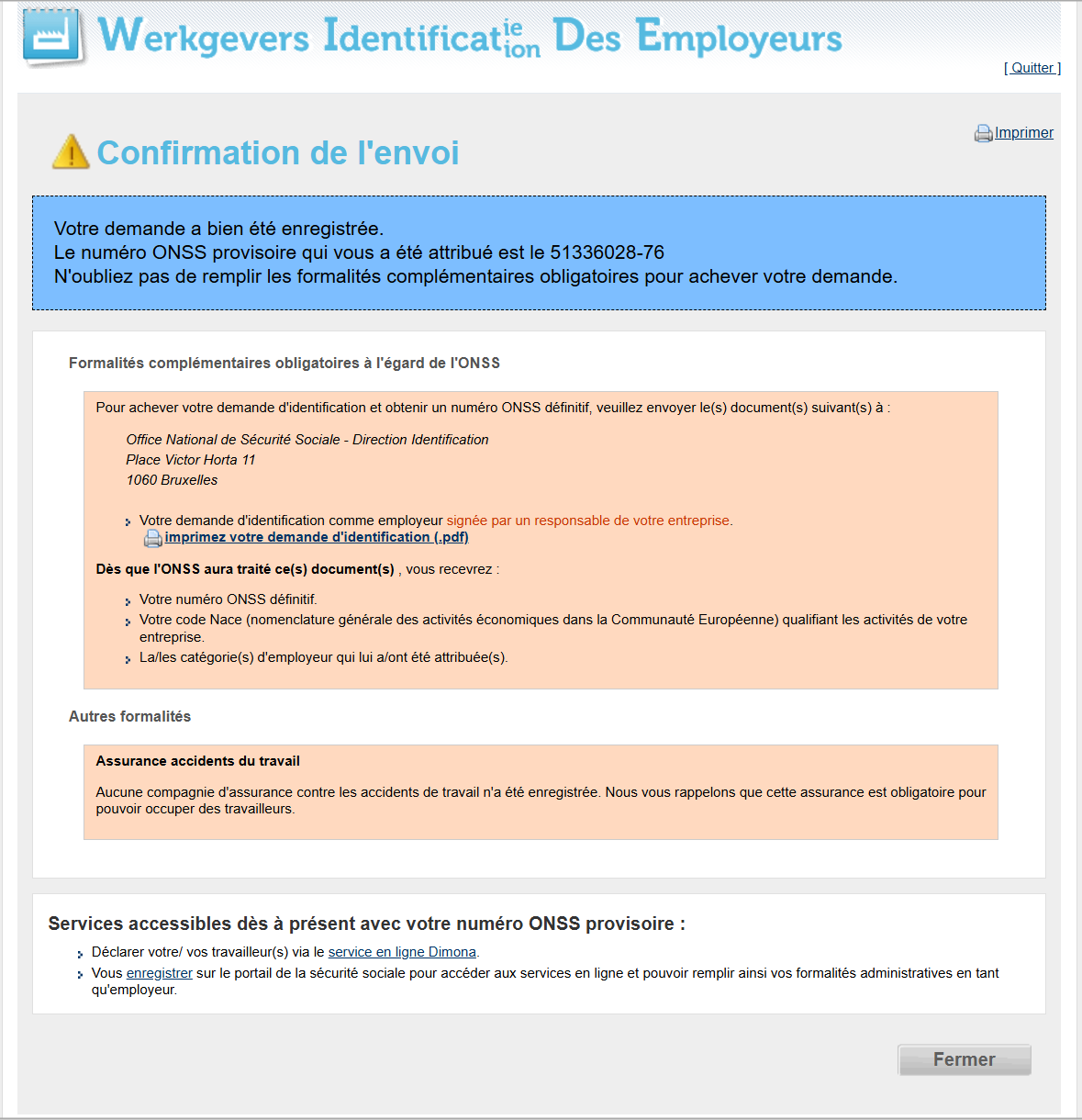
If you have used the secured version, you receive a confirmation of your sent request for identification as an employer, as in the screen below:
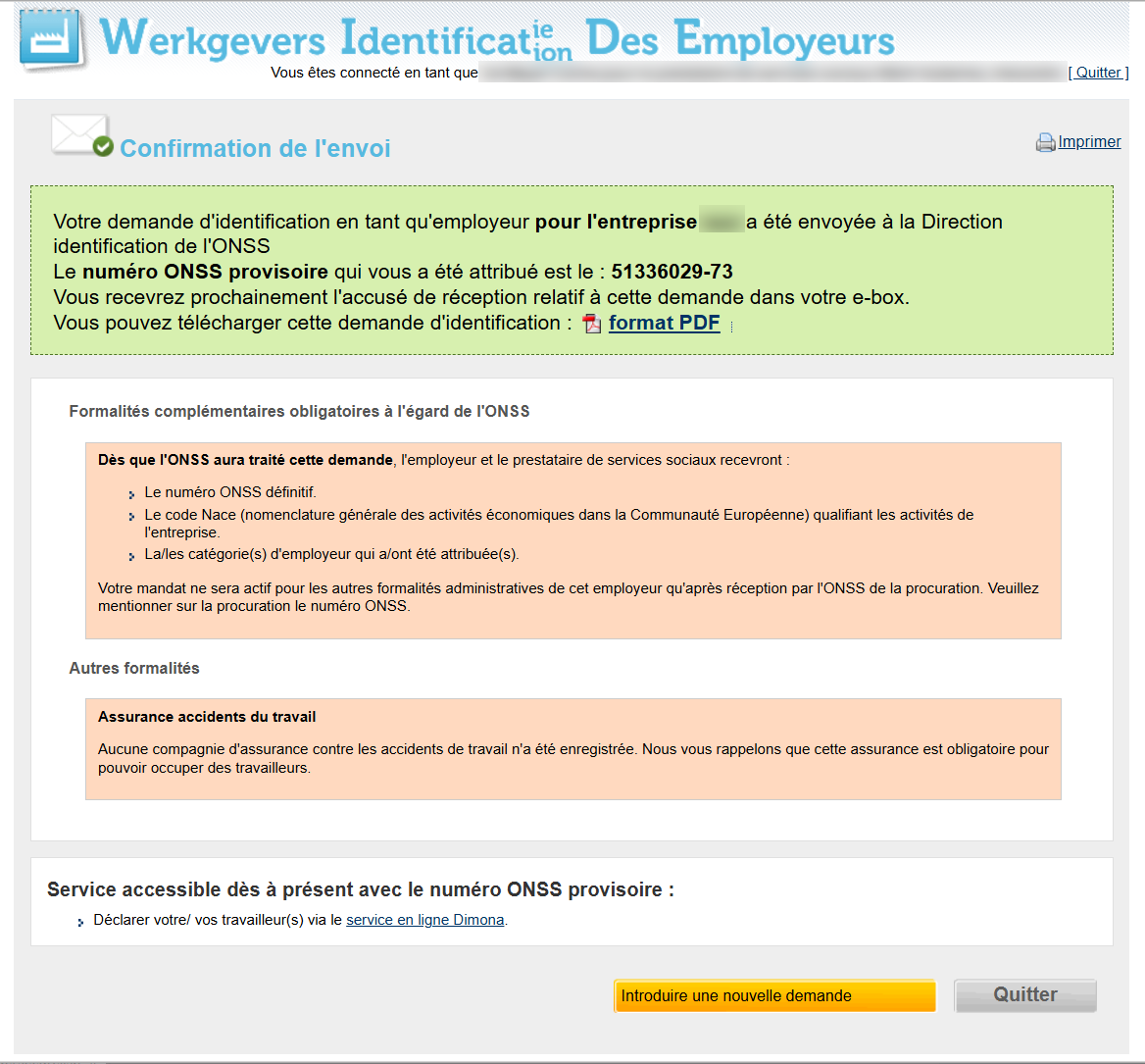
Preliminary NSSO number
The message given is:
- Your application has been registered.
- The provisional NSSO number assigned to you is 00000000-00 (51292299-22 as an example below).
- Do not forget to complete the mandatory additional formalities to complete your application (only if the application was submitted via the unsecured version).
Or in French:

Additional mandatory formalities (only if the application was submitted via the unsecured version).
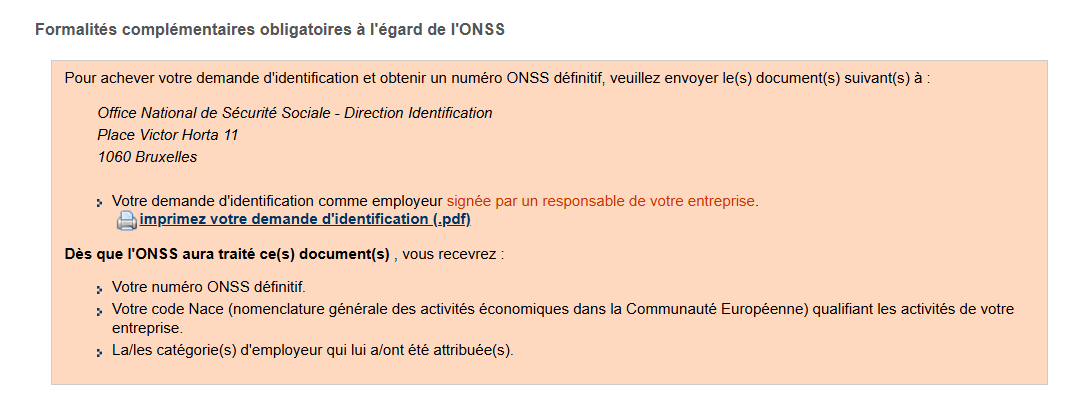
Please note! You need to comply with some additional formalities in order to complete your request and receive a definitive NSSO number (see orange rectangle in the screenshot):
- Additional formalities with regard to the NSSO (‘Formalités complémentaires obligatoires à l'égard de l'ONSS’ in the screenshot):
- In order to finalise your application and thus obtain a definitive NSSO number, you should send the following document(s) to:
National Social Security Office - Identification Department
Place Victor Horta 11
1060 Brussels
Your request for identification as an employer signed by a manager of your company.
Please note! You can print out your request by clicking on the link to the pdf.

- As soon as the NSSO has processed this/these document(s), you will receive:
- Your definitive NSSO number;
- Your NACE code (Nomenclature of Economic Activities (‘Classification des Activités Economiques in French) qualifying your entreprise’s activities;
- The employer category(ies) assigned to you.
Additional mandatory formalities (only if the application was submitted via the secured version).
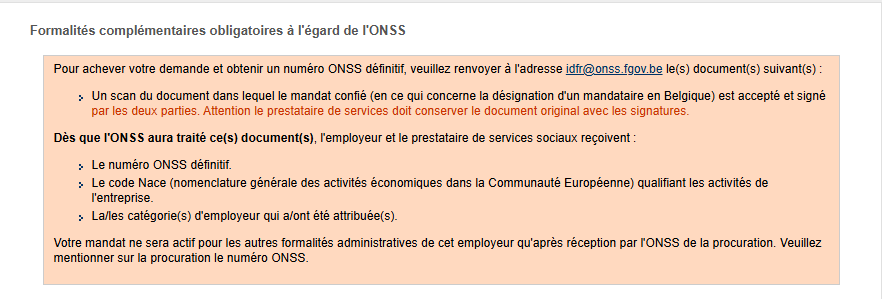
Please note! You need to follow some additional formalities to complete your request and to receive a definitive NSSO number (see orange rectangle in the screenshot):
- Additional formalities with regard to the NSSO (‘Formalités complémentaires obligatoires à l'égard de l'ONSS’ in the screenshot):
- To finalise your application and thus obtain a definitive NSSO number, please send the following document(s) to idfr@onss.fgov.be:
- a scan of the document in which the granted mandate (regarding the appointment of a representative in Belgium) is accepted and signed by both parties.
Please note that the service provider must keep the original document with the signatures.
- a scan of the document in which the granted mandate (regarding the appointment of a representative in Belgium) is accepted and signed by both parties.
- To finalise your application and thus obtain a definitive NSSO number, please send the following document(s) to idfr@onss.fgov.be:
- As soon as the NSSO has processed this/these document(s), you will receive:
- your definitive NSSO number;
- your NACE code (Nomenclature of Economic Activities (‘Classification des Activités Economiques in French) qualifying your entreprise’s activities;
- the employer category(ies) assigned to you.

Funded by the European Union – NextGenerationEU. Views and opinions expressed are however those of the author(s) only and do not necessarily reflect those of the European Union or European Commission. Neither the European Union nor the European Commission can be held responsible for them.
National Social Security Office (NSSO)
- Address: Place Victor Horta, 11 - 1060 Brussels
- Telephone: +32 (0)2 509 59 59
- Website: www.onss.be (in french)
You can also get in touch via our Contact page.


