

Dimona (secured version) - online service
Before you start
What is Dimona?
Dimona (derived from ‘Déclaration Immédiate/Onmiddellijke Aangifte’, meaning ‘Immediate Declaration’) is an online service for employers to notify the NSSO (National Social Security Office) about every entry and leaving of an employee. This ‘Immediate Declaration’ is mandatory for all employers in the public and private sector.
Use the secured version of Dimona by preference
There are 2 versions of Dimona, a secured and a non-secured version. As an employer, you should use the secured version of Dimona in first instance, as described in this manual. Only if this is not possible, for example due to technical reasons or if you haven’t yet received a username and password, you can use the non-secured version as described in the manual for the Online service Dimona (non-secured version).
Options within Dimona (secured version) described in this manual
The secured version of the online service Dimona has several options. This manual focuses on:
- How to declare (add) a new employee (also called Dimona IN).
- How to end a working period for an employee (also called Dimona OUT).
- How to modify a declaration (also called Modification).
- How to cancel a declaration (also called ‘Annulation’ in French).
Other functionalities of the online services are not described in this manual.
How to get access to the secured version of Dimona?
Before you can start using the secure online service Dimona, you need to:
- Obtain secure access via the registration page of Social security enterprise portal (in French) and click on the option for companies registered as employers (‘Mon entreprise est enregistrée comme employeur’ in French).
- Consequently, click on the option I want to manage my obligations towards the NSSO myself (‘Je souhaite traiter moi-même mes obligations administratives envers l’ONSS’ in French) on the NSSO registered companies page on the Social security enterprise portal (in French).
- Follow the list of actions that unfolds about assigning Access Managers.
- On the Dimona page of the Social security enterprise portal (in French), click the button labelled Workforce register: declare and manage (‘Fichier du personnel: déclarer et gérer’ in French). This gives access to the secured version of the online service Dimona.
- You arrive on the access page to the secure service on the Social security enterprise portal. Choose your preferred login method to access the secured version of Dimona.
- You get access to the main screen of the secured Dimona online service Workforce Register (‘fichier du personnel’ in the screenshot).
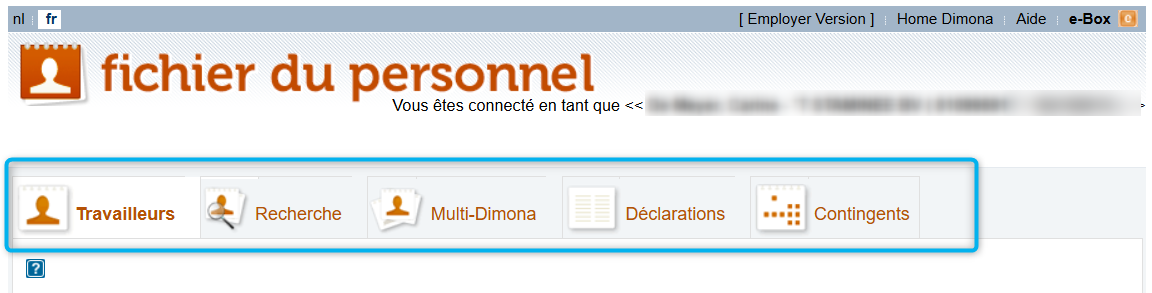
This screen contains 5 tabs: Employees / Search / Multi-Dimona / Declarations / Quota (‘Travailleurs / Recherche / Multi-Dimona / Déclarations / Contingents’ in the screenshot).
Follow the steps in Adding an employee – also known as Dimona IN - if you want to declare a new contract. Following steps apply and are explained furtherly:
- Open the tab about employees.
- Select the link to add an employee.
- Identify the employee.
- Specify the working period.
- Enter start and ending of the working period.
- Check the overview of the declaration.
- Get a confirmation of receipt for the declaration.
Opening the Employees tab (‘Travailleurs’)
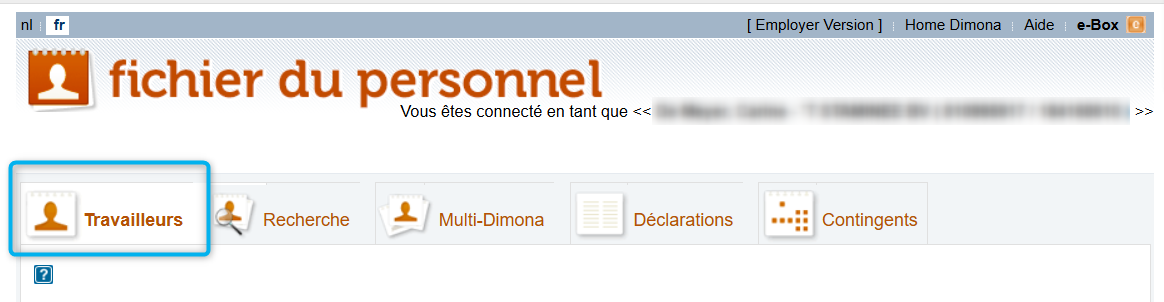
Click on the Employees (‘Travailleurs’ in the screenshot) tab.
Selecting Adding an Employee (‘Ajouter un travailleur’)
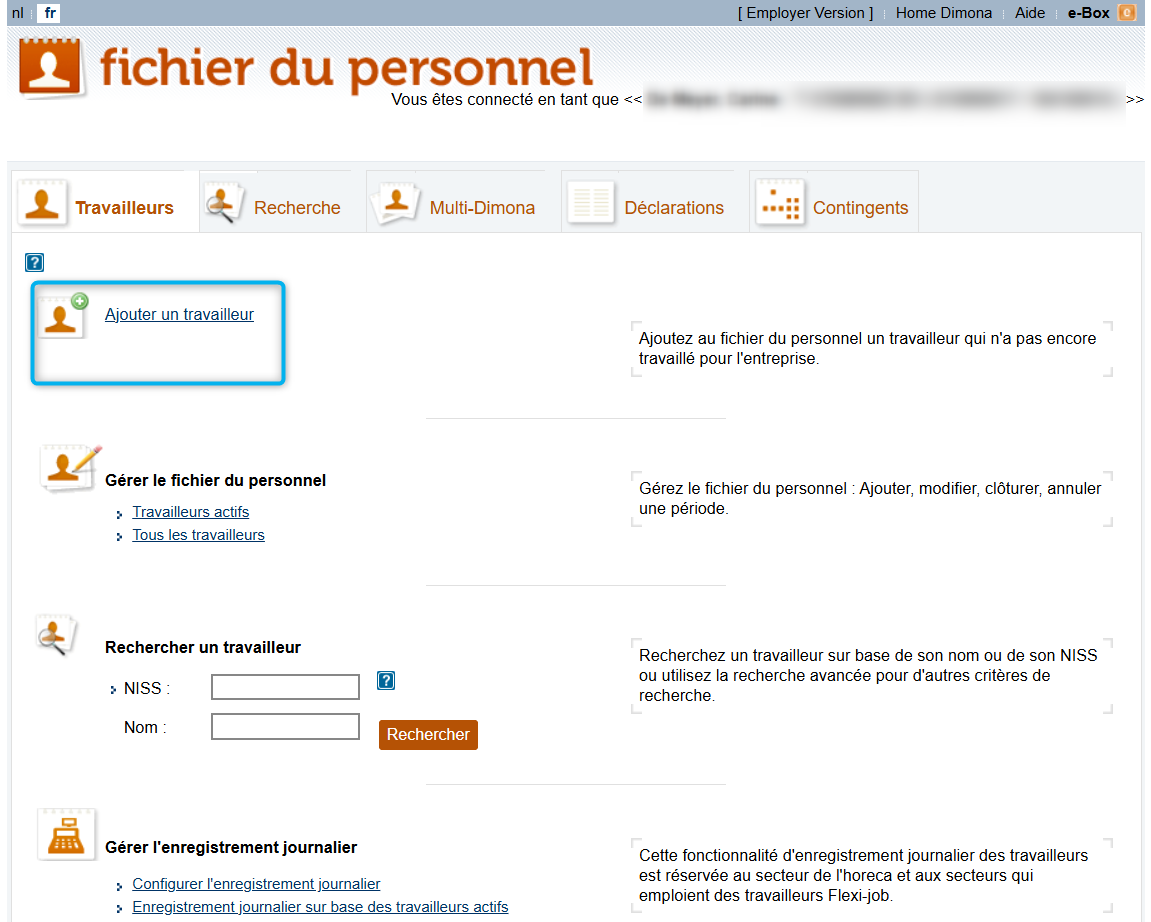
You see a screen with different links and options. To declare an new employee, Click on the link Adding an employee (‘Ajouter un travailleur’ in the screenshot).
Identifying the employee (‘Identification du travailleur’)
Where to find the required SSIN number
All workers in Belgium can be uniquely identified by their SSIN (Social Security Identification Number) (‘NISS’ in the screenshot). You need it for the Dimona declaration and you can find your employee’s SSIN on the following official documents:
- the electronic identity card (eID);
- the electronic card issued to EU nationals staying in Belgium;
- the residence permit issued to nationals of non-EU countries staying in Belgium;
- the isi+ card (issued by a healthcare fund) for all persons who don’t have an electronic identity document but enjoy Belgian social security coverage.
Identifying the employee when you know the SSIN
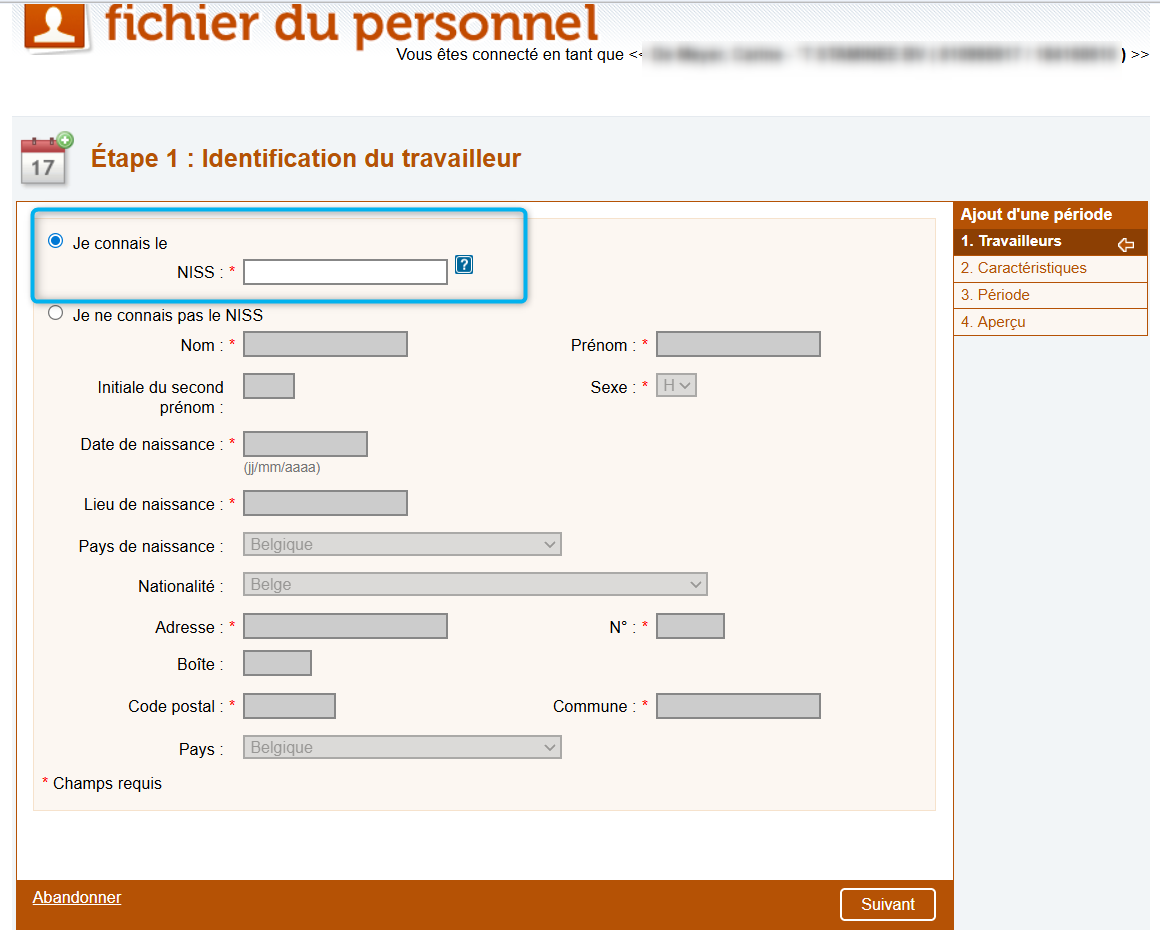
Click the radio button I know the SSIN (‘Je connais le NISS’ in the screenshot) and fill out the SSIN in the adjacent field.
Click on Next (‘Suivant’ in the screenshot) to continue or Discard (‘Abandonner’ in the screenshot) to cancel the declaration.
Identifying the employee when you don’t know the SSIN
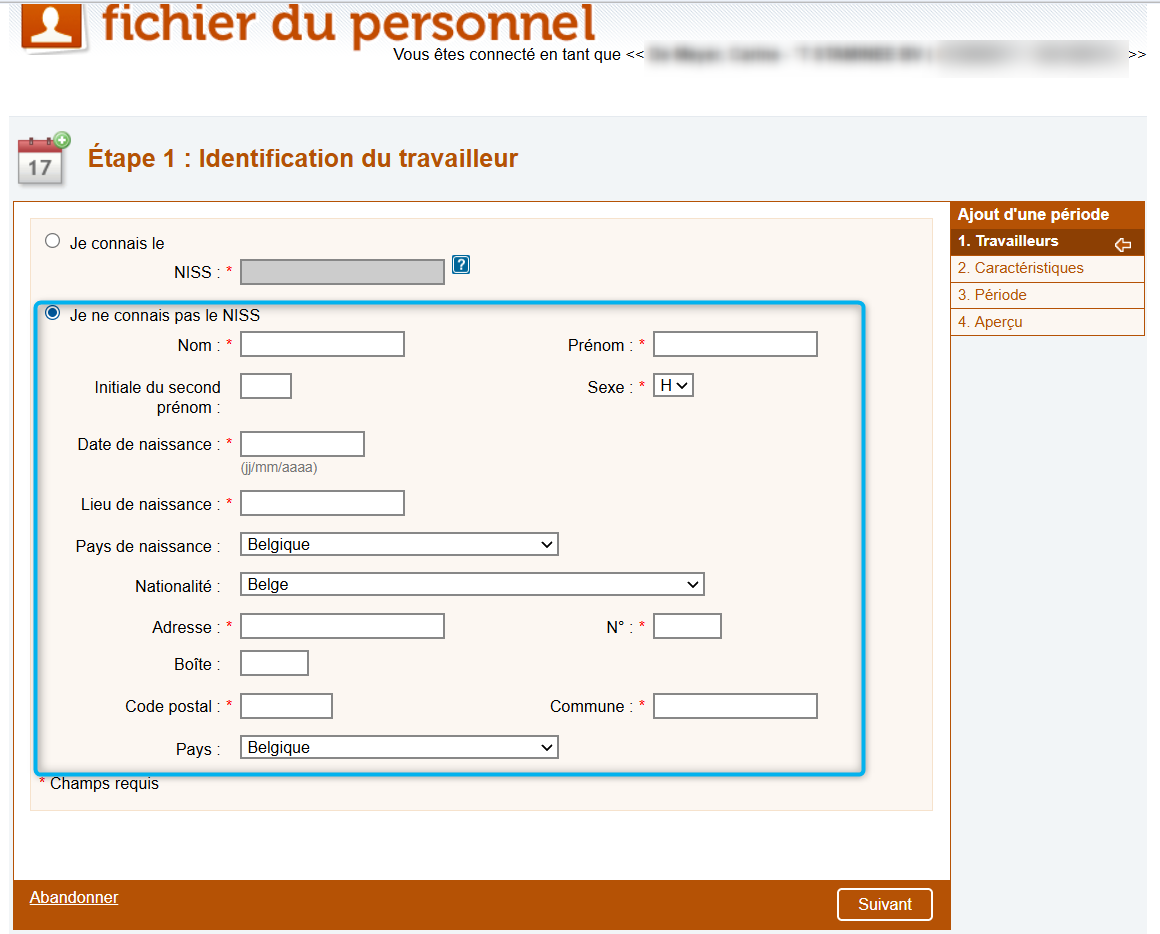
Click the radio button I don’t know the SSIN (‘Je ne connais pas le NISS’ in the screenshot) and fill out the following fields (fields marked with an asterisk (*) are mandatory):
- Family name (‘Nom’ in the screenshot );
- Given name (‘Prénom’ in the screenshot);
- Initial of the middle name (‘lnitiale du second prénom’ in the screenshot));
- Gender (‘Sexe’ in the screenshot);
- Birth date (‘Date de naissance’ in the screenshot);
- Place of birth (‘Lieu de naissance’ in the screenshot);
- Country of birth (‘Pays de naissance’ in the screenshot);
- Nationality (‘Nationalité’ in the screenshot);
- Address (‘Adresse’ in the screenshot);
- House number (‘N°’ in the screenshot);
- Mailbox (‘Boîte’ in the screenshot);
- Postal code (‘Code postal’ in the screenshot);
- City (‘Commune’ in the screenshot);
- Country (‘Pays’ in the screenshot).
Click on Next (‘Suivant’ in the screenshot) to continue or Discard (‘Abandonner’ in the screenshot) to cancel the declaration.
Specify the working period (‘Caractéristiques de la période’)
In this step you must select:
- the Joint committee to which the employee belongs (‘Commission Paritaire’ in the screenshot)
- the Type of worker (‘Type de travailleur’ in the screenshot)
Selecting the joint committee
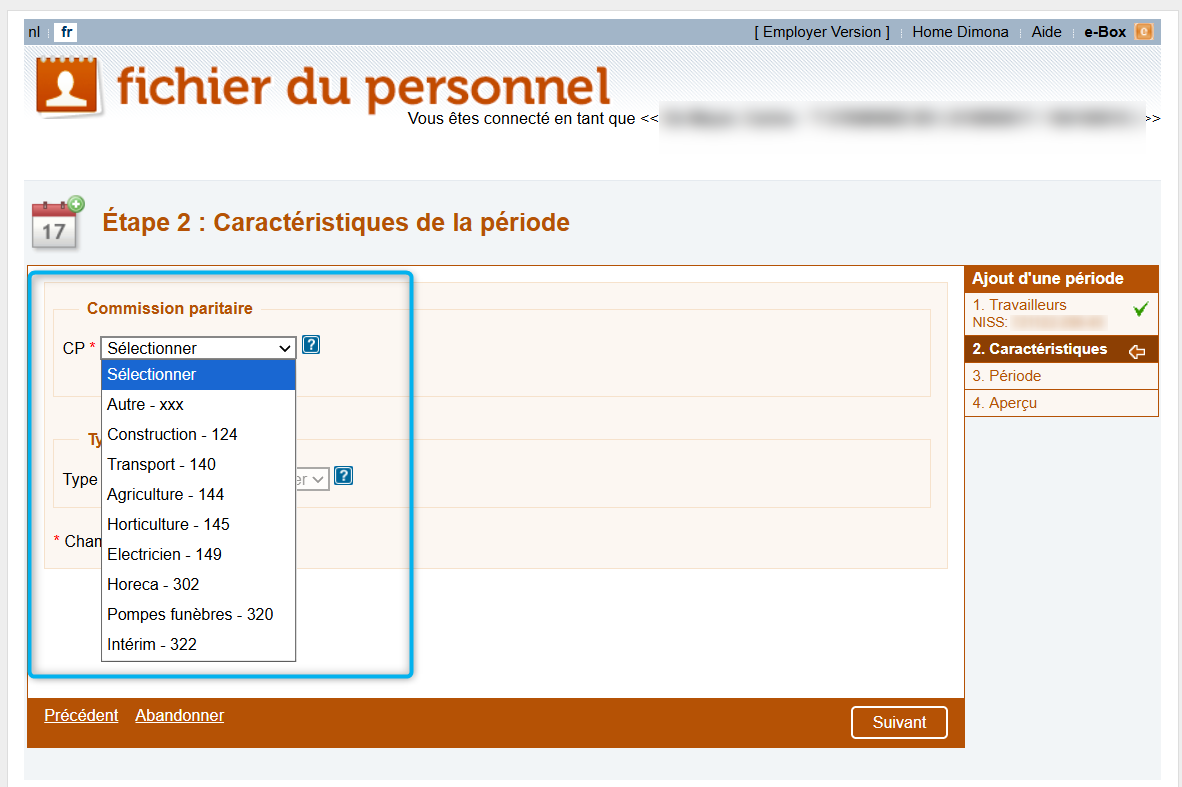
Choose the relevant Joint committee (‘Commission Paritaire’ in the screenshot) by clicking on the CP drop-down menu. Select one of the options presented in the drop-down:
- Other - XXX
- Construction - 124
- Transport - 140
- Agriculture - 144
- Horticulture - 145
- Electricity - 149 (‘Electricien - 149’ in the screenshot)
- Hospitality – 302 (‘Horeca - 302’ in the screenshot)
- Funeral business - 320 (‘Pompes funèbres - 320’ in the screenshot)
- Temporary staffing – 322 (‘Intérim - 322’ in the screenshot)
Click on Next (‘Suivant’ in the screenshot) to continue or Discard (‘Abandonner’ in the screenshot) to cancel the declaration. Click on Previous (‘Précédent’ in the screenshot) to return to the previous screen.
Table giving the complete list of possible joint committees, their short and full description:
| Joint Committee | Description | Full description |
|---|---|---|
| XXX | Other | Other sectors. |
| 124 | Construction | For workers and apprentices in the construction sector. |
| 140 | Transport | For workers and apprentices in the transport sector. |
| 144 | Agriculture | For occasional workers in the agricultural sector. |
| 145 | Horticulture | For occasional workers in the horticultural sector. |
| 149 | Electricity | For workers covered by the joint sub-committee for electricians (installation and distribution - SCP 149.01). |
| 302 | Hospitality | For occasional workers in hospitality. |
| 320 | Funeral business | For occasional workers in the funeral industry. |
| 322 | Temporary staffing | For workers and employees in the temporary sector. |
Consult more detailed information on joint committees in the Dimona key data page in the Administrative Instructions section of the Social security enterprise portal (in French).
Selecting the type of worker
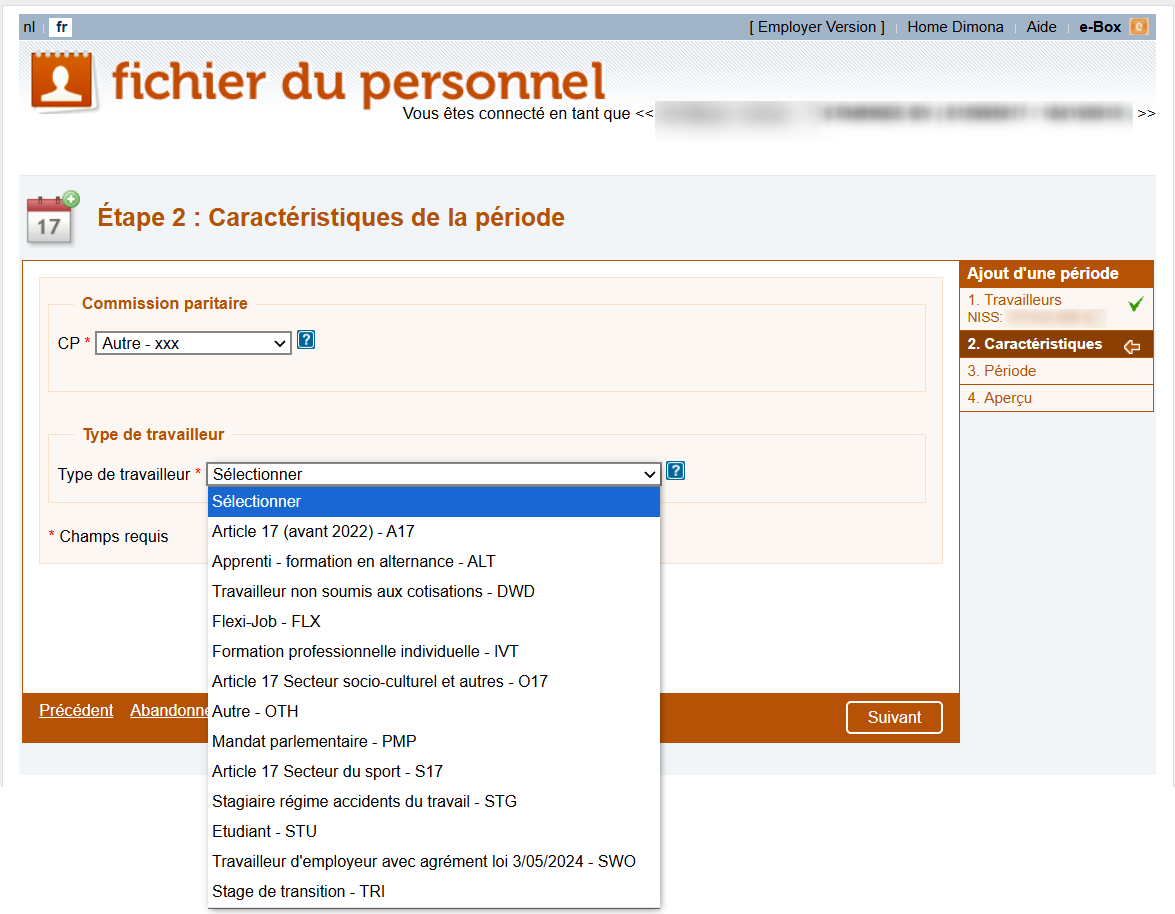
Choose the Type of worker (‘Type de travailleur’ in the screenshot) by clicking on the drop-down menu. Select one of the presented options, their availability depends on the joint committee you selected in the previous step.
The following table lists all possible type of workers, listed in English, in French, as well as with a short and full description. Beware! A specific joint committee only shows a selection of these type of workers.
| Type of worker (English) | Type of worker (French) | Description | Full description |
|---|---|---|---|
| Apprentice - recognised or similar | Apprenti agréé ou assimilé | RTA | Trainees working in construction. |
| Apprentice – alternated learning | Apprenti en formation en alternance | ALT | Trainees – alternated learning (from 1 September 2023 onwards) |
| Article 17 | Article 17 | A17 | Those working in socio-cultural work before 2022. |
| Article 17 – sports sector | Article 17 Secteur du sport | O17 | Those working in sports working in accordance with Article 17. |
| Article 17 – socio-cultural and other sectors | Article 17 – secteur socio-culturel et autres | S17 | Others working in accordance with Article 17. |
| Article 17 – public TV | Article 17 – TV publique | T17 | Those working for radio/TV in accordance with Article 17. |
| Other | Autre | OTH | Others, students included, not represented in any other category of Type of worker. |
| Student | Etudiant | STU | Students only: workers having a specific student contract, enjoying reduced social contributions . |
| Flexi-job | Flexi-job | FLX | Flexi-job workers. |
| Individual vocational training | Formation professionelle individuelle | IVT | Persons bound by an individual vocational training called ‘Plan Formation Insertion’ / ‘Contrat Formation Insertion’, ‘Formation Professionnelle Individuelle’ or ‘Individuele beroepsopleiding’. |
| Parliamentary mandate | Mandat parlementaire | PMP | Members of parliament and ‘protected’ local mandataries. |
| Transitional apprenticeship | Stage de transition | TRI | People who are doing a transitional internship at an employer but still have unemployment status. |
| Internship under accident at work scheme | Stage régime accidents du travail | STG | Non-subjected interns, when they are doing training for remunerative employment, except when to be declared as coded IVT (Individual vocational training) or TRI (Transitional apprenticeship). |
| Construction worker | Travailleur du secteur de la construction | BCW | Construction workers. |
| Worker not submitted to contributions | Travailleur non soumis aux cotisations | DWD | ‘Dimona without DmfA’: a worker who needs to be included in Dimona but not in DmfA. |
| Occasional worker | Travailleur occasionnel | EXT | Occasional workers. |
| Employee of an employer with a licence under the Act of 3 May 2024 | Travailleur d'employeur avec agrément loi 3/05/2024 | SWO | An employee of an employer holding the licence provided for under the Act of 3 May 2024 |
Consult more detailed information on type of worker in the Dimona key data page in the Administrative Instructions section of the Social security enterprise portal (in French).
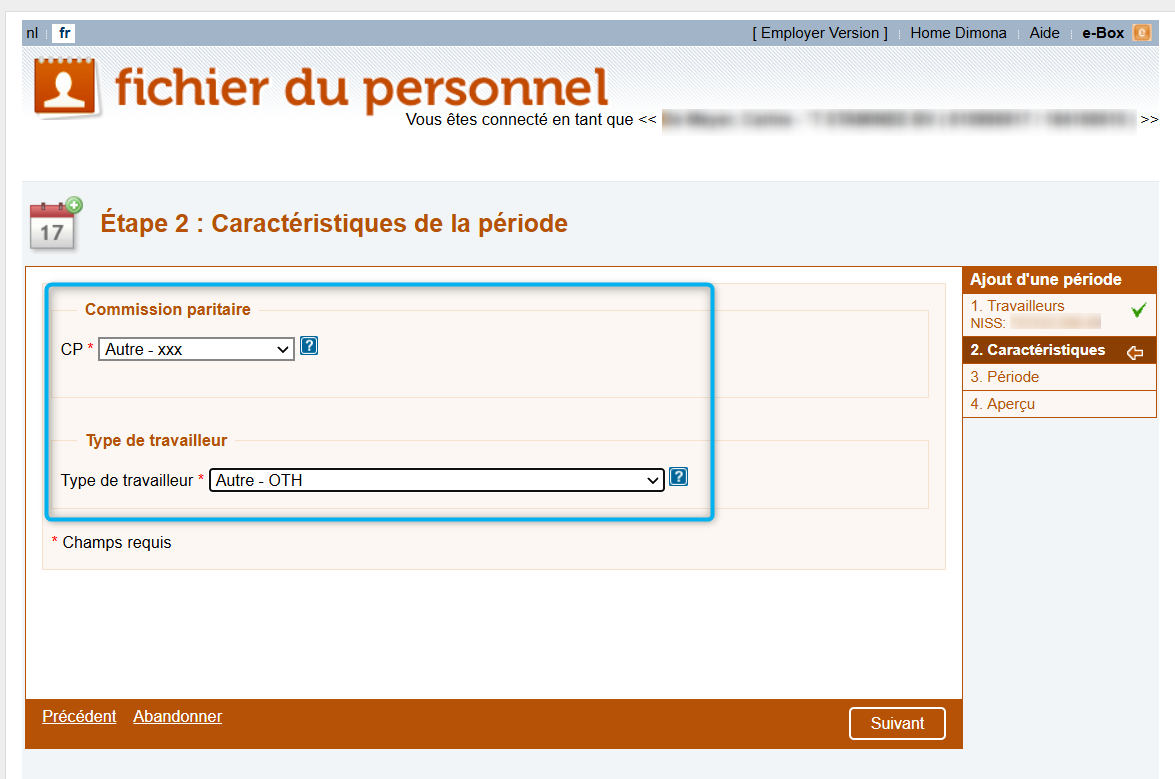
Click on Next (‘Suivant’ in the screenshot) to continue or Discard (‘Abandonner’ in the screenshot) to cancel the declaration. Click on Previous (‘Précédent’ in the screenshot) to return to the previous screen.
Entering start and ending dates of the working period (‘Détails de la période’)
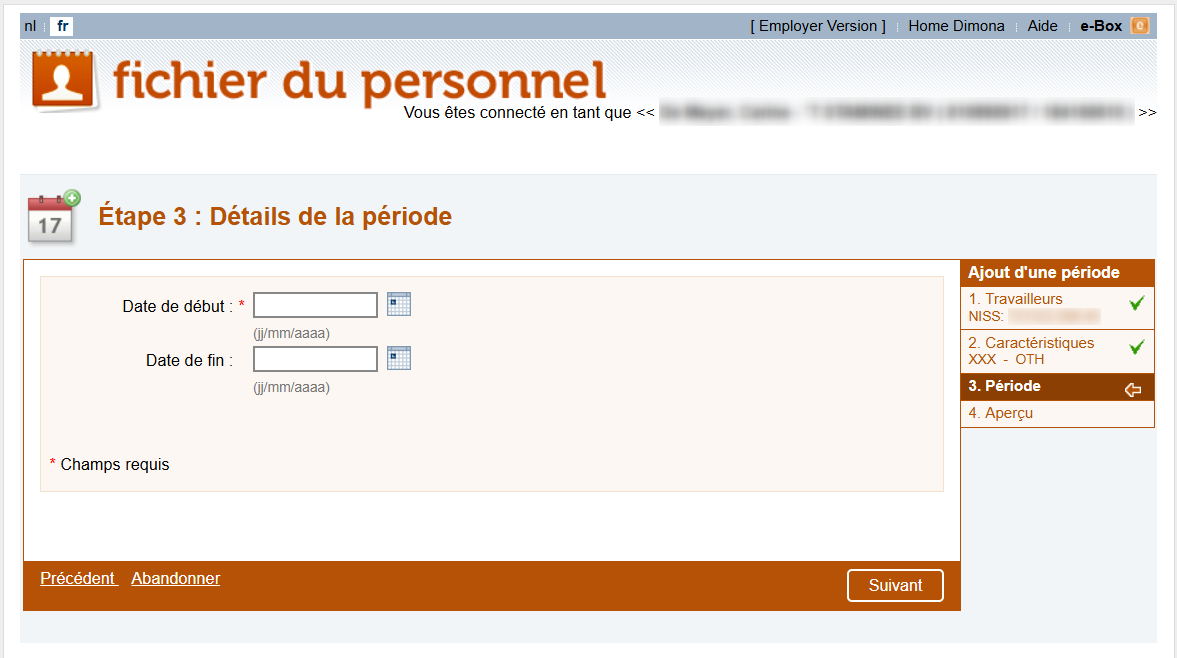
Provide the starting and ending date of the working period, i.e. the period during which the employee has an employment relationship with the employer:
- Fill out the start of the working period in the field adjacent to Starting date (‘Date de début’ in the screenshot) in format ‘dd/mm/yyyy’ or click on the calendar icon to select a starting date.
- Fill out the end date in the field adjacent to Ending date (‘Date de fin’ in the screenshot) in format ‘dd/mm/yyyy’ or click on the calendar icon to select an ending date.
Beware!
- For some types of workers the end date is mandatory. In that case the field Ending Date has an asterisk (*).
- For occasional workers (EXT) you also need to submit a start and end time, according to the type of contract.
- For students (STU) and workers with the code S17 and O17 you also need to submit the number of hours.
Click on Next (‘Suivant’ in the screenshot) to continue or Discard (‘Abandonner’ in the screenshot) to cancel the declaration. Click on Previous (‘Précédent’ in the screenshot) to return to the previous screen.
Consult more detailed information on the different type of workers via the Dimona page of the Administrative Instructions section of the Social security enterprise portal (in French).
Overview of the Add an employee declaration (‘Aperçu de la déclaration’)
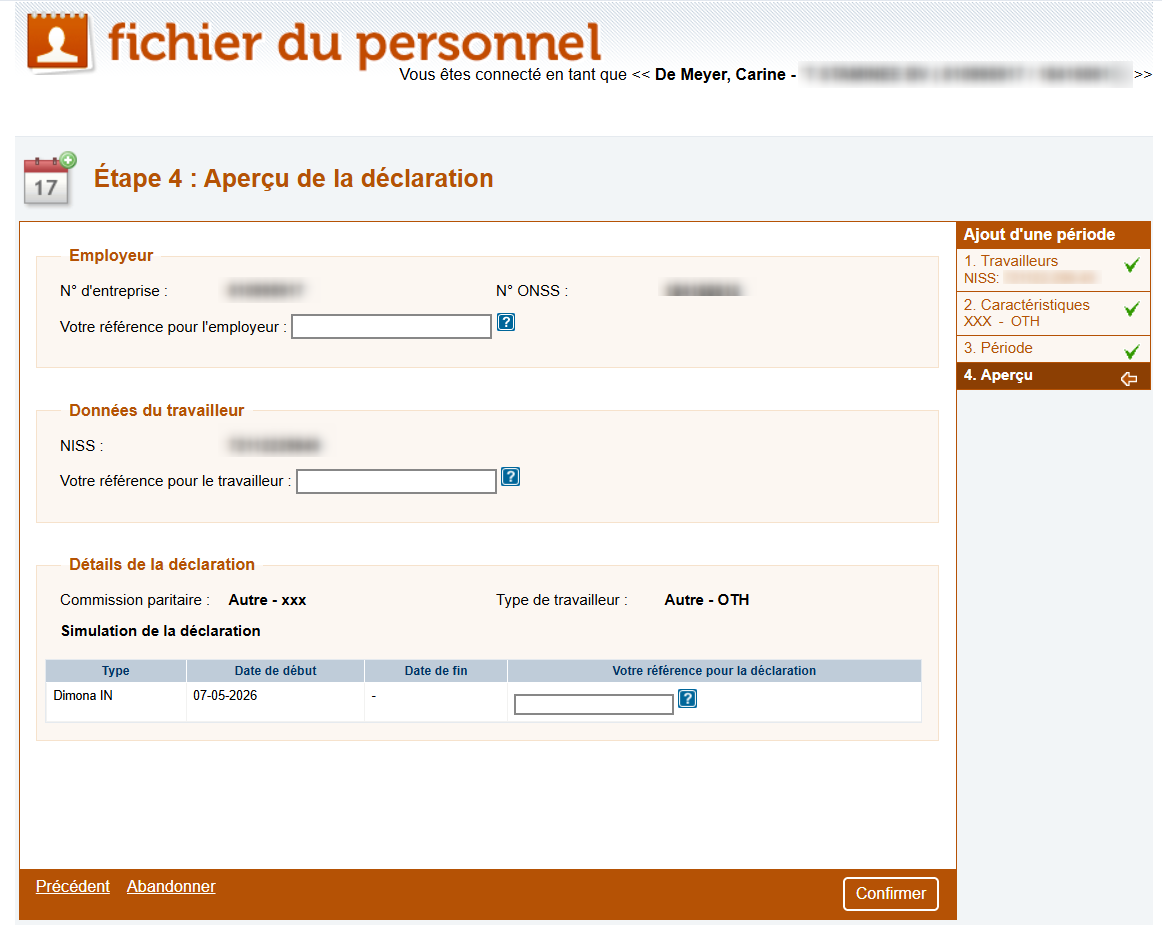
In this step you get an overview of all information declared, so you can check all details before submitting. Please note that references are optional. It contains:
- Information on the Employer (‘Employeur’ in the screenshot):
- Check the Enterprise number (‘N° d’entreprise’ in the screenshot);
- Check the NSSO identification number (‘N° ONSS’ in the screenshot);
- Add if needed your company’s reference in the adjacent field (‘Votre référence pour l’employeur’ in the screenshot).
- Information on the Employee (‘Données du travailleur’ in the screenshot):
- Check the NISS number (‘NISS’ in the screenshot);
- Check the Familiy name (‘Nom’ in the screenshot) and Given name (‘Prénom’ in the screenshot);
- Add if needed your reference for the employee in the adjacent field (‘Votre référence pour le travailleur in the screenshot).
- Information on the Declaration details (‘Détails de la déclaration’ in the screenshot):
- Check the Joint Committee (‘Commission Paritaire’ in the screenshot);
- Check the Type of worker (‘Type de travailleur’ in the screenshot);
- Under Simulation of the declaration (‘Simulation de la déclaration’ in the screenshot) you find:
- Type of declaration (‘Type de déclaration’ in the screenshot);
- Starting date (‘Date de début’ in the screenshot);
- Ending date (‘Date de fin’ in the screenshot);
- Add if needed your reference for the declaration in the adjacent field (‘Votre référence pour la déclaration’ in the screenshot).
Click on Confirm (‘Confirmer’ in the screenshot) to continue or Discard (‘Abandonner’ in the screenshot) to cancel the declaration. Click on Previous (‘Précédent’ in the screenshot) to return to the previous screen, for example to make corrections.
Confirmation of receipt for the declaration of a new employee
Confirmation screen for the declaration of a new employee
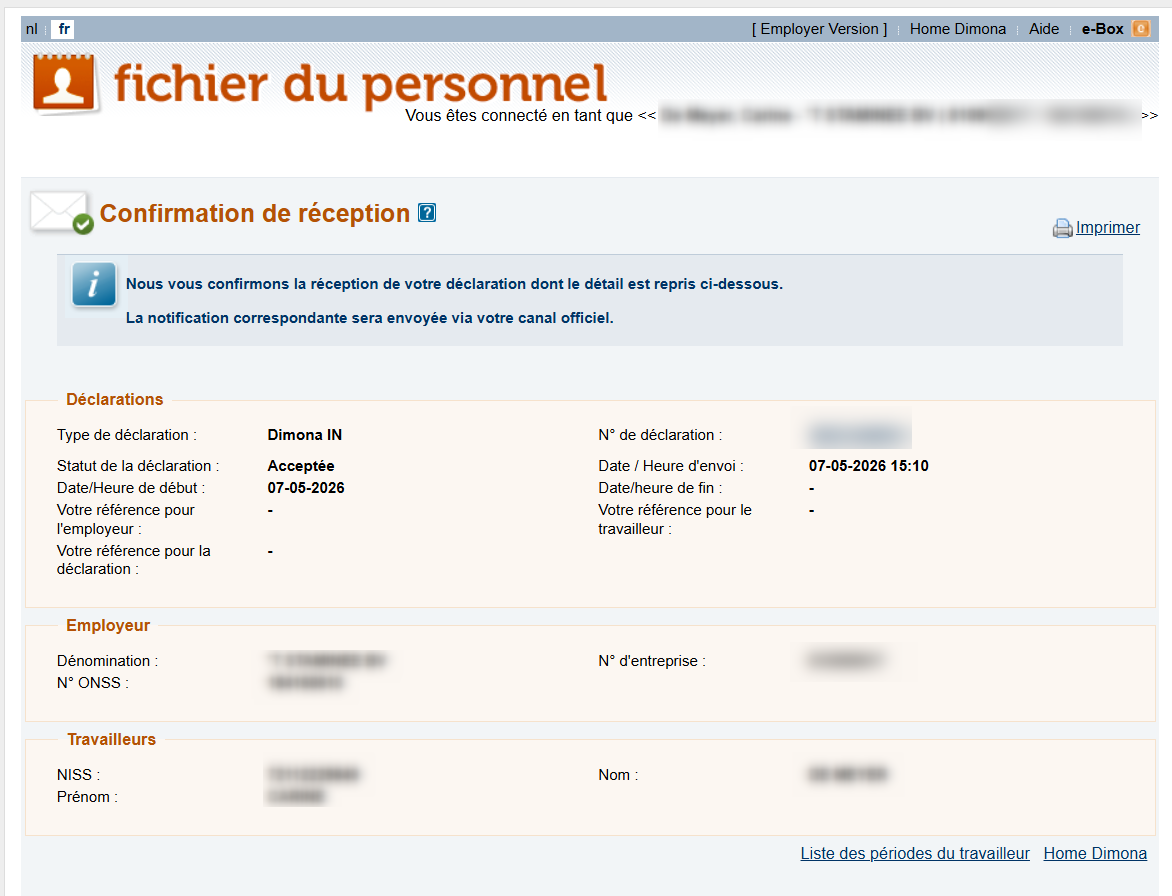
The next screen contains a Confirmation of receipt (‘Confirmation de réception’ in the screenshot). It shows all details about the submitted Declaration (‘Déclarations’ in the screenshot), the Employer (‘Employeur’ in the screenshot) as well as the Employees (‘Travailleurs’ in the screenshot).
Under Declarations (‘Déclarations’ in the screenshot) you see:
- Type of declaration (‘Type de déclaration’ in the screenshot): in this case of declaring a new employee it will state Dimona IN;
- Declaration number (‘N° de déclaration’ in the screenshot): this is the number that has been assigned to your submitted declaration;
- Status of the declaration (‘Statut de la déclaration’ in the screenshot), which can be either:
- Accepted (‘Acceptée’ in French),
- Refused (‘Refusée’ in French), or
- Pending (‘En attente’ in French).
- Date/time of sending (‘Date/Heure d’envoi’ in the screenshot): refers to the moment you submitted the declaration;
- Date/time of starting (‘Date/Heure de début’ in the screenshot);
- Date/time of ending (‘Date/Heure de fin’ in the screenshot);
- Your company’s reference (‘Votre référence pour l’employeur’ in the screenshot) in case you filled it out: this field is empty if you haven’t filled out a reference in the previous step;
- Your reference for the employee (‘Votre référence pour le travailleur’ in the screenshot): this field is empty if you haven’t filled out a reference in the previous step;
- Your reference for the declaration (‘Votre référence pour la déclaration’ in the screenshot): this field is empty if you haven’t filled out a reference in the previous step;
Under Employer (‘Employeur’ in the screenshot), you will find all information related to the employer:
- The employer’s Company name (‘Dénomination’ in the screenshot);
- The Enterprise number (‘N° d’entreprise’ in the screenshot);
- The NSSO identification number (‘N° ONSS’ in the screenshot);
Under Employees (‘Travailleurs’ in the screenshot), you will find all information related to the employee:
- The NISS number (‘NISS’ in the screenshot);
- The Familiy name (‘Nom’ in the screenshot);
- The Given name (‘Prénom’ in the screenshot).
Details of the declaration (‘Détails de la déclaration’)
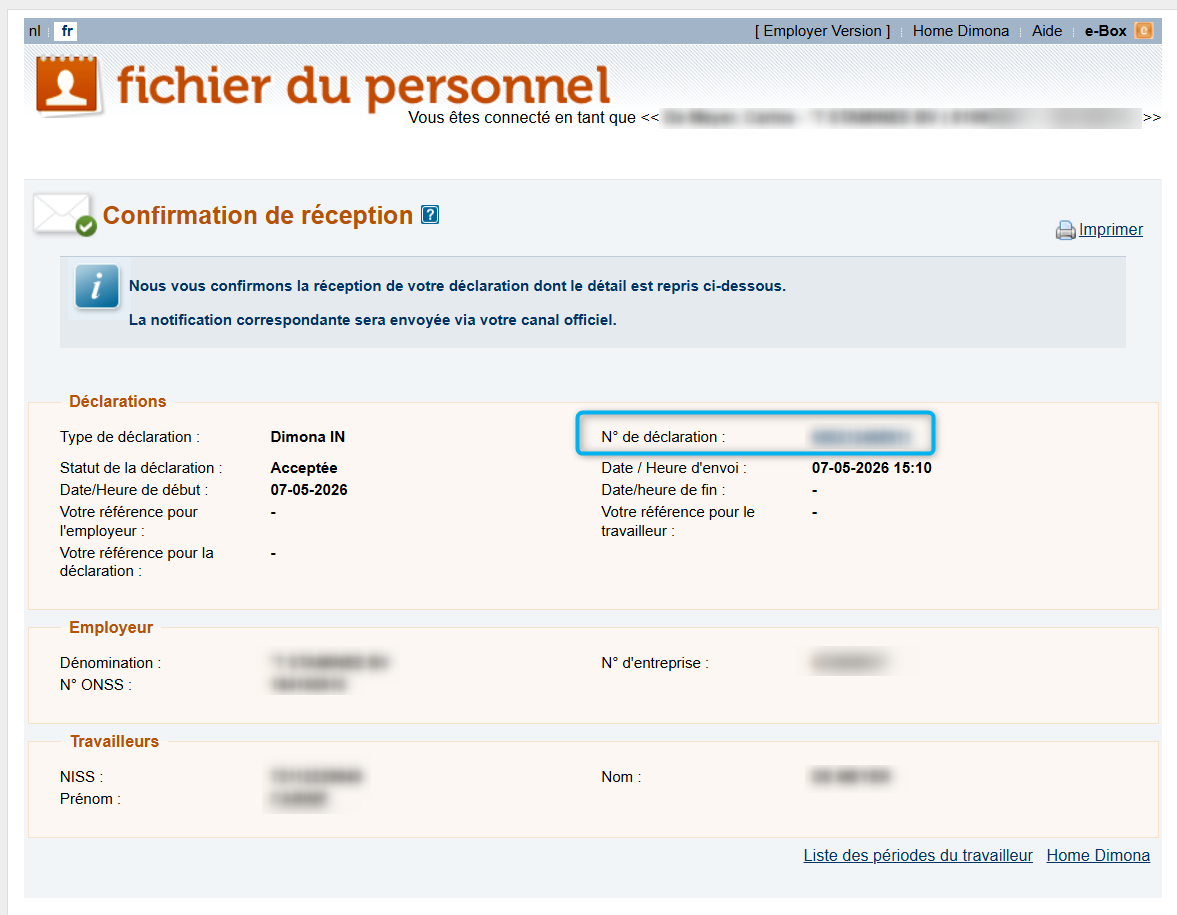
Click on Declaration number (‘N° de déclaration’ in the screenshot) in the confirmation screen to consult more detailed information on the declaration.
You consequently open a screen containing information divided into 6 parts:
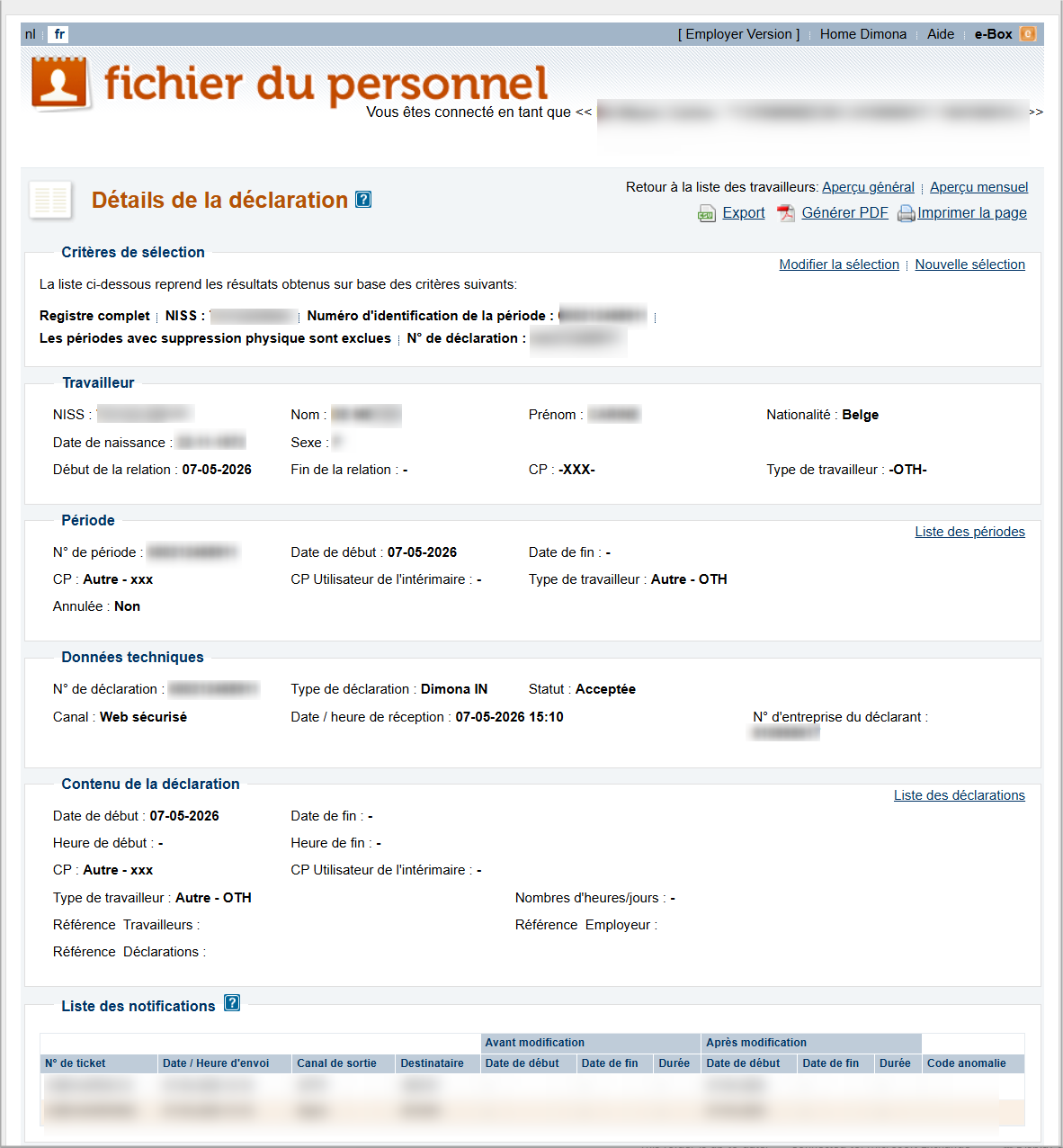
- Selection criteria (‘Critères de sélection’ in the screenshot)
- Complete register / SSIN (‘Registre complet / NISS’ in the screenshot) of the employee;
- Identification number for the period (‘Numéro d’identification de la période’ in the screenshot);
- Declaration number (‘Numéro de déclaration’ in the screenshot) received after the declaration has been confirmed.
- Employee (‘Travailleur’ in the screenshot) details:
- SSIN (‘NISS’ in the screenshot), the Social Security Identification number of the employee;
- Family name (‘Nom’ in the screenshot );
- Given name (‘Prénom’ in the screenshot);
- Nationality (‘Nationalité’ in the screenshot);
- Birth date (‘Date de naissance’ in the screenshot);
- Gender (‘Sexe’ in the screenshot);
- Start of the relation (‘Début de la relation’ in the screenshot), indicating at what date the relationship with the employee started;
- End of the relation (‘Fin de la relation’ in the screenshot), indicating at what date the relationship with the employee ended;
- Joint Committee (‘CP’ in the screenshot), indicating what joint committees are linked to the employee;
- Type of worker (‘Type de travailleur’ in the screenshot), indicating what types of work are linked to the employee.
- Period (‘Périod’ in the screenshot) details:
- Period number (‘Numéro de période’ in the screenshot);
- Starting date (‘Date de début’ in the screenshot);
- Ending date (‘Date de fin’ in the screenshot);
- Joint Committee (‘CP’ in the screenshot), indicating the joint committee for the period;
- Joint Committee temporary staffing (‘CP Utilisateur de l’intérimaire’ in the screenshot);
- Type of worker (‘Type de travailleur’ in the screenshot);
- Cancelled (‘Annulée’ in the screenshot), indicating if the period has been cancelled: Yes (‘Oui’ in French) or No (‘Non’ in French);
- Click on List of periods (‘Liste des périodes’ in the screenshot) to see all periods connected to the employee. The Period number is an identification number which allows you to find a specific period of employment of an employee in your personnel file. It corresponds with the identification number of the declaration (Dimona IN) of the worker concerned. It must be kept for the duration of the employee's career in your company. Consult more details on the List of periods screen.
- Technical details (‘Données techniques’ in the screenshot):
- The declaration number (‘Numéro de déclaration’ in the screenshot);
- Type of declaration (‘Type de déclaration’ in the screenshot);
- Status (‘Statut’ in the screenshot) of the declaration. There are 3 options:
- Accepted (‘Acceptée’ in French);
- Refused (‘Refusée’ in French);
- Pending (‘En attente’ in French).
- Channel (‘Canal’ in the screenshot), indicating how the declaration was made. In the case of a declaration of a new employee via the secured Dimona it is always Secured web (‘Web sécurisé’ in the screenshot);
- Date / time of reception (‘Date/heure de réception’ in the screenshot) of the declaration;
- Enterprise number of the declarant (‘Numéro d’entreprise du déclarant’ in the screenshot).
- Body of the declaration (‘Contenu de de déclaration’ in the screenshot):
- Starting date (‘Date de début’ in the screenshot);
- Ending date (‘Date de fin’ in the screenshot);
- Starting time (‘Heure de début’ in the screenshot);
- Ending time (‘Heure de fin’ in the screenshot);
- Joint Committee (‘CP’ in the screenshot), indicating the joint committee for the period;
- Joint Committee temporary staffing (‘CP Utilisateur de l’intérimaire’ in the screenshot);
- Type of worker (‘Type de travailleur’ in the screenshot);
- Number of hours/days (‘Nombre d’heures/jours’ in the screenshot);
- Reference employees (‘Référence Travailleurs’ in the screenshot);
- Reference employer (‘Référence Employeur’ in the screenshot);
- Reference declarations (‘Référence Déclarations’ in the screenshot).
- Click on List of declarations (‘Liste des déclarations’ in the screenshot) to see all declarations connected to the employee. Consequently you can modify or cancel the period. Consult more details on the List of declarations screen.
- List of notifications (‘Liste des notifications’ in the screenshot), the receipt of confirmation you receive after a declaration.
- Ticket number (‘N° de ticket’ in the screenshot), this number is for internal purposes only;
- Date / time of sending (‘Date/heure d’envoi’ in the screenshot);
- Exit channel (‘Canal de sortie’ in the screenshot), meaning the channel used to send the notification;
- Recipient (‘Destinataire’ in the screenshot) meaning the instance receiving the notification;
- Before modification (‘Avant modification’ in the screenshot), what entries existed for this employee before this declaration:
- Starting Date (‘Date de début’ in the screenshoot);
- Ending Date (‘Date de fin’ in the screenshot);
- Duration (‘Durée’ in the screenshot).
- After modification (‘Après modifications’ in the screenshot), what entries existed for this employee consequent to this declaration :
- Starting Date (‘Date de début’ in the screenshoot);
- Ending Date (‘Date de fin’ in the screenshot);
- Duration (‘Durée’ in the screenshot).
- Anomaly code (‘Code anomalie’ in the screenshot). Find out more on the meaning of these codes in the Dimona Glossary of the Social security enterprise portal (in French). On the Dimona Glossary homepage, click on Latest version (‘Dernière version’ in French) in the menu and on Search (‘Recherche’ in French) in the drop-down menu. Click on the looking glass and fill out the fields to perform a search.
Details on screen List of periods (‘Liste des periods)
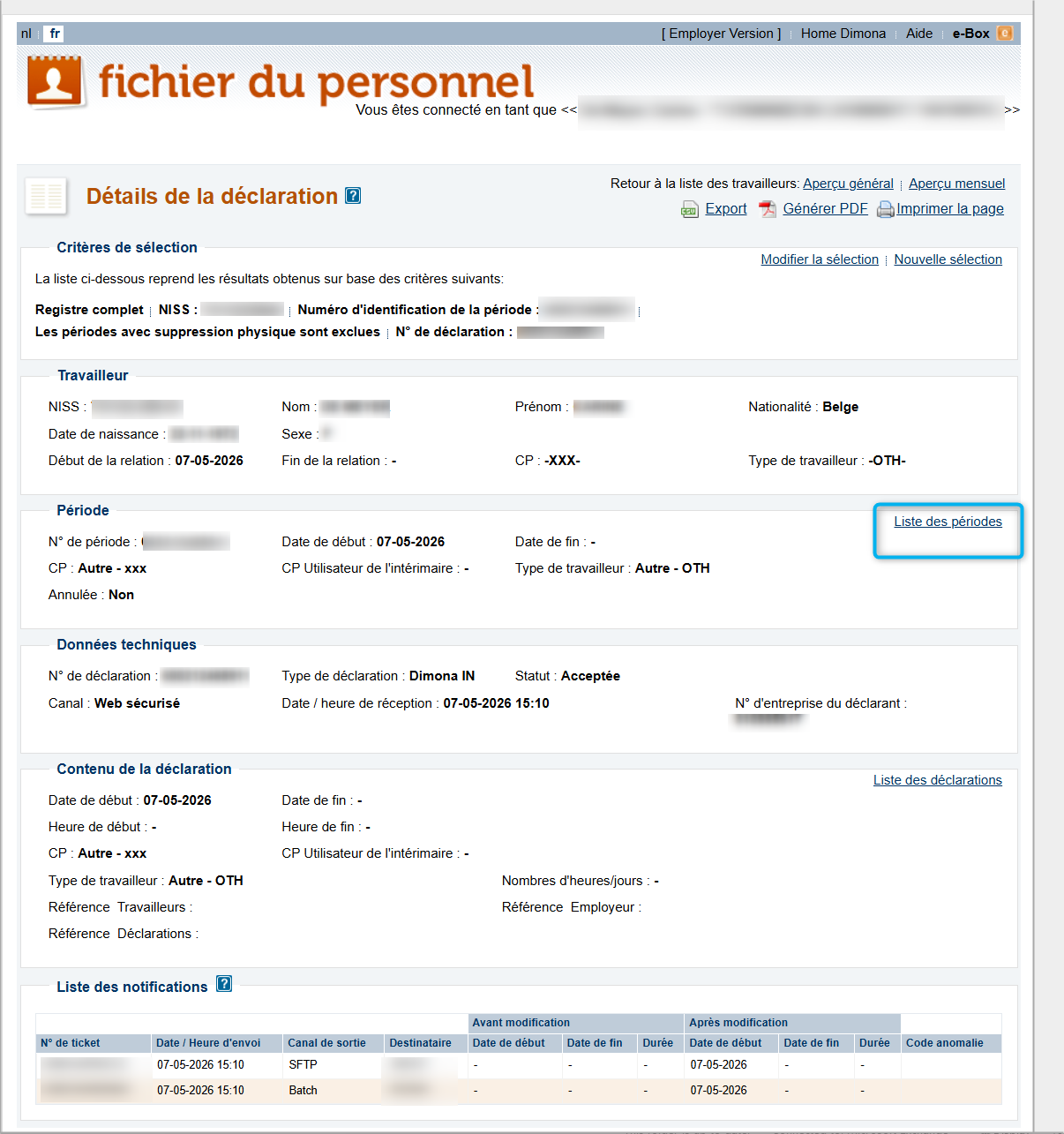
Click on List of periods (‘Liste des périodes’ in French) in the Details of the declaration (‘Détails de la déclaration’ in French) for more details on the working periods.
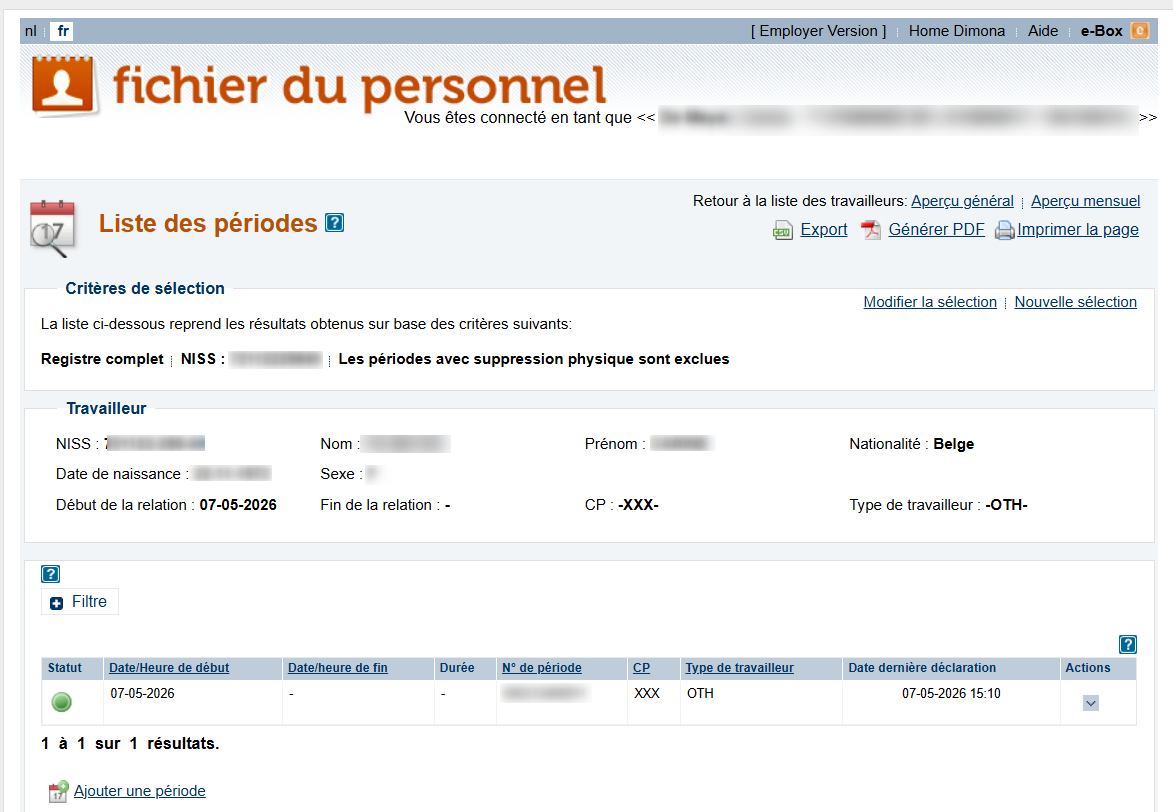
The screen called List of periods (‘Liste de périodes’ in the screenshot) contains the following details:
- Selection criteria (‘Critères de sélection’ in the screenshot)
- Complete register / SSIN (‘Registre complet / NISS’ in the screenshot) of the employee;
- Employee (‘Travailleur’ in the screenshot) details:
- SSIN (‘NISS’ in the screenshot), the Social Security Identification number of the employee;
- Family name (‘Nom’ in the screenshot );
- Given name (‘Prénom’ in the screenshot);
- Nationality (‘Nationalité’ in the screenshot);
- Birth date (‘Date de naissance’ in the screenshot);
- Gender (‘Sexe’ in the screenshot);
- Start of the relation (‘Début de la relation’ in the screenshot);
- End of the relation (‘Fin de la relation’ in the screenshot);
- Joint Committee (‘CP’ in the screenshot), indicating what joint committees are linked to the employee;
- Type of worker (‘Type de travailleur’ in the screenshot), indicating the type of worker codes.
- In the table you get an overview of all periods of work for this particular worker. It has the following colums:
- Status (‘Statut’ in the screenshot);
- Date/time of start (‘Date/Heure de début’ in the screenshot);
- Date/time of ending (‘Date/Heure de début’ in the screenshot);
- Duration (‘Durée’ in the screenshot);
- Period number (‘N° de période’ in the screenshot);
- Joint committee (‘CP’ in the screenshot);
- Type of worker (‘Type de travailleur’ in the screenshot);
- User of the temporary worker (‘Utilisateur de l’intérimaire’ in the screenshot);
- Date of latest declaration (‘Date dernière déclaration’ in the screenshot);
- Actions.
Details on List of Declarations (‘Liste des déclarations’)
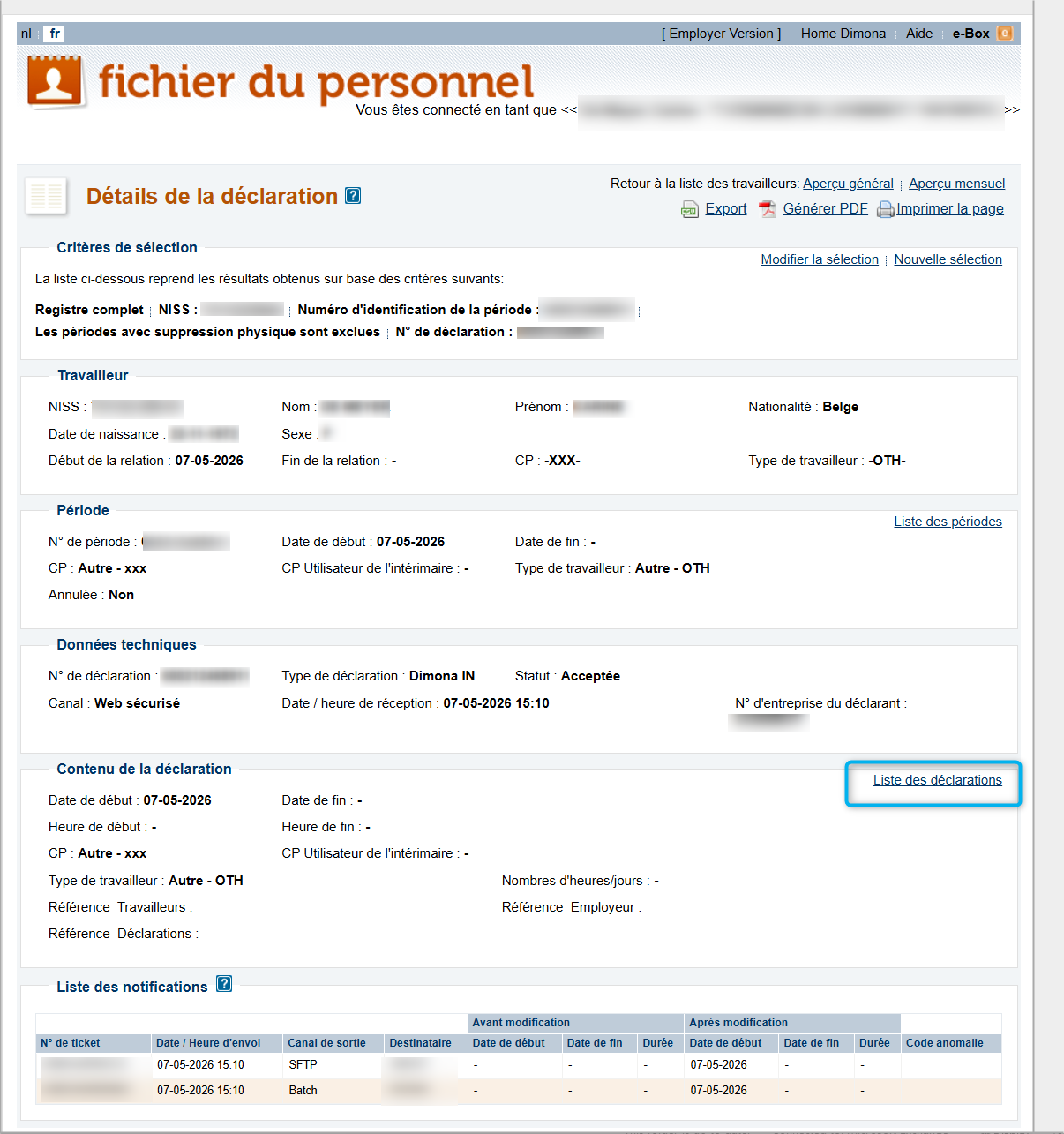
Click on List of Declarations (‘Liste des déclarations’ in French) in the Details of the declaration (‘Détails de la déclaration’ in French) screen for more details on the List of declarations.
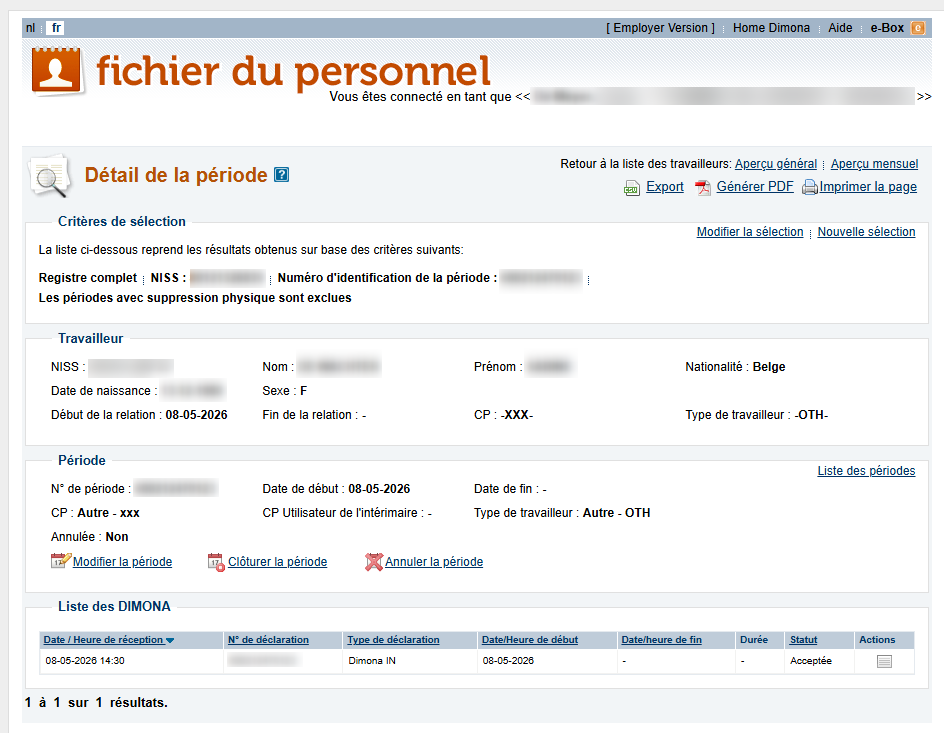
You see the screen called Details of the period (‘Détail de la période’ in the screenshot) containing the following details:
- Selection criteria (‘Critères de sélection’ in the screenshot)
- Complete register / SSIN (‘Registre complet / NISS’ in the screenshot) of the employee;
- Identification number for the period (‘Numéro d’identification de la période’ in the screenshot).
- Employee (‘Travailleur’ in the screenshot) details:
- SSIN (‘NISS’ in the screenshot), the Social Security Identification number of the employee;
- Family name (‘Nom’ in the screenshot );
- Given name (‘Prénom’ in the screenshot);
- Nationality (‘Nationalité’ in the screenshot);
- Birth date (‘Date de naissance’ in the screenshot);
- Gender (‘Sexe’ in the screenshot);
- Start of the relation (‘Début de la relation’ in the screenshot);
- End of the relation (‘Fin de la relation’ in the screenshot);
- Joint Committee (‘CP’ in the screenshot), indicating what joint committees are linked to the employee;
- Type of worker (‘Type de travailleur’ in the screenshot), indicating the type of worker codes.
- Period (‘Période’ in the screenshot) details:
- Period number (‘Numéro de période’ in the screenshot);
- Starting date (‘Date de début’ in the screenshot);
- Ending date (‘Date de fin’ in the screenshot);
- Joint Committee (‘CP’ in the screenshot), indicating the joint committee for the period;
- Joint Committee temporary staffing (‘CP Utilisateur de l’intérimaire’ in the screenshot);
- Type of worker (‘Type de travailleur’ in the screenshot);
- Cancelled (‘Annulée’ in the screenshot), indicating if the period has been cancelled: Yes (‘Oui’ in French) or No (‘Non’ in French).
- Modify the period (‘Modifier la période’ in the screenshot): this link gives access to a screen in which you can modify the working period for this employee.
- Cancel the period (‘Annuler la période’ in the screenshot): this link gives access to a screen in which you can cancel the working period for this employee.
- Lists of Dimona (‘Liste des Dimona’ in the screenshot) gives you an overview of declarations you have done in Dimona for this employee. The table has the following columns:
- Date/time of reception (‘Date/Heure de réception in the screenshot);
- Declaration number (‘N° de déclaration’ in the screenshot);
- Type of declaration (Type de déclaration’ in the screenshot);
- Date/time of start (‘Date/Heure de début’ in the screenshot);
- Date/time of ending (‘Date/Heure de fin in the screenshot);
- Duration (‘Durée’ in the screenshot);
- Status (‘Statut’ in the screenshot) of the declaration. There are 3 options:
- Accepted (‘Acceptée’ in French), or
- Refused (‘Refusée’ in French), or
- Pending (‘En attente’ in French).
- Actions;
- List of daily registrations (‘Liste des enregistrements journaliers’ in the screenshot):
- Status (‘Statut’ in the screenshot) of the declaration;
- Registration number (‘N° d’enregistrement’ in the screenshot);
- Date/time of reception (‘Date/Heure de réception’ in the screenshot);
- Date of start (‘Date de début’ in the screenshot);
- Date/time of start (‘Date/Heure de début’ in the screenshot);
- Date of ending (‘Date de fin’ in the screenshot);
- Date/time of ending (‘Date/Heure de fin’ in the screenshot);
- Actions
Use the declaration type Dimona OUT if you want to declare the ending of a period of work for an employee previously declared via Dimona IN. Please remark that you can only use a Dimona OUT if no end date was specified in your Dimona IN. If you want to change the end date originally mentioned in a Dimona IN, please use the Modification function.
A Dimona OUT has the following steps, explained further down:
- Open the Search tab.
- Look up an employee.
- Select a Dimona OUT for a certain working period.
- Enter the ending date of a certain working period.
- Get an overview of your declaration.
- Get a confirmation of your Dimona OUT declaration
Opening the Search tab
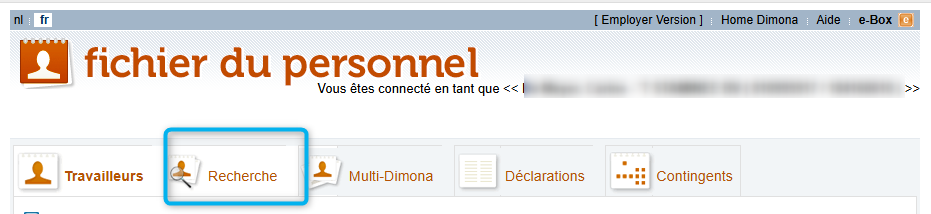
Click on the Search (‘Recherche’ in the screenshot) tab.
Looking up an employee you want to end a working period for
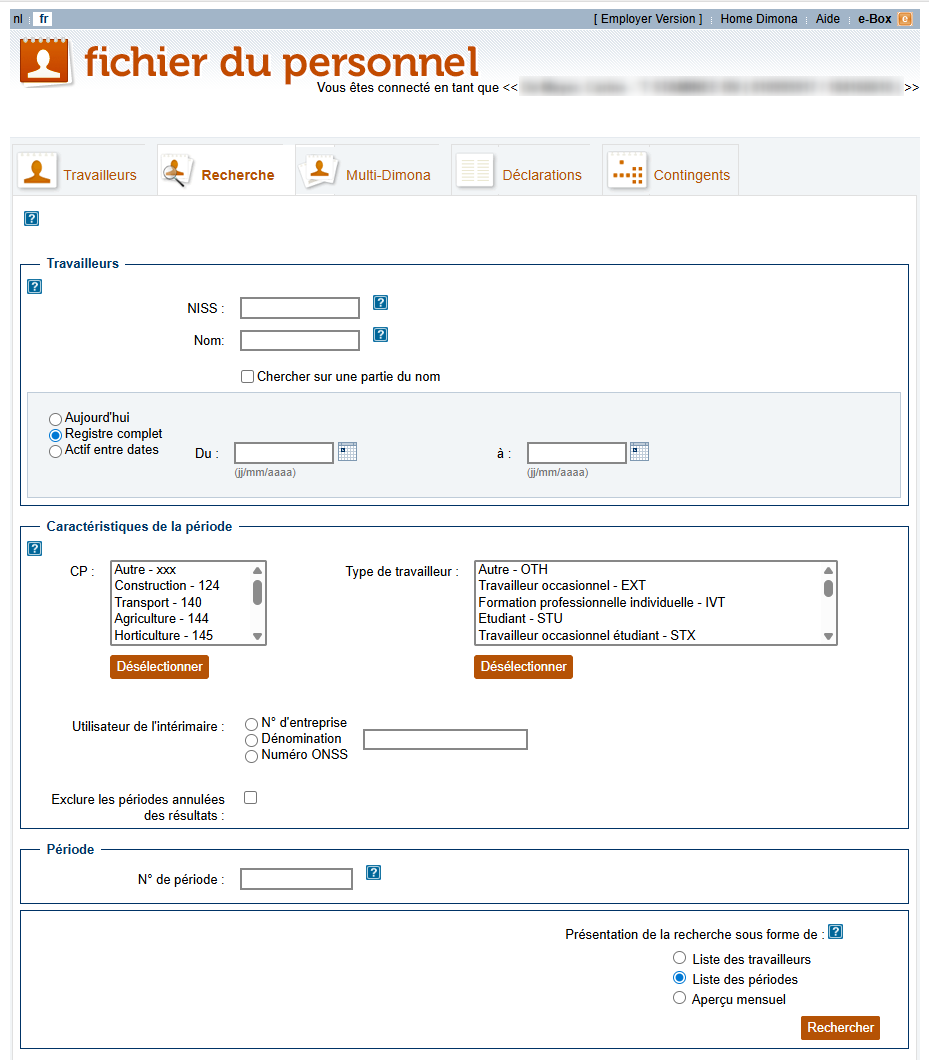
You see a screen with different fields to complete to look up a particular employee. Click on Search (‘Rechercher’ in the screenshot) to initiate a search based on the List of working periods (‘Liste des périodes’ in the screenshot). Fill out more details in the screen to refine your search, for example:
- SSIN (‘NISS’ in the screenshot);
- Given name (‘Nom’ in the screenshot);
- Period: From / To (‘Du’/’à’ in the screenshot): fill out the dates following format dd/mm/yyyy or use the calendar);
- Joint committee (‘CP’ in the screenshot);
- Type of worker (‘Type de travailleur’ in the screenshot).
Click on Search (‘Rechercher’ in the screenshot) to start the search, once you have filled out one or more extra fields.
Selecting a Dimona OUT for a certain working period
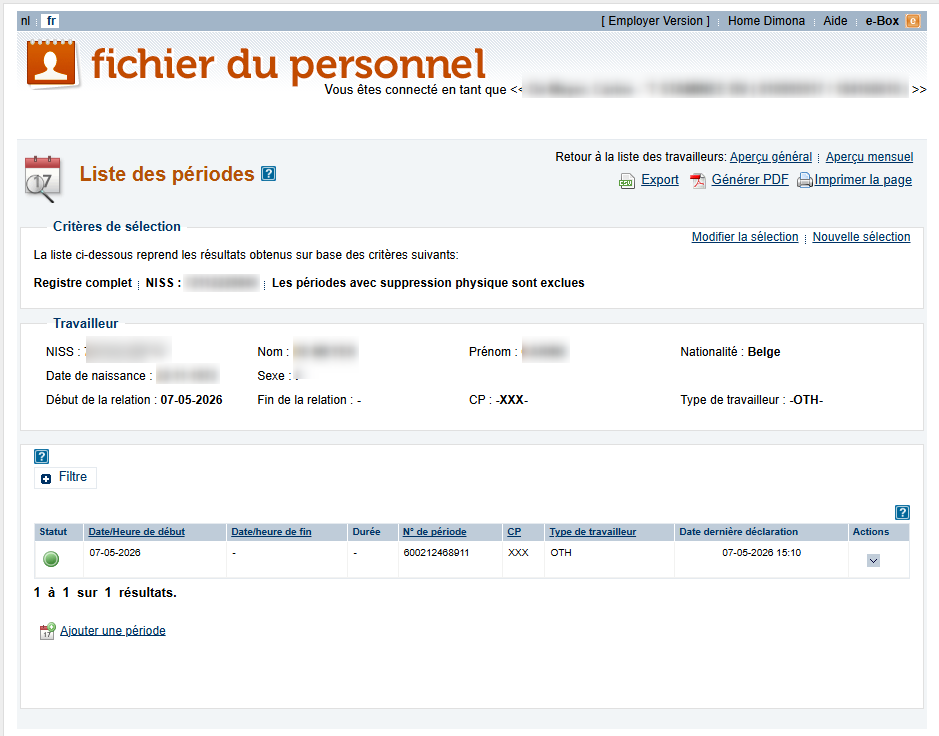
You get a screen with all the working periods for the employee you looked up. At the end of each row indicating a working period, there is a column called Actions. Click on the box in the relevant row.
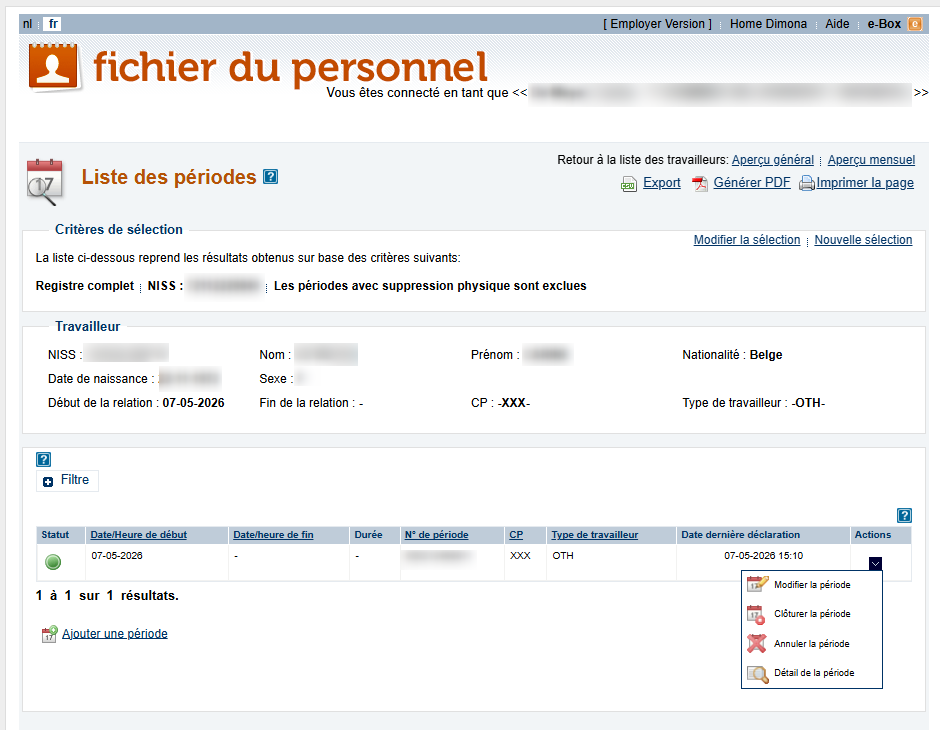
A pop-up screen appears, giving you several options. Click on the option End the period (‘Clôturer la période’ in the screenshot).
Entering the ending date of a period (‘Clôture d’une période’)
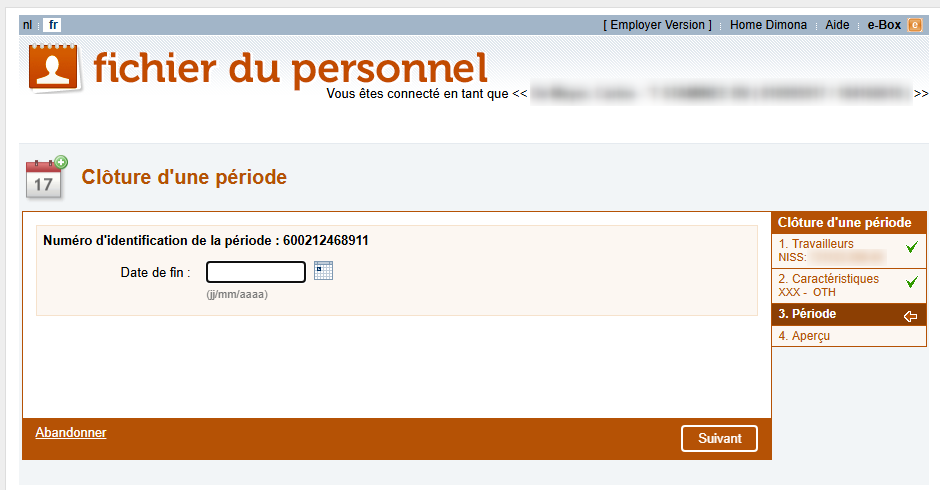
To end a period of work for this employee, fill out the Ending date (‘Date de fin’ in the screenshot) in format ‘dd/mm/yyyy’ or click on the calendar icon to select an ending date.
Click on Next (‘Suivant’ in the screenshot) to continue or Discard (‘Abandonner’ in the screenshot) to cancel the declaration.
Overview of the Dimona OUT declaration (‘Aperçu de la déclaration’)
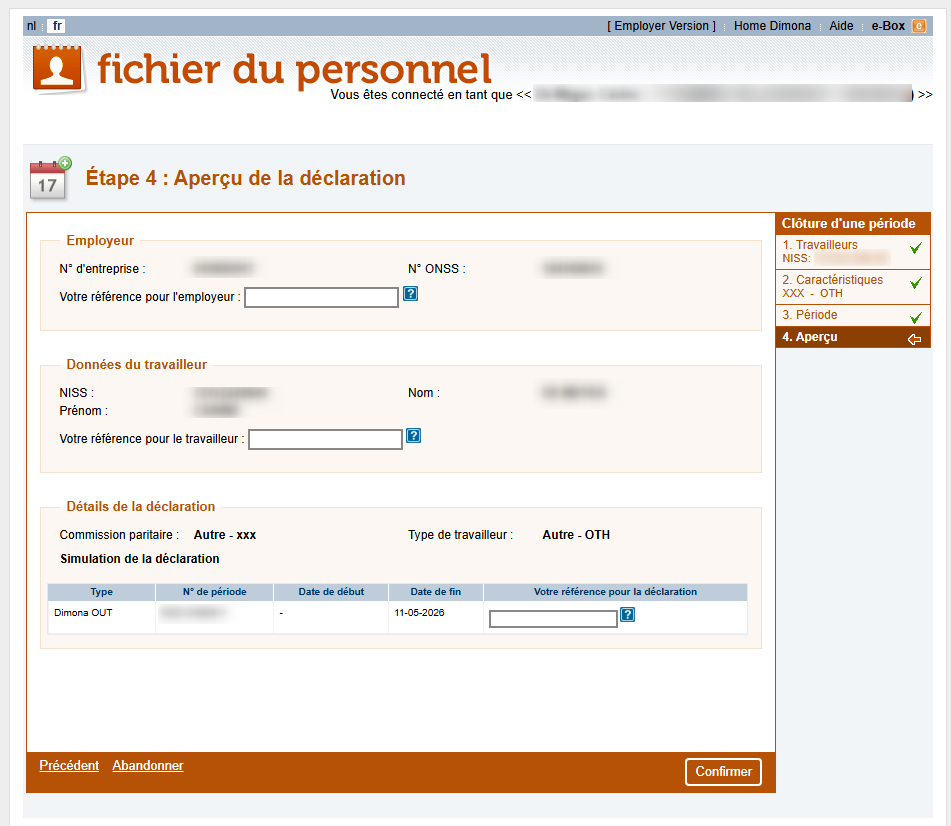
In this step you get an overview of all information concerning your declaration:
- Information on the Employer (‘Employeur’ in the screenshot):
- Check the Enterprise number (‘N° d’entreprise’ in the screenshot);
- Check the NSSO identification number (‘N° ONSS’ in the screenshot);
- Add if needed your company’s reference in the adjacent field (‘Votre référence pour l’employeur’ in the screenshot).
- Information on the Employee (‘Données du travailleur’ in the screenshot):
- Check the SSIN (‘NISS’ in the screenshot);
- Check the Family name (‘Nom’ in the screenshot );
- Check the Given name (‘Prénom’ in the screenshot);
- Add if needed your reference for the employee in the adjacent field (‘Votre référence pour le travailleur’ in the screenshot).
- Information on the Declaration details (‘Détails de la déclaration’ in the screenshot):
- Check the Joint committee (‘Commission paritaire’ in the screenshot);
- Check the Type of worker (‘Type de travailleur’ in the screenshot);
- Check the Type of declaration (‘Type de déclaration’ in the screenshot);
- Check the Period number (‘Numéro de période‘ in the screenshot);
- Check the Ending date (‘Date de fin’ in the screenshot);
- Add if needed your reference for the declaration in the adjacent field (‘Votre référence pour la déclaration’ in the screenshot).
Click on Confirm (‘Confirmer’ in the screenshot) - if all information is correct - to continue or Discard (‘Abandonner’ in the screenshot) to cancel the declaration. Click on Previous (‘Précédent’ in the screenshot) to return to the previous screen, for example to make corrections.
Confirmation of receipt for Dimona OUT
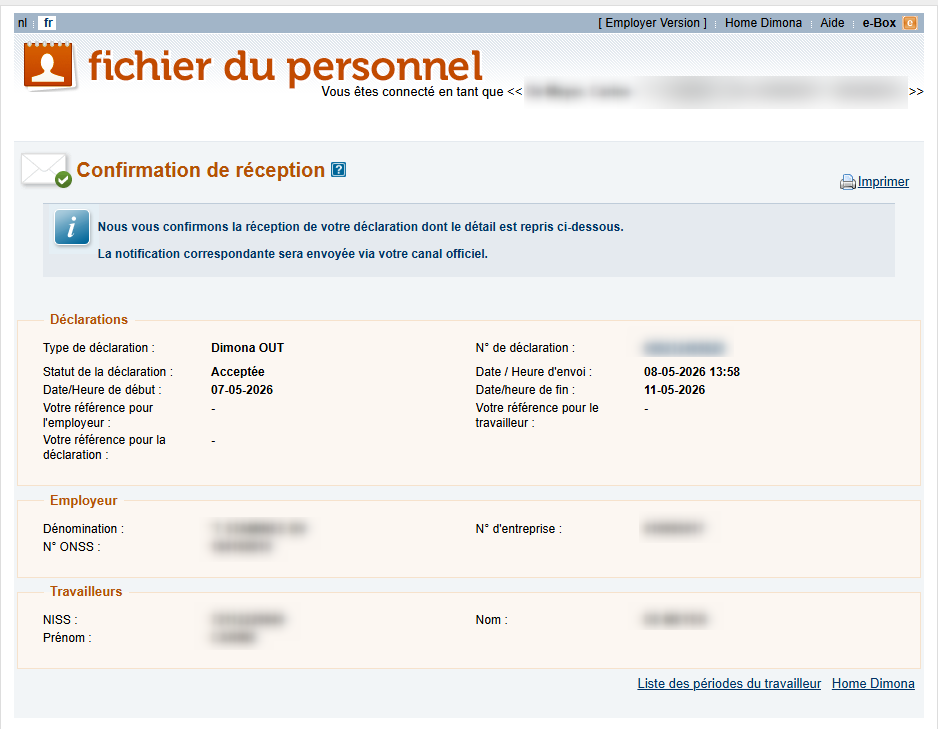
The next screen you see contains a summary overview of your Dimona OUT declaration. Your declaration has been completed. Click on Home Dimona to return to the homepage of the Dimona online service.
Use the declaration type Modification if you want to declare the ending of a period of work for an employee previously declared via Dimona IN.
Following steps apply and are explained furtherly:
- Open the Search tab.
- Look up an employee.
- Select a modification for a certain working period.
- Enter the new ending date of a certain working period.
- Get an overview of your declaration
- Get a confirmation of your modification declaration.
Opening the Search tab
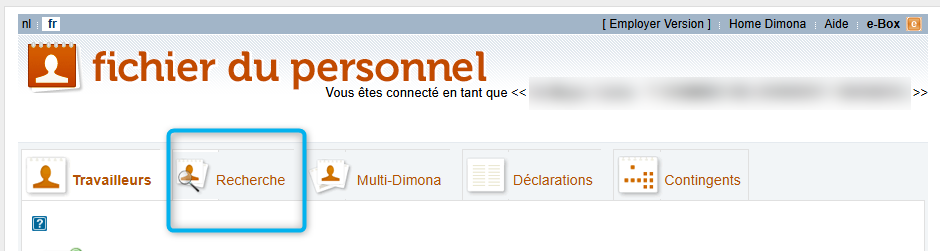
Click on the Search (‘Recherche’ in the screenshot) tab.
Looking up an employee you want to modify the working period for
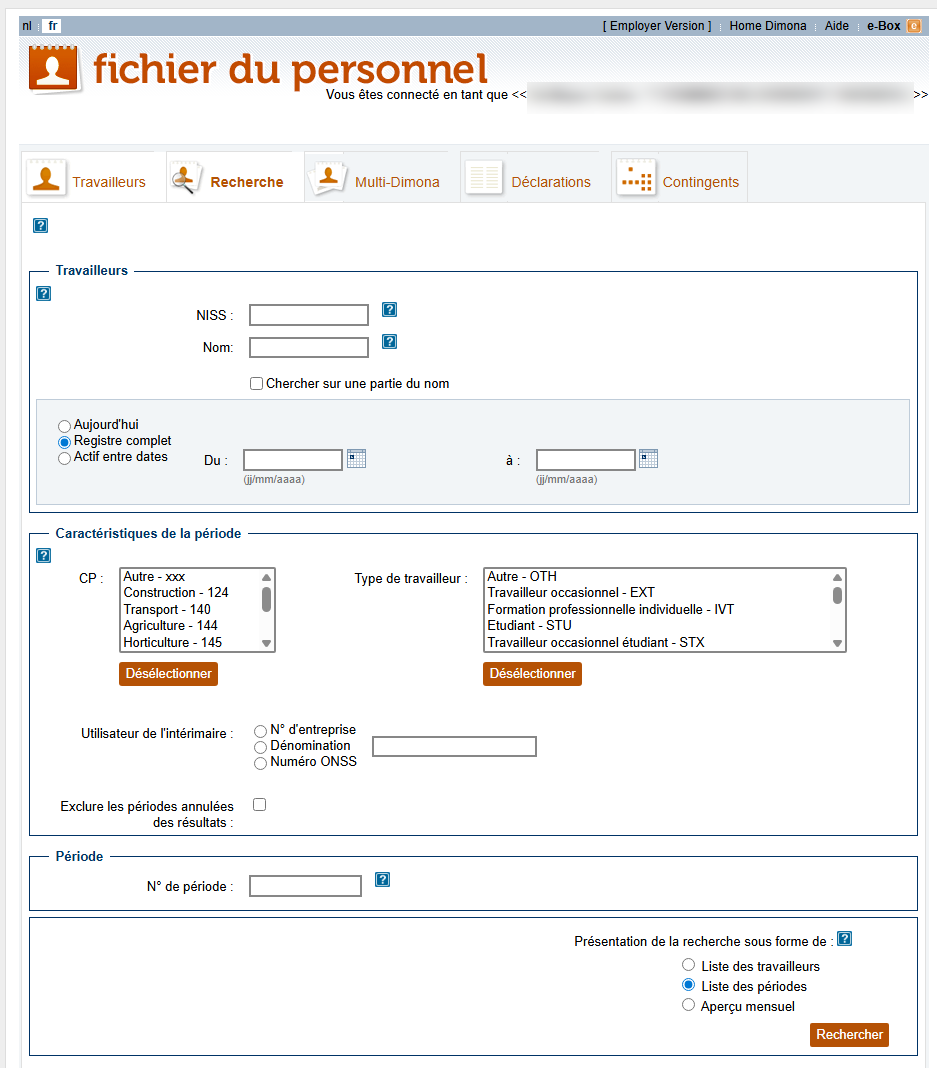
You see a screen with different fields to complete to look up a particular employee. Click on Search (‘Rechercher’ in the screenshot) to initiate a search based on the List of working periods (‘Liste des périodes’ in the screenshot). Fill out more details in the screen to refine your search, for example:
- SSIN (‘NISS’ in the screenshot);
- Given name (‘Nom’ in the screenshot);
- Period: From / To (‘Du’/’à’ in the screenshot): fill out the dates following format dd/mm/yyyy or use the calendar);
- Joint committee (‘CP’ in the screenshot);
- Type of worker (‘Type de travailleur’ in the screenshot).
Click on Search (‘Rechercher’ in the screenshot) to start the search, once you have filled out one or more extra fields.
Selecting a modification for a certain working period
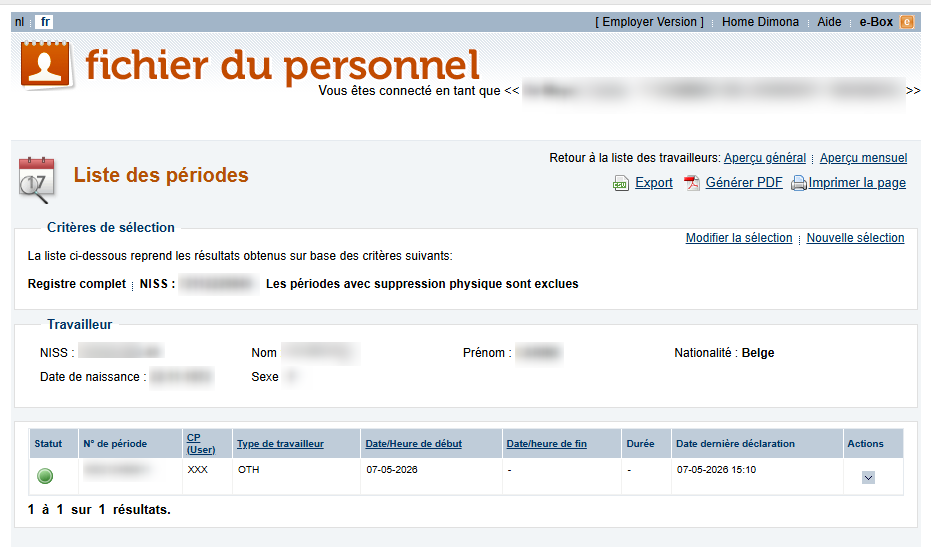
You see a screen with all the working periods for the employee you looked up. At the end of each row indicating a working period, there is a column called Actions. Click on the box in the relevant row.
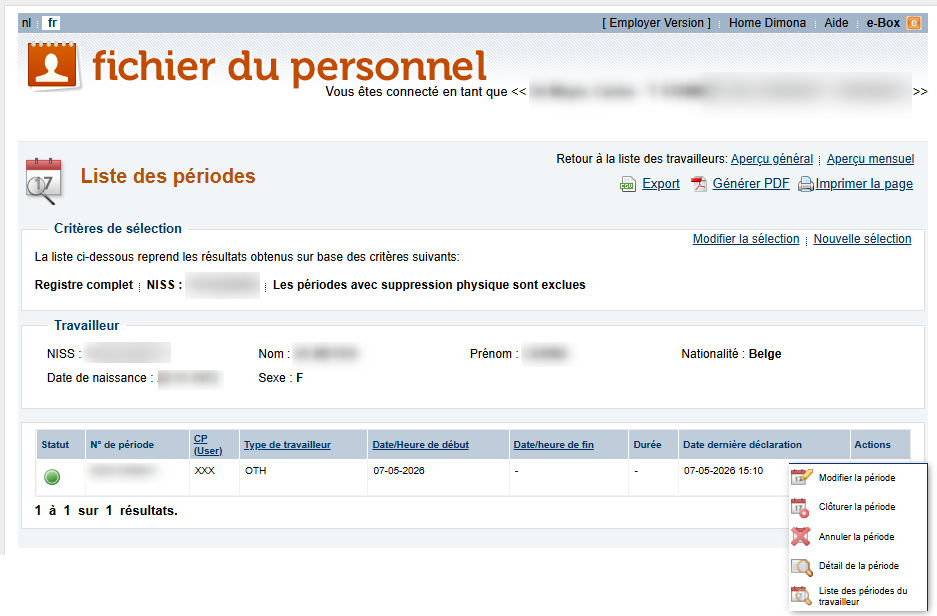
A pop-up screen appears, giving you several options. Click on the option Modify the period (‘Modifier la période’ in the screenshot).
Modifying a period (‘Modification d’une période’)
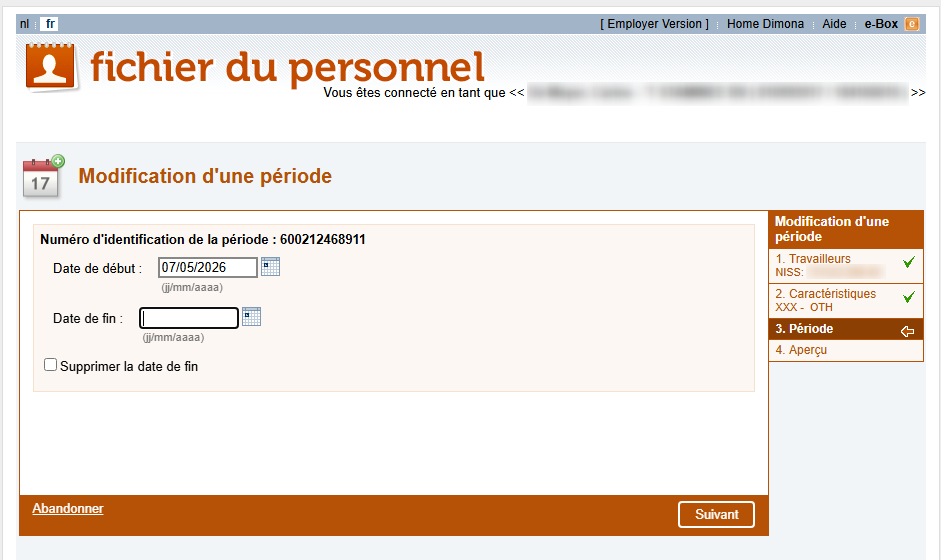
To modify a period of work for this employee, fill out the new Ending date (‘Date de fin’ in the screenshot) in format ‘dd/mm/yyyy’ or click on the calendar icon to select an ending date.
Click on Next (‘Suivant’ in the screenshot) to continue or Discard (‘Abandonner’ in the screenshot) to cancel the declaration.
Overview of the modification declaration (‘Aperçu de la déclaration’)
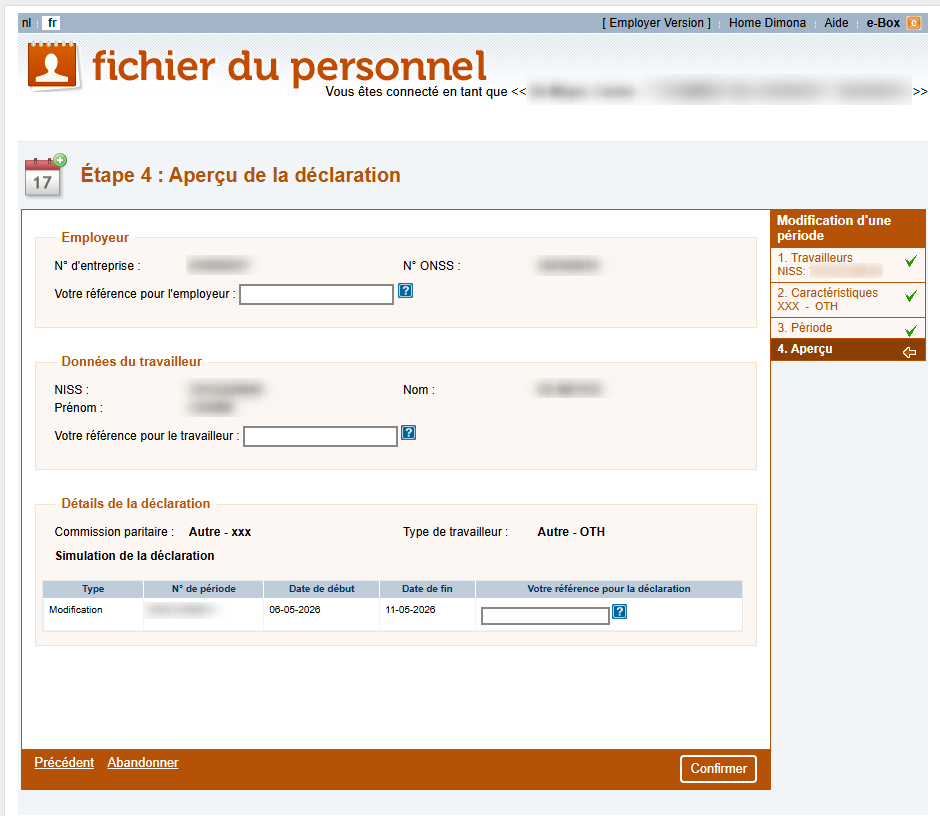
In this step you get an overview of all information concerning your declaration:
- Information on the Employer (‘Employeur’ in the screenshot):
- Check the Enterprise number (‘N° d’entreprise’ in the screenshot);
- Check the NSSO identification number (‘N° ONSS’ in the screenshot);
- Add if needed your company’s reference in the adjacent field (‘Votre référence pour l’employeur’ in the screenshot).
- Information on the Employee (‘Données du travailleur’ in the screenshot):
- Check the SSIN (‘NISS’ in the screenshot);
- Check the Family name (‘Nom’ in the screenshot );
- Check the Given name (‘Prénom’ in the screenshot);
- Add, if needed your reference for the employee in the adjacent field (‘Votre référence pour le travailleur’ in the screenshot).
- Information on the Declaration details (‘Détails de la déclaration’ in the screenshot):
- Check the Joint committee (‘Commission paritaire’ in the screenshot);
- Check the Type of worker (‘Type de travailleur’ in the screenshot);
- Check the Type of declaration (‘Type de déclaration’ in the screenshot);
- Check the Period number (‘Numéro de période‘ in the screenshot);
- Check the Ending date (‘Date de fin’ in the screenshot);
- Add if needed your reference for the declaration in the adjacent field (‘Votre référence pour la déclaration’ in the screenshot).
Click on Confirm (‘Confirmer’ in the screenshot) - if all information is correct - to continue or Discard (‘Abandonner’ in the screenshot) to cancel the declaration. Click on Previous (‘Précédent’ in the screenshot) to return to the previous screen, for example to make corrections.
Confirmation of receipt for a Modification in Dimona
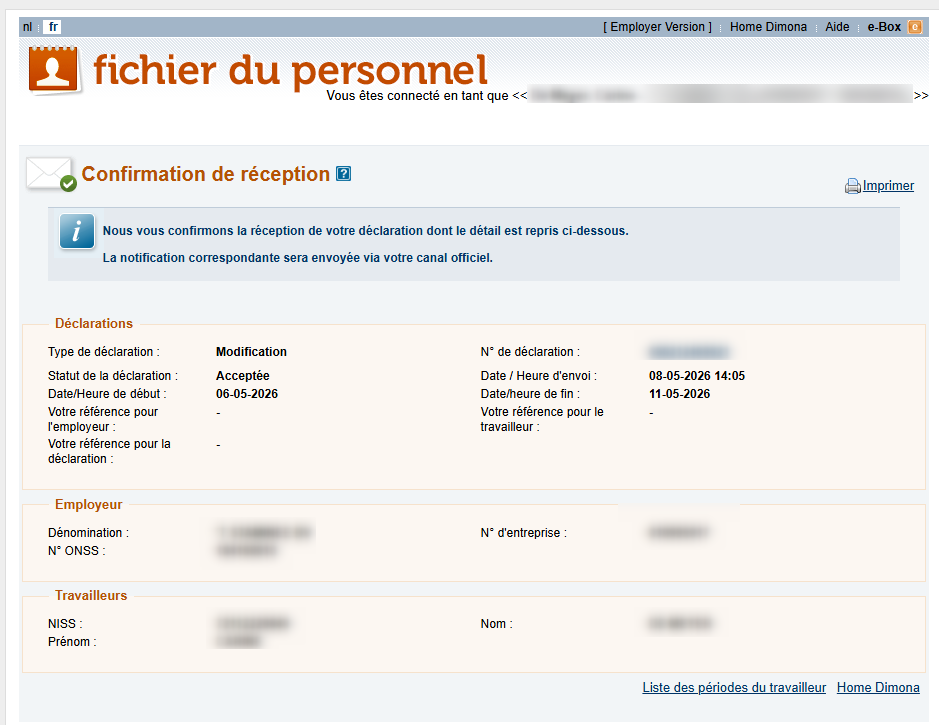
This screen gives a summary overview of your declaration of Modification. Your declaration has been completed. Click on Home Dimona to return to the homepage of the Dimona online service.
Use the declaration type Cancellation (‘Annulation’ in French) if you want to cancel a period of work for an employee previously declared via Dimona IN.
Following steps apply and are explained furtherly:
- Open the Search tab.
- Look up an employee.
- Select a cancellation for a certain working period.
- Cancel a certain working period.
- Get an overview of your declaration
- Get a confirmation of the cancellation of your declaration
Opening the Search tab
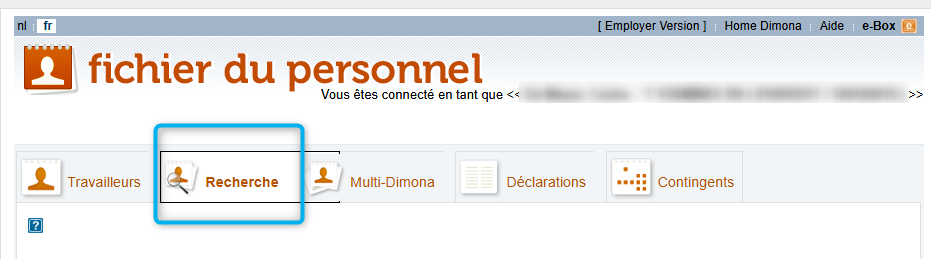
Click on the Search (‘Recherche’ in the screenshot) tab.
Looking up an employee you want to cancel a working period for
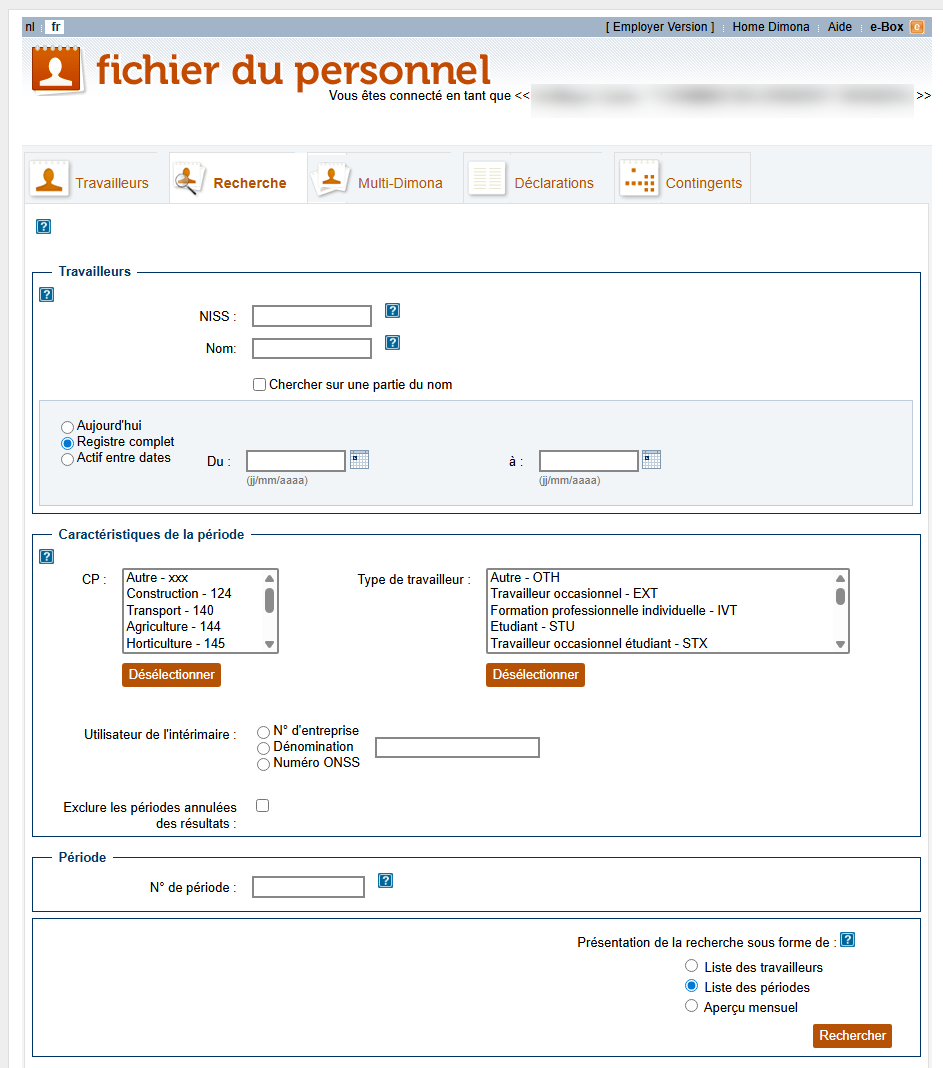
You see a screen with different fields to complete to look up a particular employee. Click on Search (‘Rechercher’ in the screenshot) to initiate a search based on the List of working periods (‘Liste des périodes’ in the screenshot). Fill out more details in the screen to refine your search, for example:
- SSIN (‘NISS’ in the screenshot);
- Given name (‘Nom’ in the screenshot);
- Period: From / To (‘Du’/’à’ in the screenshot): fill out the dates following format dd/mm/yyyy or use the calendar);
- Joint committee (‘CP’ in the screenshot);
- Type of worker (‘Type de travailleur’ in the screenshot).
Click on Search (‘Rechercher’ in the screenshot) to start the search, once you have filled out one or more extra fields.
Selecting a cancellation for a certain working period
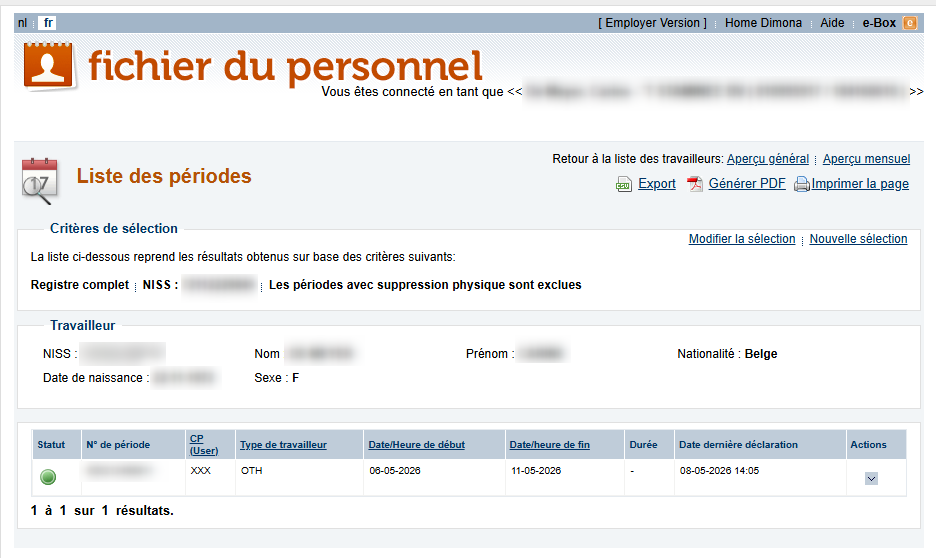
You see a screen with all the working periods for the employee you looked up. At the end of each row indicating a working period, there is a column called Actions. Click on the box in the relevant row.
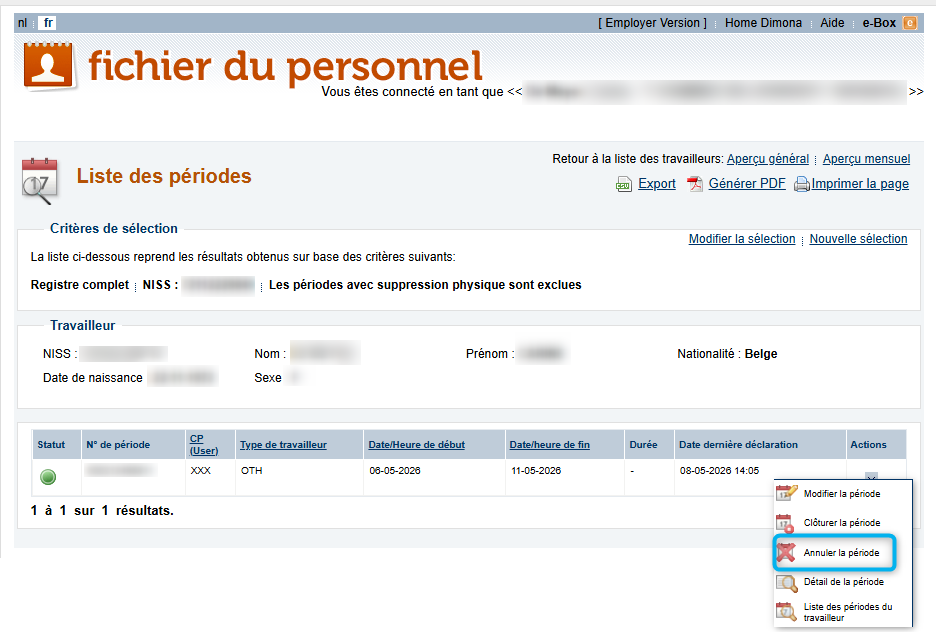
A pop-up screen appears, giving you several options. Click on the option Cancel the period (‘Annuler la période’ in the screenshot).
Overview of the cancellation declaration (‘Aperçu de la déclaration’)
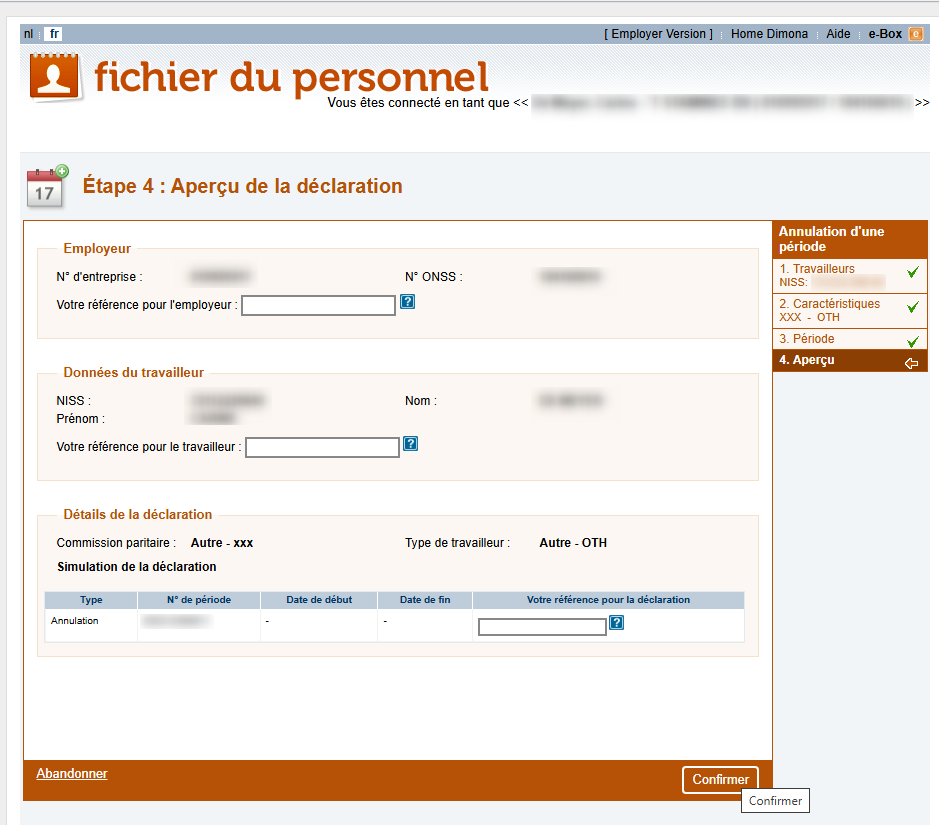
In this step you get an overview of all information concerning your declaration:
- Information on the Employer (‘Employeur’ in the screenshot):
- Check the Enterprise number (‘N° d’entreprise’ in the screenshot);
- Check the NSSO identification number (‘N° ONSS’ in the screenshot);
- Add if needed your company’s reference in the adjacent field (‘Votre référence pour l’employeur’ in the screenshot).
- Information on the Employee (‘Données du travailleur’ in the screenshot):
- Check the SSIN (‘NISS’ in the screenshot);
- Check the Family name (‘Nom’ in the screenshot );
- Check the Given name (‘Prénom’ in the screenshot);
- if needed your reference for the employee in the adjacent field (‘Votre référence pour le travailleur’ in the screenshot).
- Information on the Declaration details (‘Détails de la déclaration’ in the screenshot):
- Check the Joint committee (‘Commission paritaire’ in the screenshot);
- Check the Type of worker (‘Type de travailleur’ in the screenshot);
- Check the Type of declaration (‘Type de déclaration’ in the screenshot);
- Check the Period number (‘Numéro de période‘ in the screenshot);
- Add if needed your reference for the declaration in the adjacent field (‘Votre référence pour la déclaration’ in the screenshot).
Click on Confirm (‘Confirmer’ in the screenshot) to continue or Discard (‘Abandonner’ in the screenshot) to cancel the declaration. Click on Previous (‘Précédent’ in the screenshot) to return to the previous screen, for example to make corrections.
Confirmation of receipt of a Cancellation in Dimona
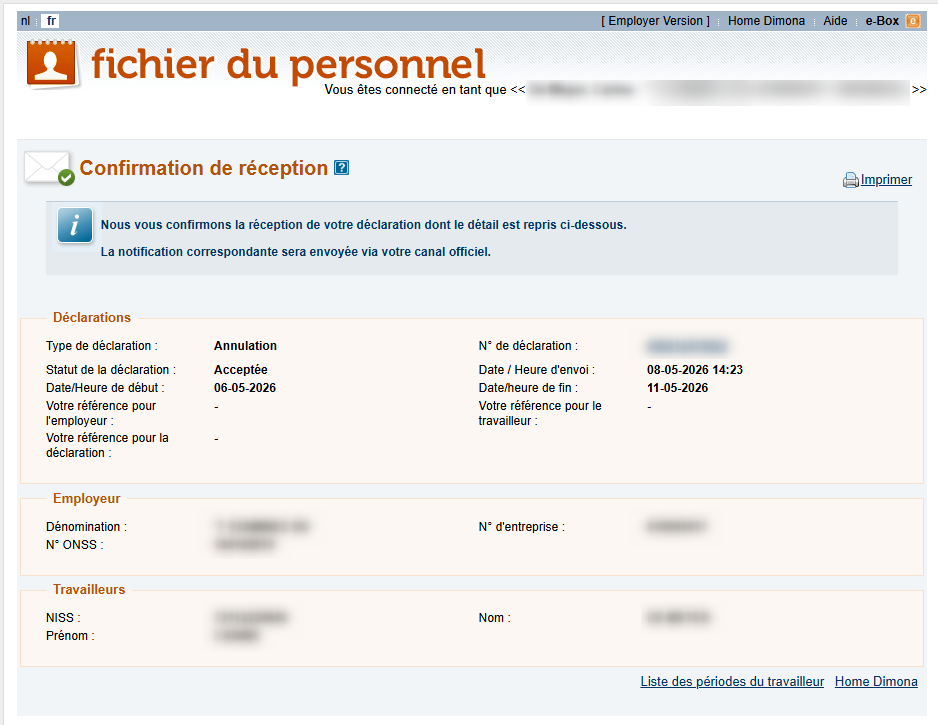
The next screen you see contains a summary overview of your declaration of Modification. Your declaration has been completed. Click on Home Dimona to return to the homepage of the Dimona online service.
On top of receiving a confirmation of your declaration within Dimona, you also receive a notification of the declaration outside of the online service Dimona.
You receive this confirmation via:
- your e-Box Enterprise account (unless you are a batch sender), or
- by post if you haven’t appointed an Access Manager to access the secured environment of the Social security portal.
Access Managers are appointed by a company’s Chief Access Manager. They can then manage the users and grant them access to the various online services.
The confirmation contains 3 parts.
- The part Declarations (‘Déclarations’ in French) includes all general information related to the declaration:
- The type of declaration you submitted (Dimona IN, Dimona OUT, Modification or Cancellation of a declaration);
- The declaration number (‘numéro de déclaration’ in French), i.e. the reference given to your submitted declaration by Dimona;
- The status of the declaration:
- Accepted (‘Acceptée’ in French): the declaration is valid (complete and correct) and the submitted period has been registered.
- Refused (‘Refusée’ in French): the declaration is not valid. The reason of refusal is given in the form of a code as well as a description of the code. Find out more on the meaning of these codes in the Dimona Glossary of the Social security enterprise portal (in French). On the Dimona Glossary homepage, click on Latest version (‘Dernière version’ in French) in the menu and on Search (‘Recherche’ in French) in the drop-down menu. Click on the looking glass and fill out the fields to perform a search.
- Pending (‘En attente’ in French): the declaration awaits validation.
- The date and time of sending, which corresponds with the reception of your application by the social security office;
- The starting date and time;
- The ending date and time;
- Your employer reference;
- Your worker reference;
- Your declaration reference.
- The part Employer (‘Employeur’ in French) includes all information related to the employer:
- The employer’s company name (‘dénomination’ in French);
- Enterprise number (‘Numéro d’entreprise’ in French)
- NSSO identification number (Numéro d’identification ONSS’ in French)
- The part Employees (‘Travailleurs’ in French) includes all information related to the employee:
- The Social Security Identification Number (SSIN) of the employee;
- The family name of the employee;
- The given name of the employee.

Funded by the European Union – NextGenerationEU. Views and opinions expressed are however those of the author(s) only and do not necessarily reflect those of the European Union or European Commission. Neither the European Union nor the European Commission can be held responsible for them.
National Social Security Office (NSSO)
- Address: Place Victor Horta, 11 - 1060 Brussels
- Telephone: +32 (0)2 509 59 59
- Website: www.onss.be (in french)
You can also get in touch via our Contact page.


